

Signing in to Moiki
To get into Moiki, your teacher gives you everything you need. Most of the time that means an access code, and you need neither an email address nor a password. In a space where you sign yourself up, you sign in with your email address and a password.
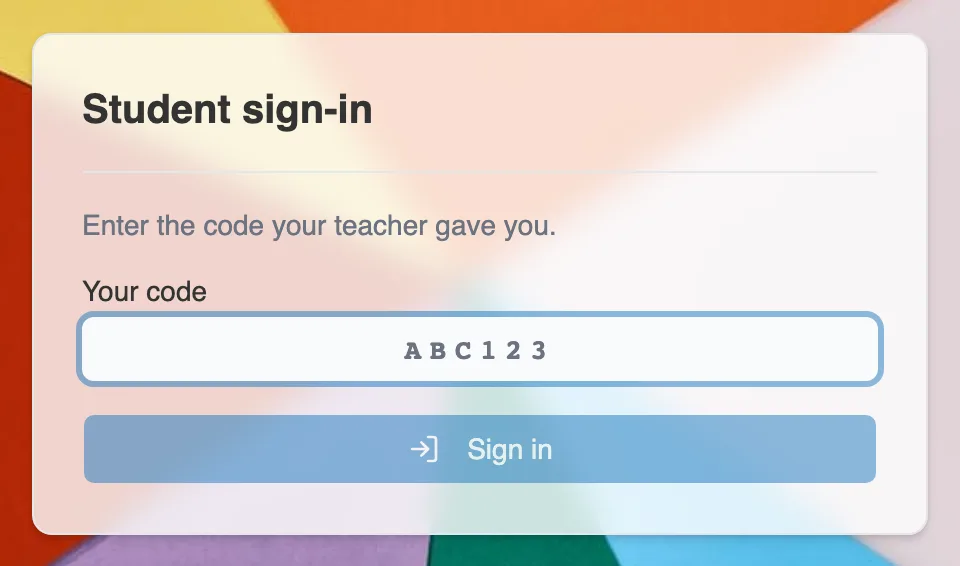
The student sign-in screen: enter your code.
With an access code
Section titled “With an access code”Your teacher sends you a link (or a QR Code) and a personal code.
- Open the link, or scan the QR Code.
- On the Student sign-in screen, enter your code.
- Confirm with “Sign in”.
And there you are, in your own space. That code belongs to you, so keep it. You will use it every time.
On a shared device
Section titled “On a shared device”In class, a tablet or a computer often passes from one student to the next. If the device has stayed signed in for more than 30 minutes without being used, Moiki checks who is back: a window shows “Welcome back” followed by the first name of the student signed in, and asks “Not you?”.
- Yes, it’s me: you pick up where you left off.
- Switch account: Moiki signs the previous account out and takes you back to the screen where you type your code.
You have to pick one of the two buttons: the window does not close if you click beside it. Still remember to sign out at the end of the lesson, this question only makes up for a slip.
With your email address
Section titled “With your email address”If your teacher has sent you an Invitation link, you create your account yourself. The Join the group page names the group waiting for you, or its current workshop, and asks for a first name, a last name, an email address and a password. Confirm with Sign up, then confirm your address from the message you receive. If the teacher approves each arrival, the Request sent screen tells you so: an email will let you know when it is done.
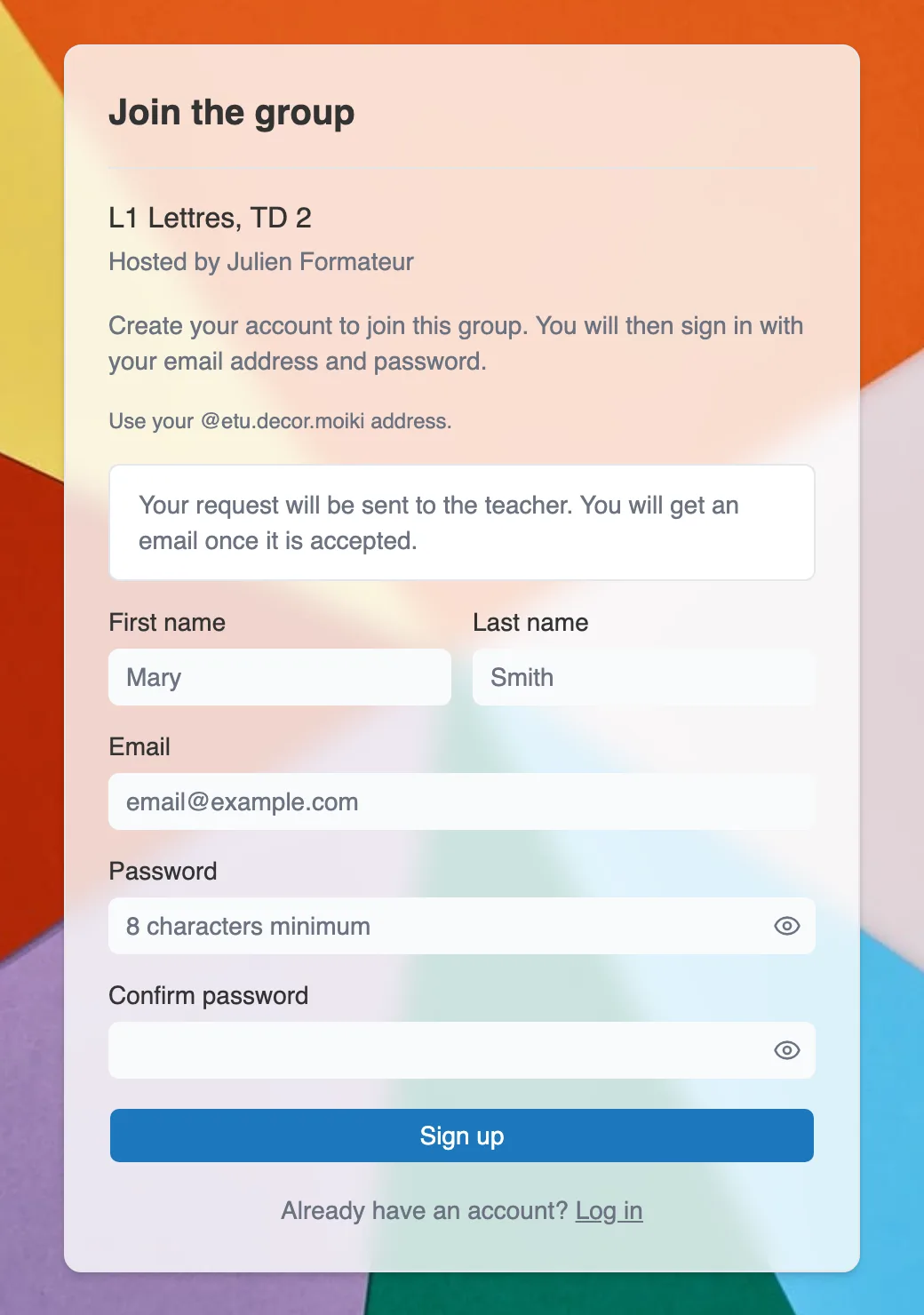
The page that opens when you follow an invitation link.
After that, you sign in as on any website, with your address and your password. The Find my workshops screen remains a fallback: enter your address, then Send my link, and a sign-in link goes to your inbox. If your account has no password yet, your dashboard offers you Choose a password.
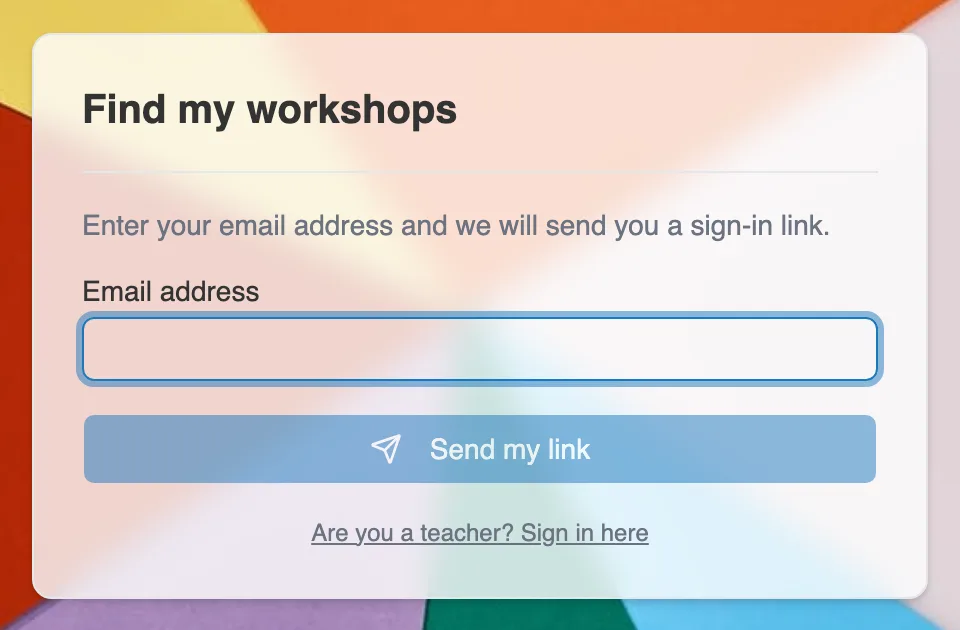
The Find my workshops screen, to receive a sign-in link.