

Pupils or students: how they join your space
Before you add a single person to your space, Moiki asks you a question: who will you be welcoming? The answer decides how your learners sign in, and it holds for the whole space.
Two modes, your choice.
Pupils: you create the accounts
Section titled “Pupils: you create the accounts”This is the usual setup, suited to primary and secondary school.
You add your students one by one, or by importing a CSV file. No email address is asked for, and none is collected. Each of them gets a personal access code that you print and hand out. See Your students’ access codes.
This is the mode to pick as soon as your learners are minors.
Students or adults: they sign up themselves
Section titled “Students or adults: they sign up themselves”Designed for higher education and adult training.
You share an Invitation link that belongs to one group. Each person creates their account, with their own email address and a password, confirms their address, then signs in as on any website. You type no list at all.
Two safeguards, at least one of which is always on:
- a list of Allowed email domains (
univ-lyon2.fr, for instance), which filters who may sign up, - or Approve each registration, one arrival at a time.
If you set no domain, approval applies by default. Without it, a link left on a slide would let anyone use up your seats.
Domains are set in the Settings of your space if you work outside an establishment, and in the establishment Settings if a manager runs them for the whole team.
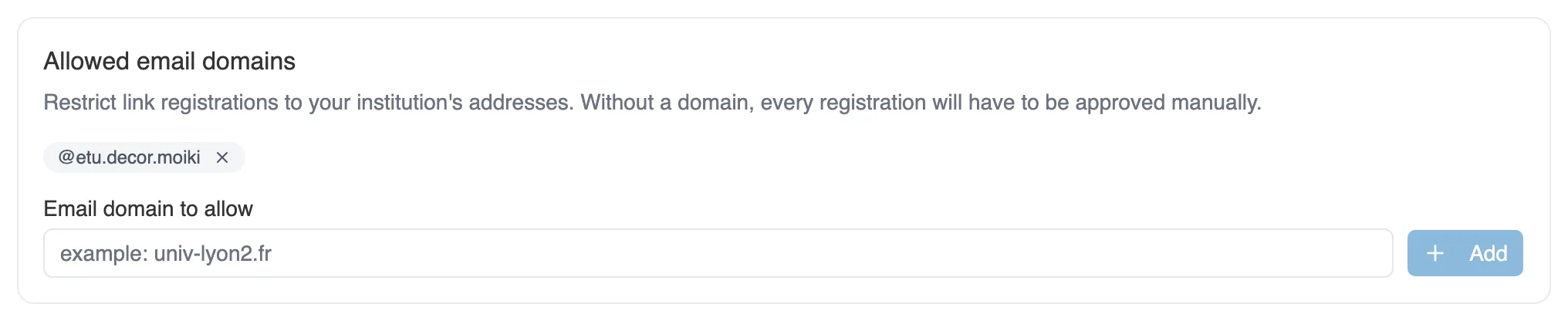
The allowed domains, in Settings.
Creating and sharing the invitation link
Section titled “Creating and sharing the invitation link”The link belongs to a group, never to the whole space. So create the group that will host your sign-ups first, then open its page: the Invitation link panel sits below the member list. Since this link brings in new accounts, it only appears to whoever manages the students of the space: in an establishment, a teacher without that permission does not see it.
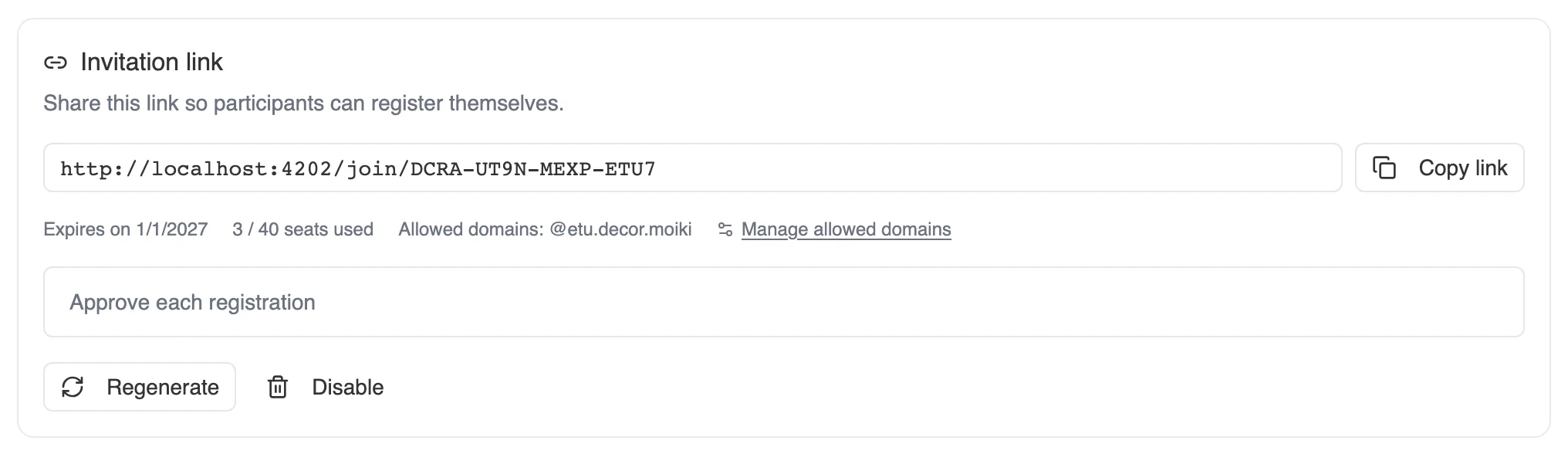
The Invitation link panel, on a group’s page.
Two settings when you create it:
- a Number of seats, left empty for an unlimited link,
- a Valid for (days) period, 90 by default, 365 at most.
A group has only one live link at a time. Regenerate produces a new one and invalidates the previous one on the spot, which makes revocation real even if the old link is still going around. Disable revokes it without replacing it.
If sign-ups go through you, they pile up under Pending requests, below the link, with Approve and Reject for each one. The person receives an email as soon as you have decided.

A request waiting for your answer.
The two modes do not mix
Section titled “The two modes do not mix”A space runs in one mode or the other. In self-service mode, creating accounts by hand is not offered, and the other way round. That is what keeps a list readable: either accounts you created, or people who signed up with their own address.
The choice locks with the first learner
Section titled “The choice locks with the first learner”You can change your mind as long as the space holds no learner. The banner on the Students page lets you revisit the choice for as long as the list is empty.
As soon as a first account exists, the mode locks, and the banner disappears: there is nothing left to choose. Switching at that point would leave a list half in one regime, half in the other.
If you need both setups, you need two separate spaces, for instance your personal space and an establishment’s: the mode is chosen space by space.
Where the question comes up
Section titled “Where the question comes up”Three places ask it:
- the first-run setup step, right after you say that you are a teacher. This is the main path.
- the How your learners will join this space window, which opens when you arrive in the studio. One click on Later closes it.
- the banner on the Students page, which unfolds the choice on the spot. It is the only one of the three still available after a first choice, as long as the space is empty.
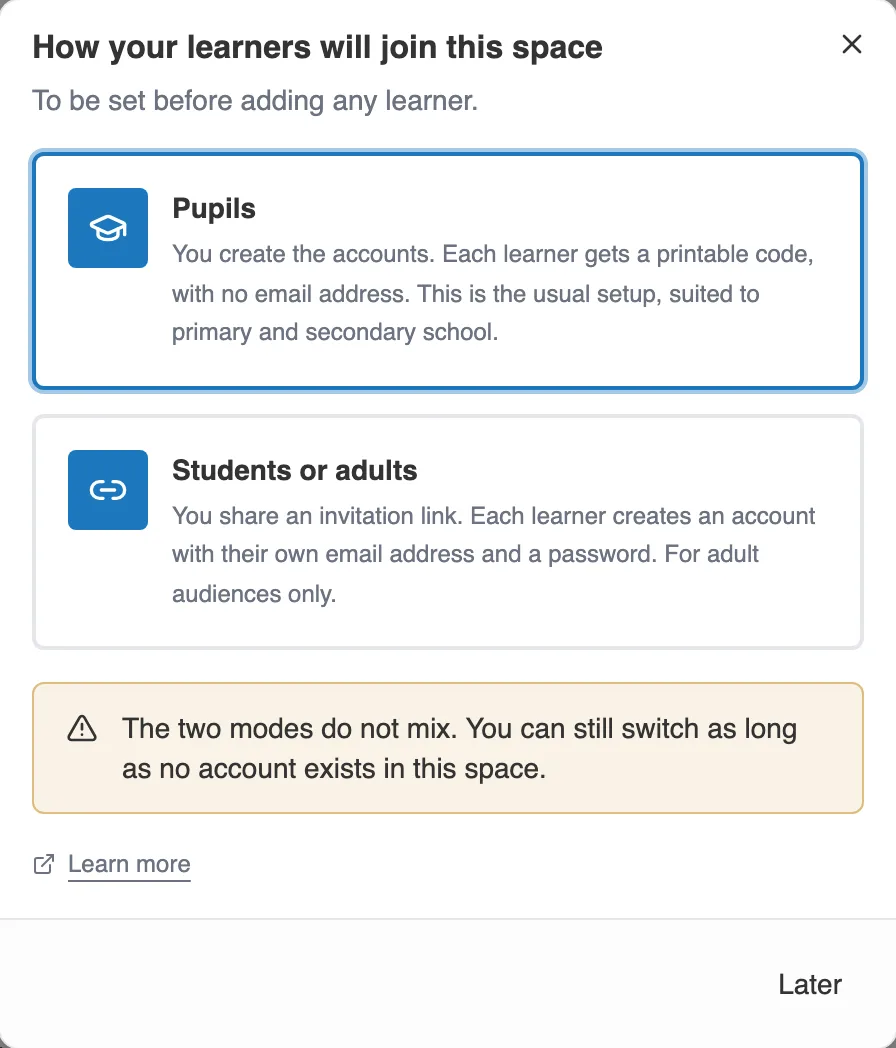
The window that asks the question, when you arrive in the studio.

The banner on the Students page, as long as nothing is chosen.
The choice belongs to the owner of a personal space, or to the member of an establishment who holds the Edit classes and students permission. A teacher without it sees a message inviting them to ask a manager instead.
Wording for higher education
Section titled “Wording for higher education”In English, the interface says student for school and for higher education alike, so nothing on screen changes when your space welcomes an adult audience. Classrooms, Students, Class name and Class average progress read the same in both cases, and Workshops and My workshops keep their names too.
What the choice really changes is the way people get in: created accounts and printed codes on one side, an invitation link and personal email addresses on the other.