

Launch and track a session
Launching a workshop with a class creates a session. That is the unit you follow: one class, one workshop, some dates. Launching works the same way for every type of workshop. Tracking, on the other hand, follows the type, and each guide covers it.
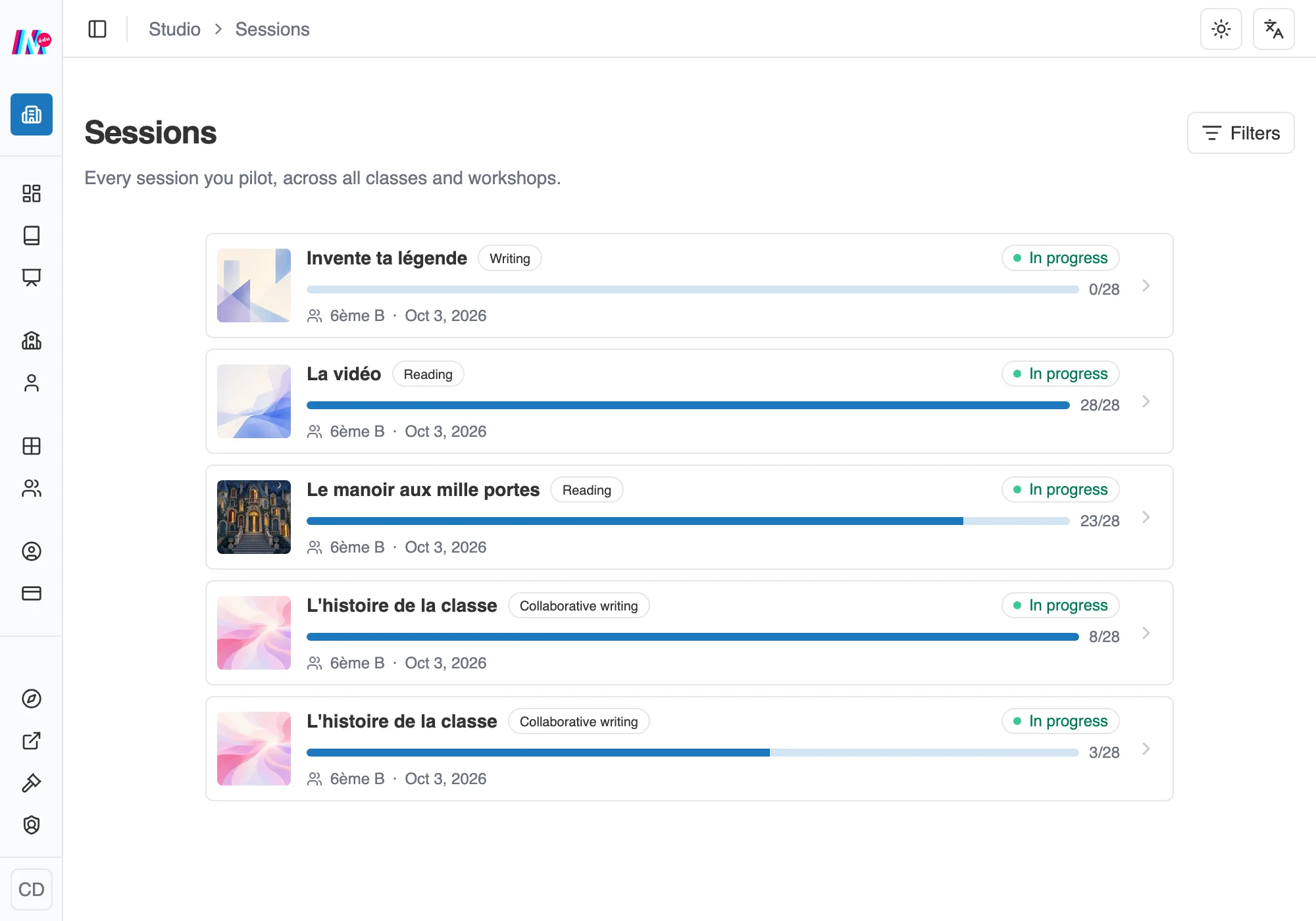
Your sessions, across all your classes and workshops.
Launch a session
Section titled “Launch a session”From the workshop (once it is Ready to launch), pick the Class concerned and, if you want them, start and end Dates. A session covers one single class, so for two classes you launch two sessions.
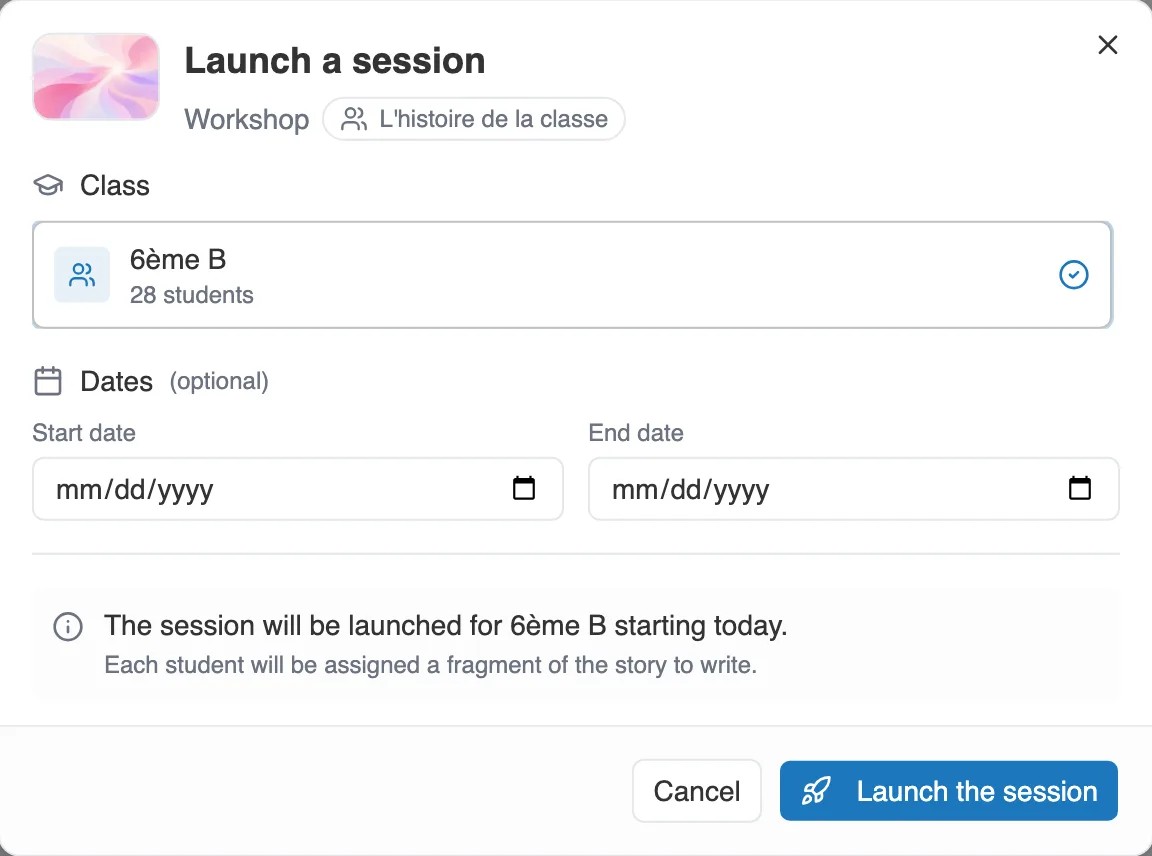
Launching a session: one workshop, one class, and dates if you need them.
For a Writing workshop, a How the writing is organised section has you choose between One story each and Group writing. A summary at the bottom of the window announces what is about to happen.
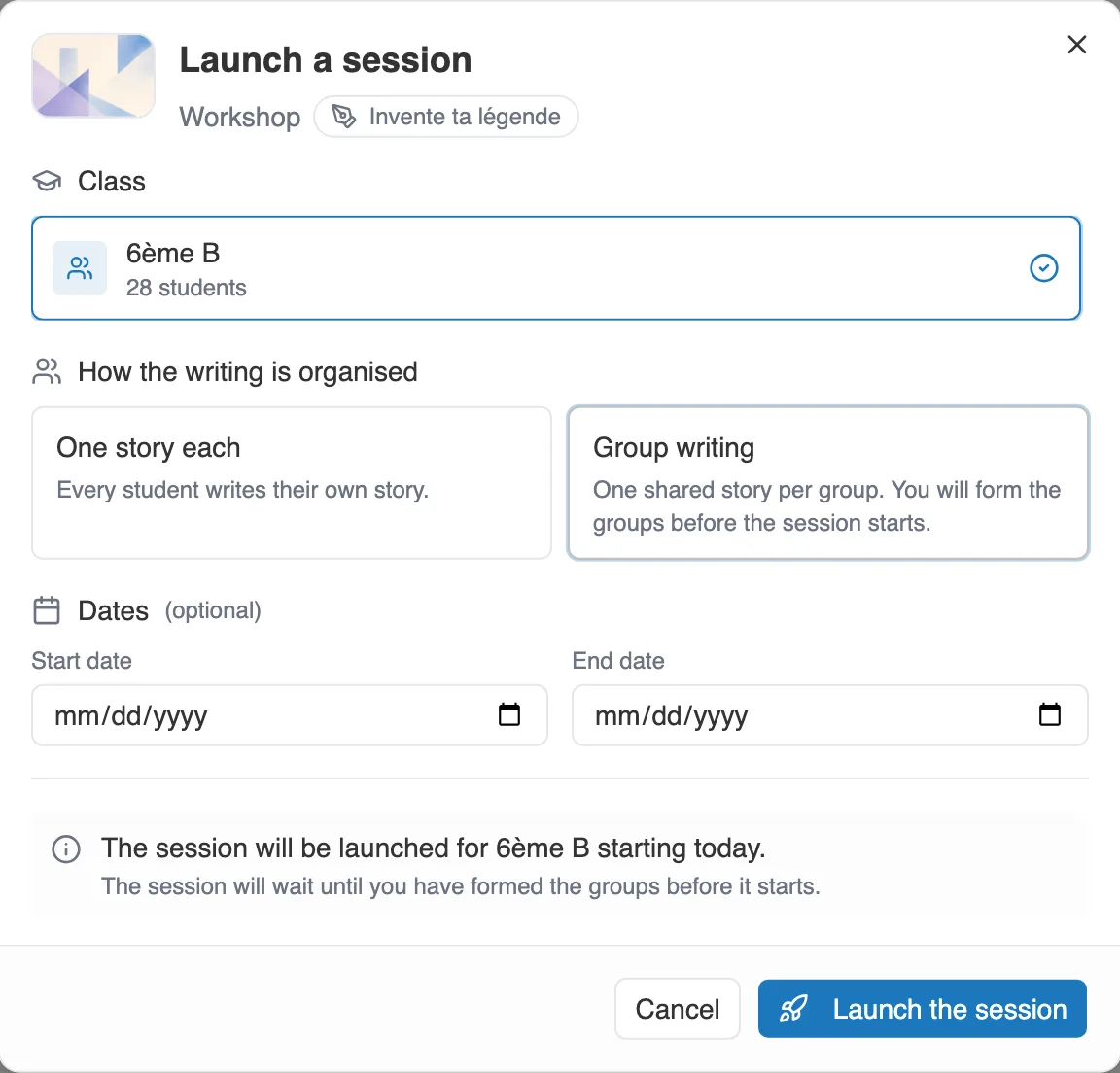
On a writing workshop, the How the writing is organised choice is added, and the summary warns that the session will wait until the groups are formed.
Dates, a gate for your students
Section titled “Dates, a gate for your students”Dates are optional, but once you set them they are the law on the student side. Outside that window, a student does not play, does not write and hands nothing in. They see This session has not started yet. or This session is over. instead.
You are not bound by them. You can look at the session and prepare it before it opens, as well as after it closes.
Track the session
Section titled “Track the session”The Sessions page lists everything you run, with filters by Status and by Class. A session goes through four states: Draft while it waits for its allocation or its groups, In progress once launched, Completed when you close it to writing, Archived when you put it away.
Open a session and four figures sum it up: the size of the class, how many students have Started, how many have Completed, each with its share of the class, and the Average progress. That last figure covers the whole class, with underneath the average of only the students who started. On a writing workshop, where there is no continuous progress to measure, that same spot shows the Work handed in.
At the top of the session, up to four buttons: Edit, Finish, Archive and Delete.
Edit opens the dates of the session, to set them or move them.
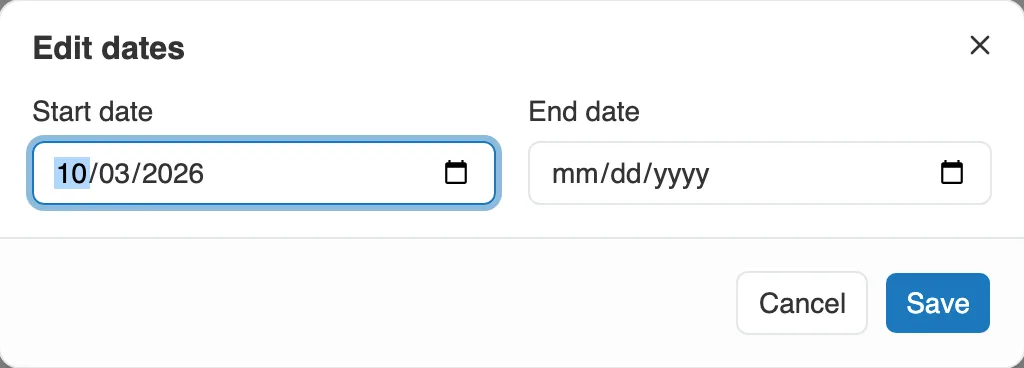
Dates can be changed at any time.
Delete asks for confirmation. The session goes, along with the reading progress, the groups, and what was written together: the parts of a collaborative workshop, the assembled story, the group stories. A story a student wrote alone stays in their stories.
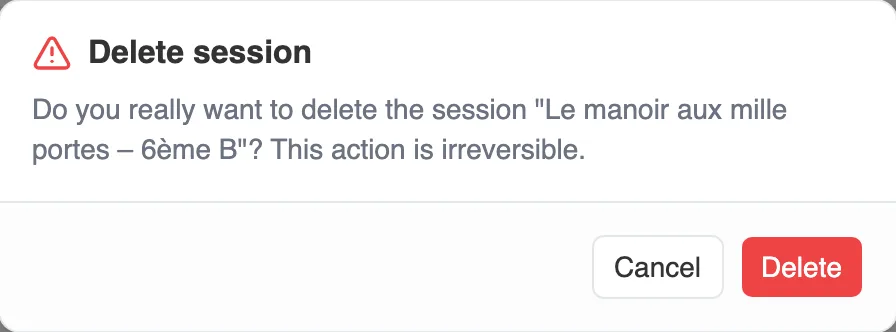
Deleting cannot be undone.
Finish closes the session to writing, after a confirmation: “Students can no longer write in it, but they keep the workshop and what it shares, read-only.” The button only appears on a session in progress.
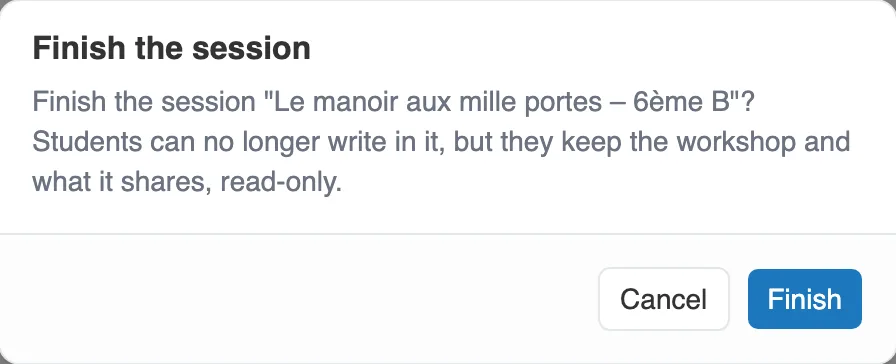
Finishing closes writing and keeps reading.
Archive puts the session away, after a confirmation. It disappears from the students’ home page, with what it shared with them. The button appears on a session in progress as well as on a completed one.
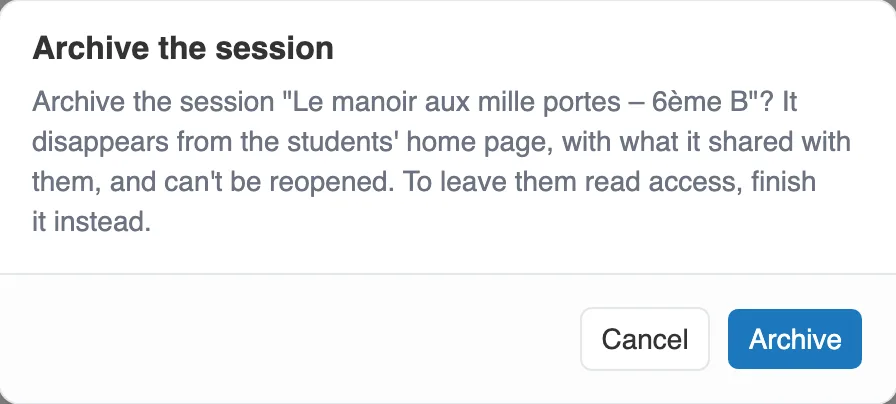
The confirmation says what is final about archiving, and reminds you that Finish keeps reading.
The results
Section titled “The results”Under the figures, the Results block takes the shape that suits the type of workshop. In every case, counters filter the list by state, a search finds a student, and Export (CSV) turns it into a file.
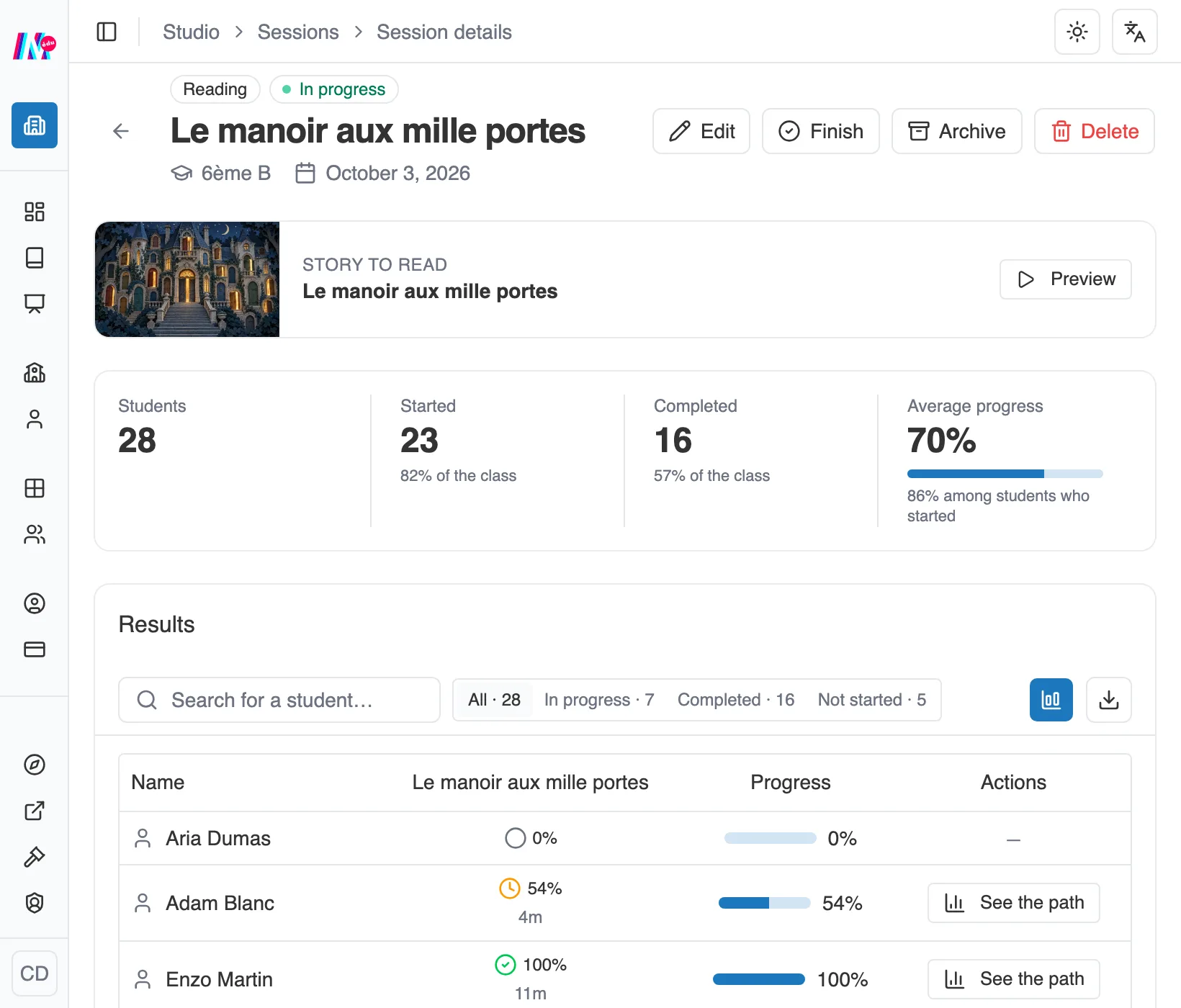
A reading session: a table, one row per student.
- Reading: a table, one row per student and one column per story, with the progress and the time spent. See the path opens one student’s route, and Class analytics aggregates every journey. See A reading workshop.
- Writing: one card per student, with the state of their story (Not started, Writing, Handed in) and what you need to read it or comment on it. Launched in groups, the session shows one row per group. See A writing workshop.
- Collaborative writing: the way students are shared out, then one row per fragment. See A collaborative writing workshop.
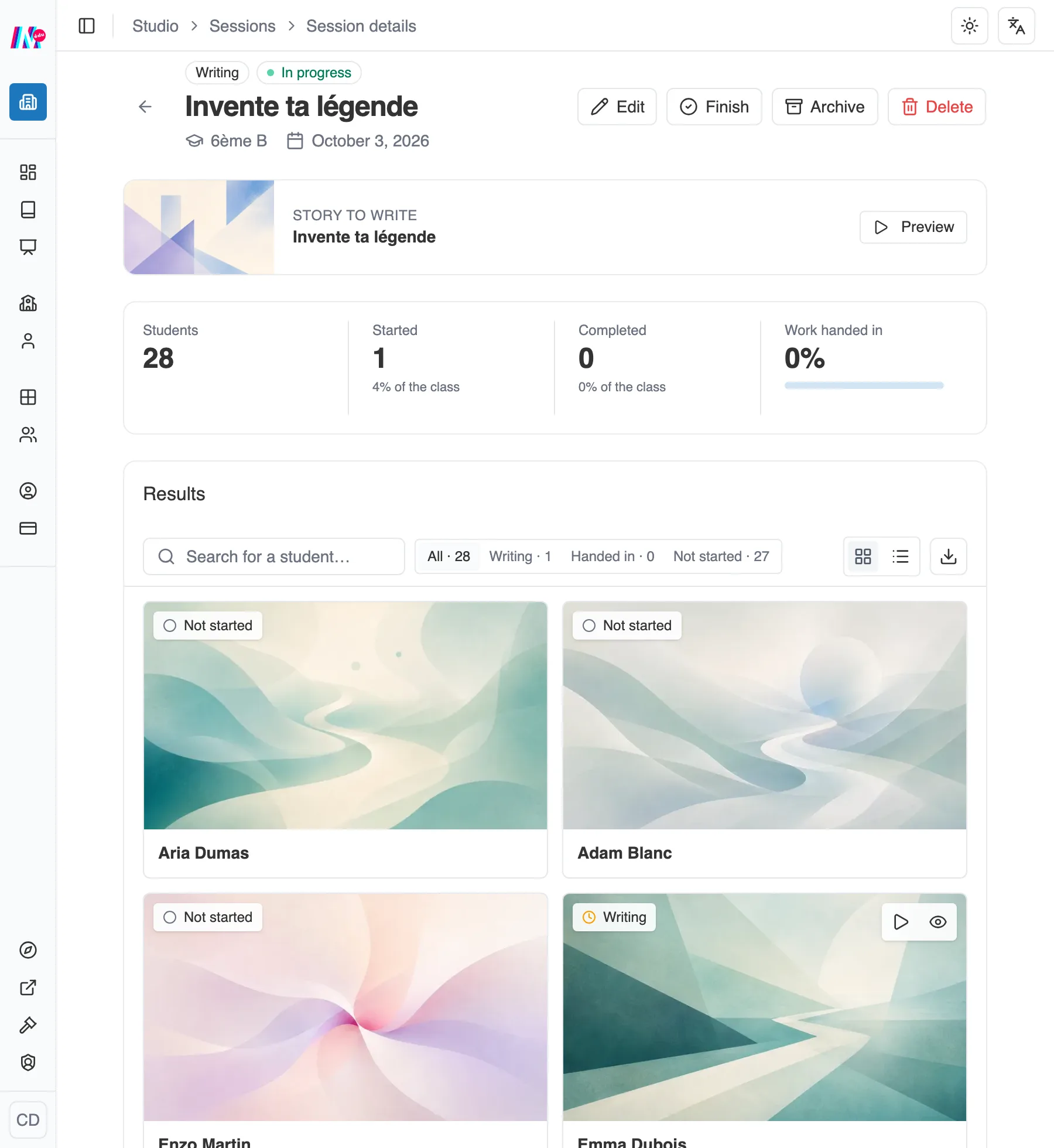
A writing session: one card per student.
A student’s profile
Section titled “A student’s profile”The table gives you the class. A student’s profile gathers everything that concerns them. It opens with a click on their name, on the Students page or in a class’s page, and has two tabs: Classes & sessions and Achievements.
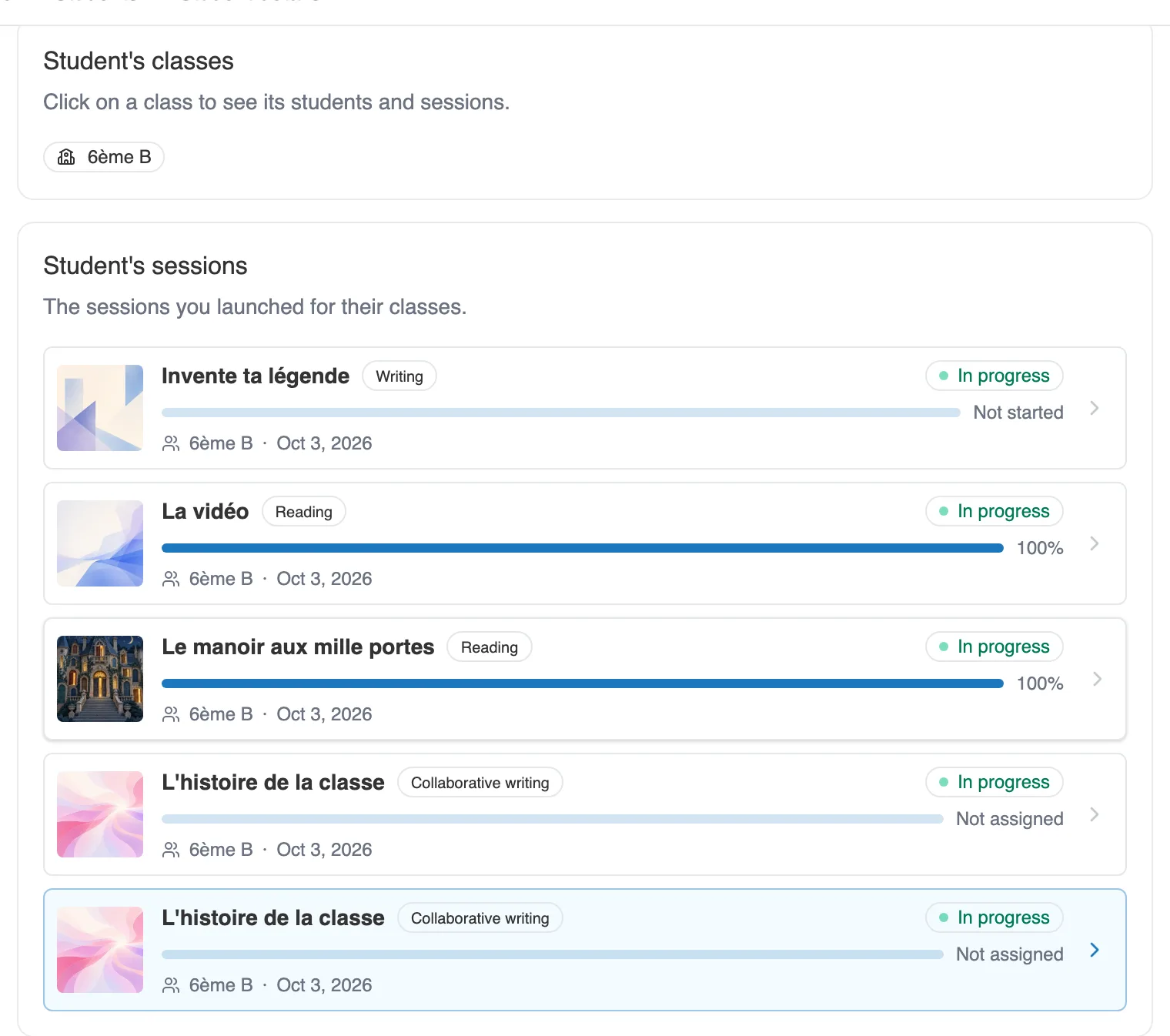
A student’s profile: their classes, and their progress session by session.
Each session row shows the Student progress, not the figures for the class:
- a percentage in a reading workshop, as soon as they have started,
- a state in a writing workshop, among Not started, In progress and Completed,
- Not assigned when no fragment and no group has been handed to them yet.
A Never signed in badge flags a learner who has never signed in. It reads from their last sign-in, not from an account state. A student carrying that badge can sign in, they simply have not done so yet.