

Getting to know your space
Once you sign in, you land on your Dashboard: the starting point for everything you do in Moiki EDU.
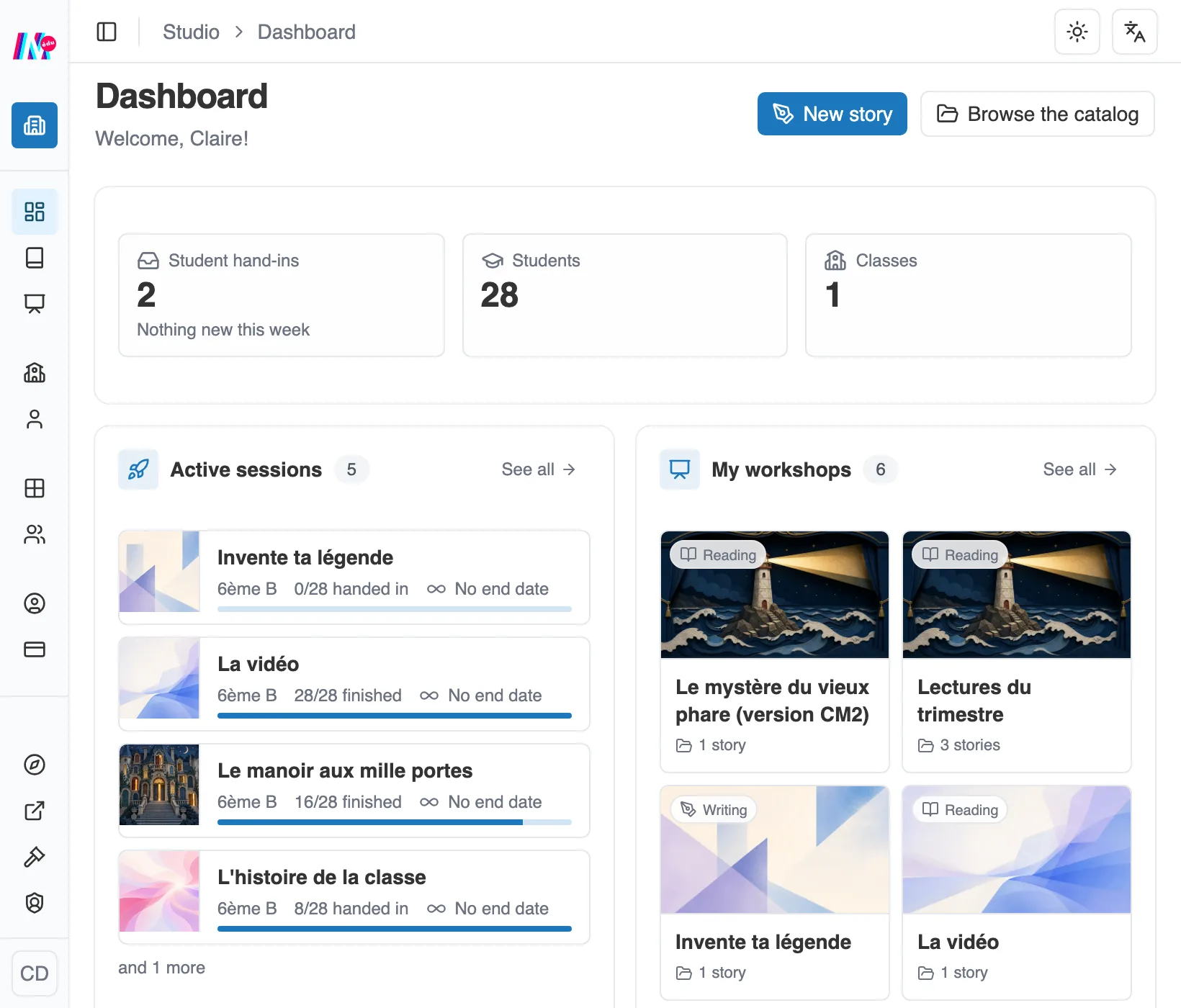
The dashboard welcomes you with your active sessions and your workshops.
The dashboard
Section titled “The dashboard”It brings together the essentials:
- Three figures at the top: Student hand-ins, with those of the last seven days, then the number of your Students and of your Classes.
- Active sessions: the workshops you have launched with a class and that are running right now.
- My workshops: the workshops you prepared most recently, to reopen them quickly.
- My stories: your latest stories, if your space lets you create them.
- Two shortcuts, at the top of the page: New story (again, if your space lets you create stories) and Browse the catalog.
- At the very bottom, the Help and resources block: Tutorials, Documentation and Write to us.
Getting started
Section titled “Getting started”On the first day, the dashboard shows no figures and no lists. It shows a Getting started card and, below it, two cards that explain the two ways to begin: Create a story and Import from catalog.
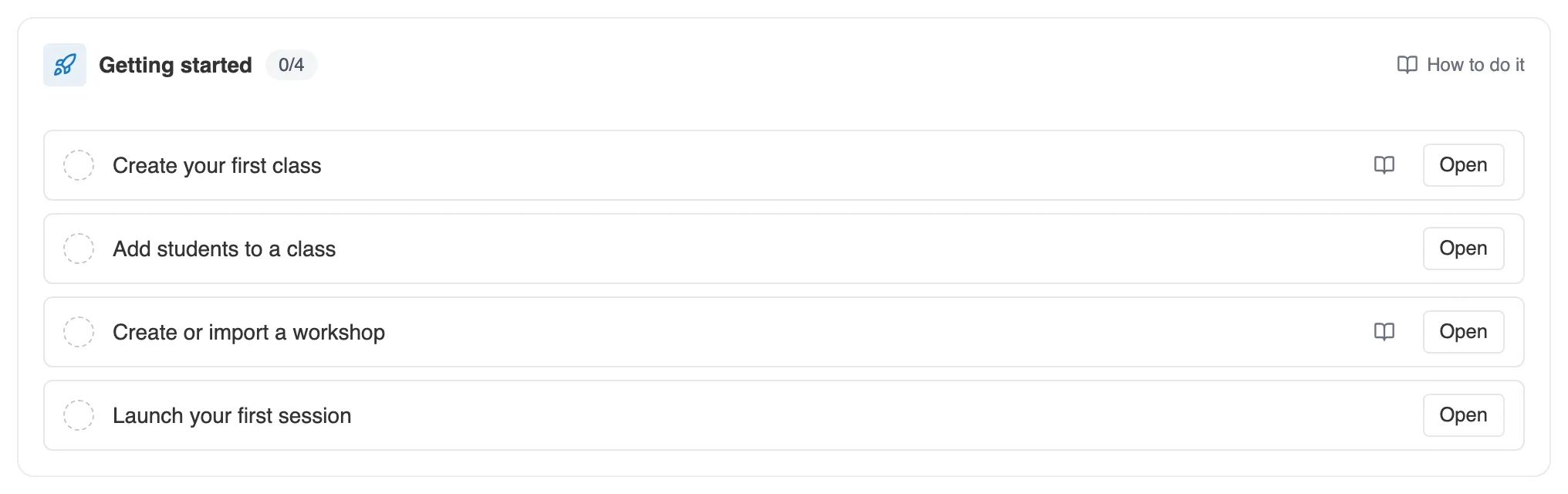
The Getting started card, on the first day.
The Getting started card has four steps, in the order they are done:
- Create your first class. A session is always launched on a class, so it is the first thing to prepare. See Managing your classes and students.
- Add students to a class.
- Create or import a workshop. See Create and fill in a workshop.
- Launch your first session. See Launch and track a session.
Each step still to do has an Open button, which takes you to the right screen. A step done is ticked and struck through. The card stays on screen, above your figures, until you launch your first session, even if you have already written a story or prepared a workshop.
If your classes and students do not depend on you (a teacher in a school whose management handles the students), the first two steps become Get your classes from your school and Find your students in your classes. They are ticked in the same way, but without a button: there is nothing to do on your side.
The navigation
Section titled “The navigation”The left-hand column gathers your spaces. Depending on your role and your plan, you will find:
- Dashboard, Stories, Workshops: your creative work.
- Roster: Classrooms and Students, to manage who takes part, and Settings if you work outside an establishment.
- Establishment: the administration area, reserved for managers (see the section devoted to it).
- My account: your Profile and, depending on how your account was opened, Subscriptions. Achievements are earned by playing, so My achievements only shows up in the learners’ space.
If you teach from an establishment account, your Profile also offers to link a personal account, so your creations outlive that access. See Your personal Moiki space.
Outside an establishment, the Settings entry opens Space settings. Two rules apply to your students there: Let students create stories, which takes an ECO plan, and Let students edit their profile, meaning their name and their avatar.
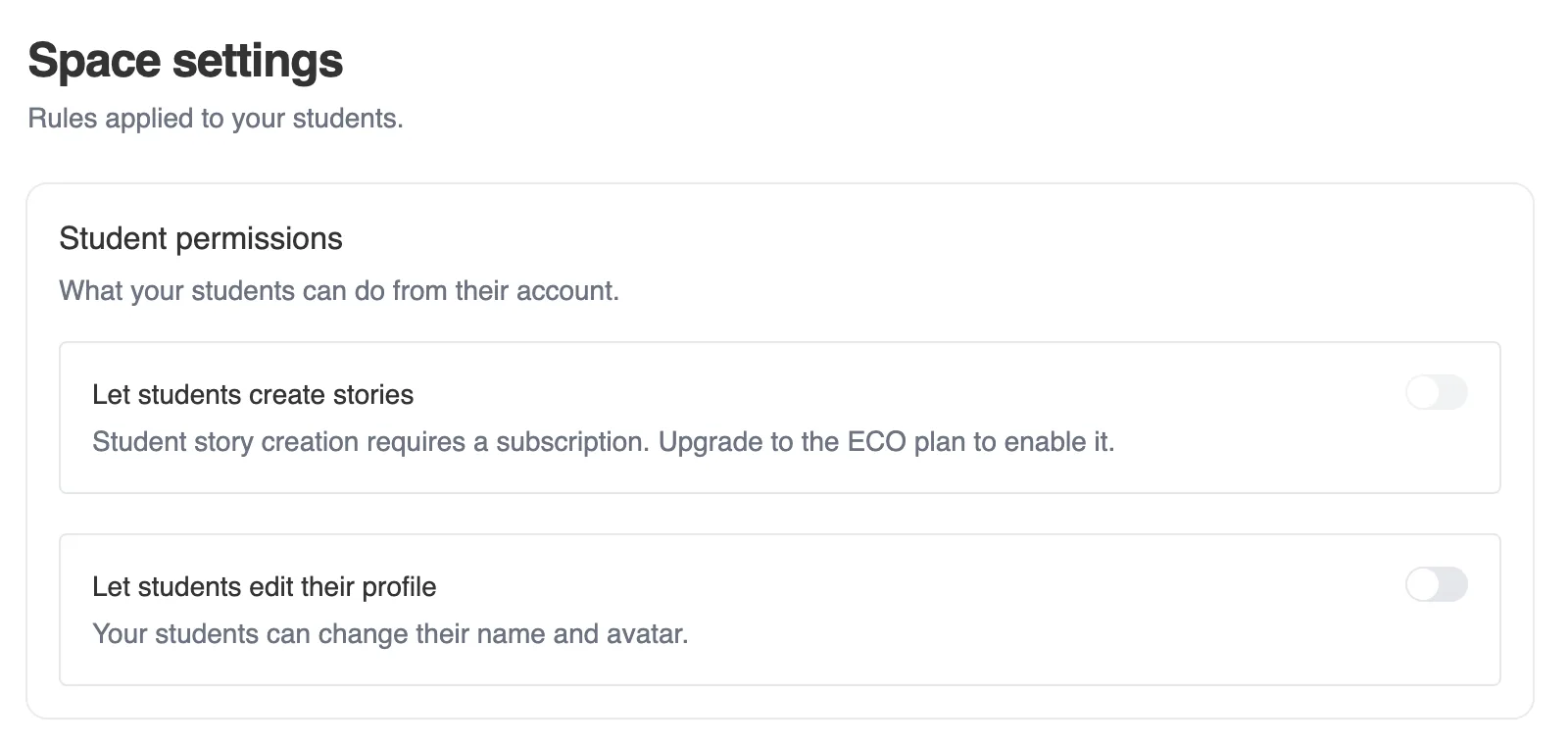
The settings of a personal space.