

Your students' access codes
When you manage your own list of students, they sign in without an email address and without a password: each one uses a personal Access code that you generate and hand out.
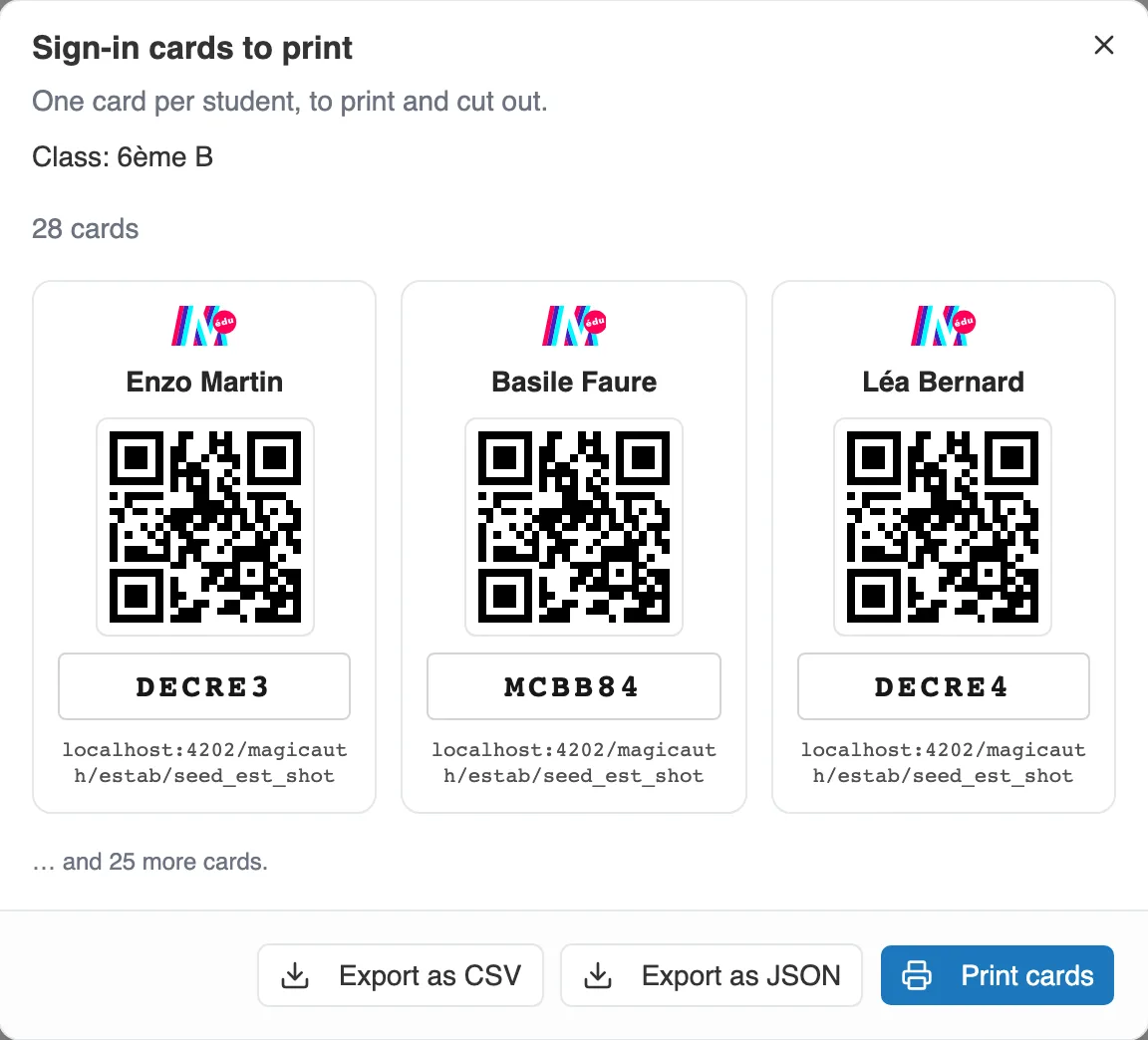
A class’s sign-in cards, ready to print and cut out.
One code per student, one shared link
Section titled “One code per student, one shared link”From a student’s page, the Access code action opens everything you need:
- a sign-in link (and its QR Code), shared by all your students,
- a short code, personal to each student.
The student opens the link or scans the QR Code, types their code, and arrives in their space. Nothing to install, no email address. Under the code, the sign-in address is also written out in full, for a computer with no way to read a QR Code.
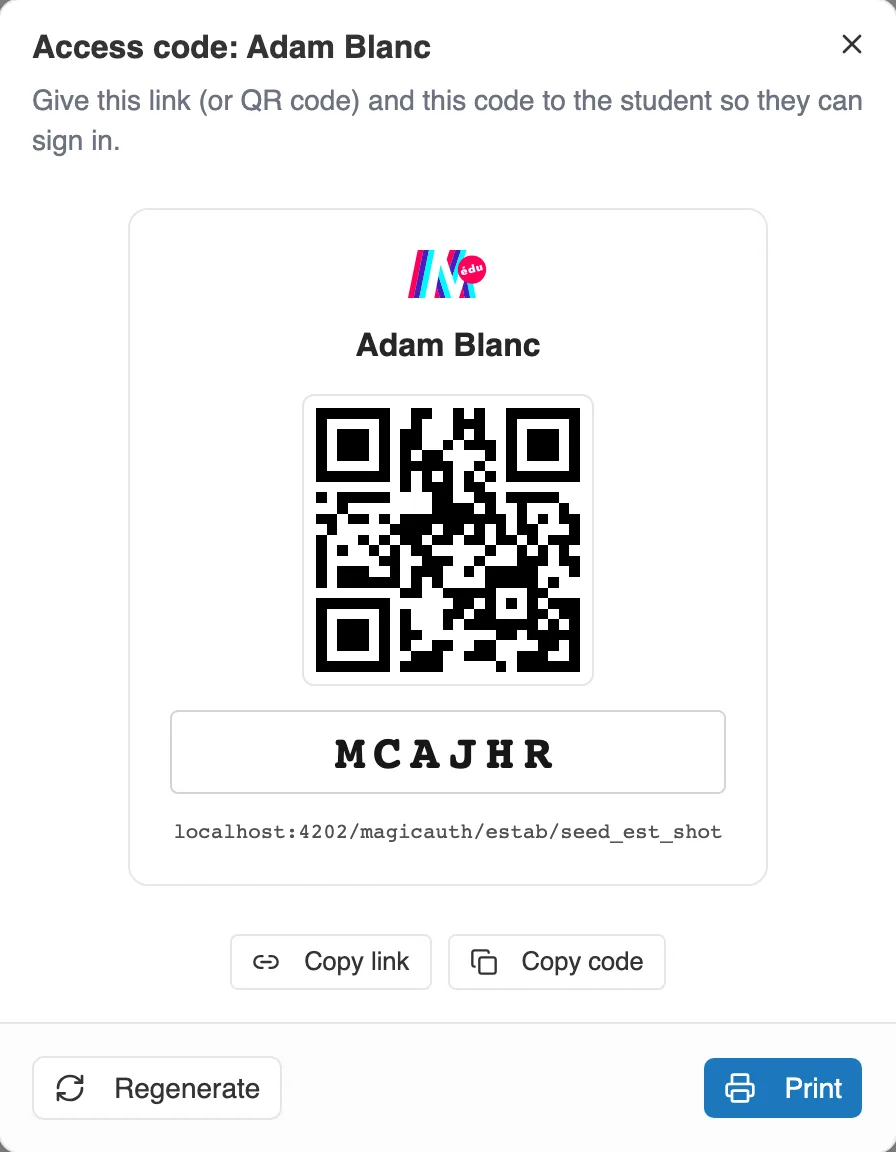
A student’s access code: shared link, QR Code and personal code.
Handing out the codes
Section titled “Handing out the codes”Two ways to pass them on:
- Student by student: from their page you can Copy link, Copy code, or Print a small card.
- For the whole class: on a class’s page, Print login cards opens the Sign-in cards to print window. It produces one card per student, to print, cut out and hand round.
The same window carries two export buttons, Export as CSV and Export as JSON. They give you the list of students with their codes, for a mail merge or labels. The CSV file also carries the sign-in address on each line.
Regenerating a code
Section titled “Regenerating a code”If a code goes missing, Regenerate creates a new one. The old one is invalidated straight away, so the student has to use the new one. If they are signed in at that moment, on the website or in the app, they are signed out.
Regenerating every code at once
Section titled “Regenerating every code at once”When a batch of cards has gone round, or at the start of the year, you can redo the codes in bulk. The action is called Regenerate all codes, in the Actions menu, and its reach depends on where you launch it:
- from a class’s page, it only redoes the codes of that class,
- from the Students page, it redoes those of all your students.
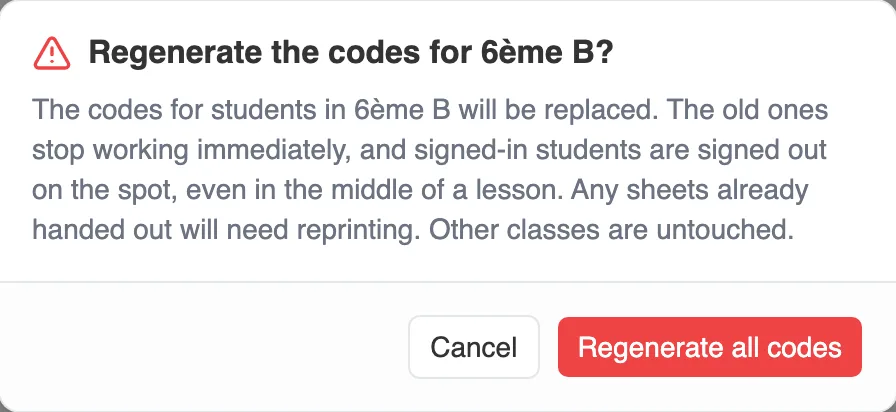
Launched from a class, the confirmation names the class. The others are not touched.
On the student’s side, the steps to follow are described in Signing in to Moiki.