

Permissions
Who can do what in the establishment depends on their role, which you can fine-tune with permissions.
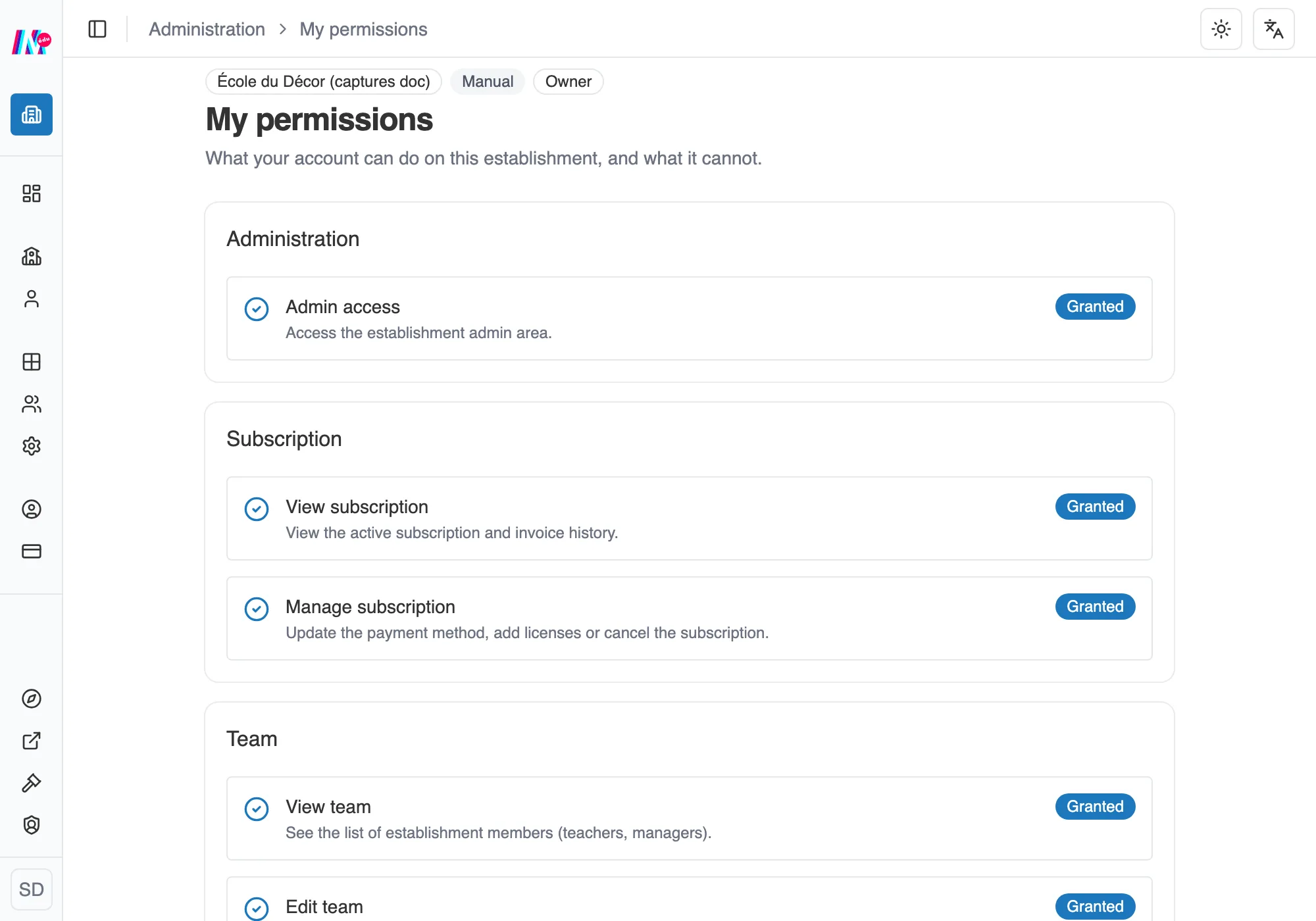
The permissions granted to an account, area by area.
The roles
Section titled “The roles”- Owner: the person who took out the establishment’s subscription. Every administration permission. One exception, creating workshops, which stays attached to the Teacher role. To create your own, take a teacher seat. See The team and invitations.
- Manager: runs the team, the roster and the establishment settings, without necessarily teaching. They view the subscription, but changing it stays with the buyer.
- Teacher: creates workshops and runs their own classes.
- Student: takes part in the workshops shared with them.
Adjusting permissions
Section titled “Adjusting permissions”Each role comes with a set of default permissions, always granted and impossible to remove. On top of those, the Owner ticks additional permissions case by case.
One permission is an exception, Manage student credentials: every teacher you invite gets it from the start, and you can take it away. The invitation dialog even lets you decide right there.
As a team member, you find your own list of permissions from the establishment Overview, on the My permissions card. The first group, Administration, carries the permission to open the administration area. That one decides whether the establishment screens are available to you.
See all students
Section titled “See all students”In an establishment, a teacher only sees the students of the classes they run, plus the ones they created themselves. The rest of the establishment does not show up for them, neither in the directory nor in reading workshops. A whole school has no business scrolling past in one teacher’s directory.
Some jobs do need the full view: a librarian, a school library, a coordinator putting groups together from across the establishment. That is the See all students permission, in the Classes and students group of the panel. Nobody has it by default. You hand it out case by case.
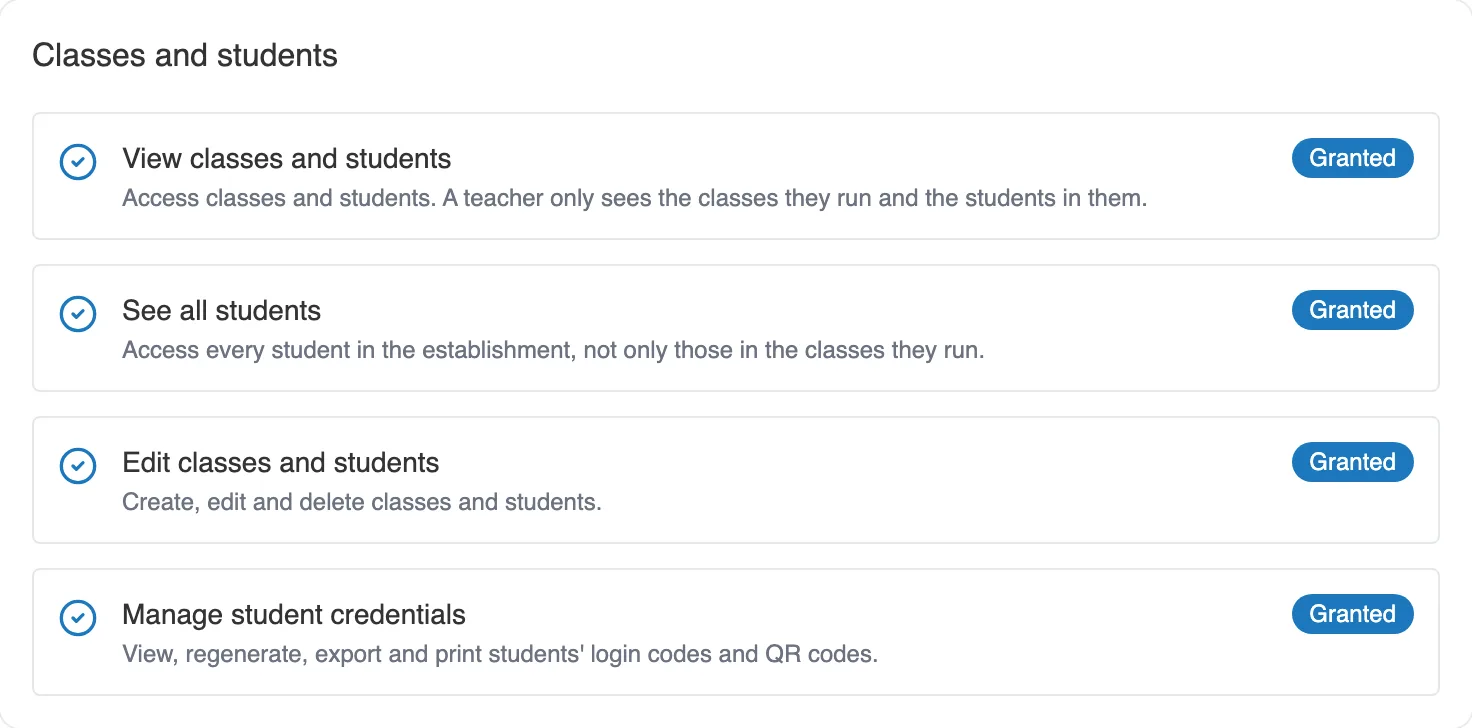
The Classes and students group, where See all students sits next to the viewing and editing permissions.
It opens viewing, nothing else. Editing the roster stays a separate permission, and going through this one saves you from promoting someone to Manager for the sole reason that they need to see wide.