

Prepare the master story
A collaborative writing workshop rests on one single story, the master story. You write its outline, and you set aside fragments in it: the passages your students will write. This page describes that preparation work, which happens in the editor, before any lesson with the class.
The rest of the run (launching, sharing out, tracking, assembling) is in A collaborative writing workshop.
What a fragment is
Section titled “What a fragment is”A fragment is a slot reserved in your story. In the graph, it shows as a green diamond. It carries three things, all written by you:
- an instruction, which tells the student what to write there,
- one to four exits, the places where their text must rejoin the rest of the story,
- and, if you wish, an instruction specific to each exit.
During the workshop, each fragment is given to a group of one to four students, who write their own small story in it. It starts where your fragment starts, and it must lead to each of the exits you declared. That contract is what lets parts written separately fit together at the end.
Start from a template
Section titled “Start from a template”It is the shortest way. On the page of your collaborative workshop, the Create the master story box carries a Create the story button. Choose Create from a template.
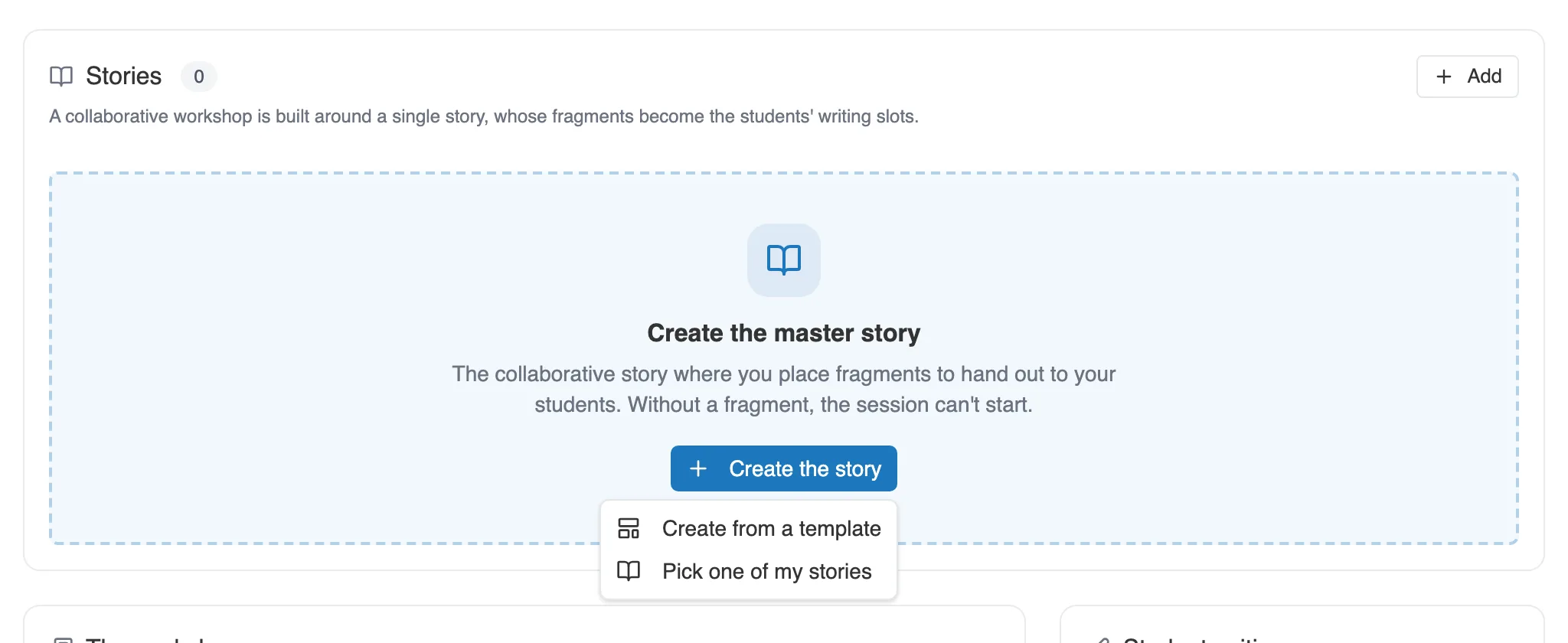
On a new collaborative workshop, Create the story opens this menu.
The New story panel offers a template straight away, with its number of fragments and the class size it is designed for.
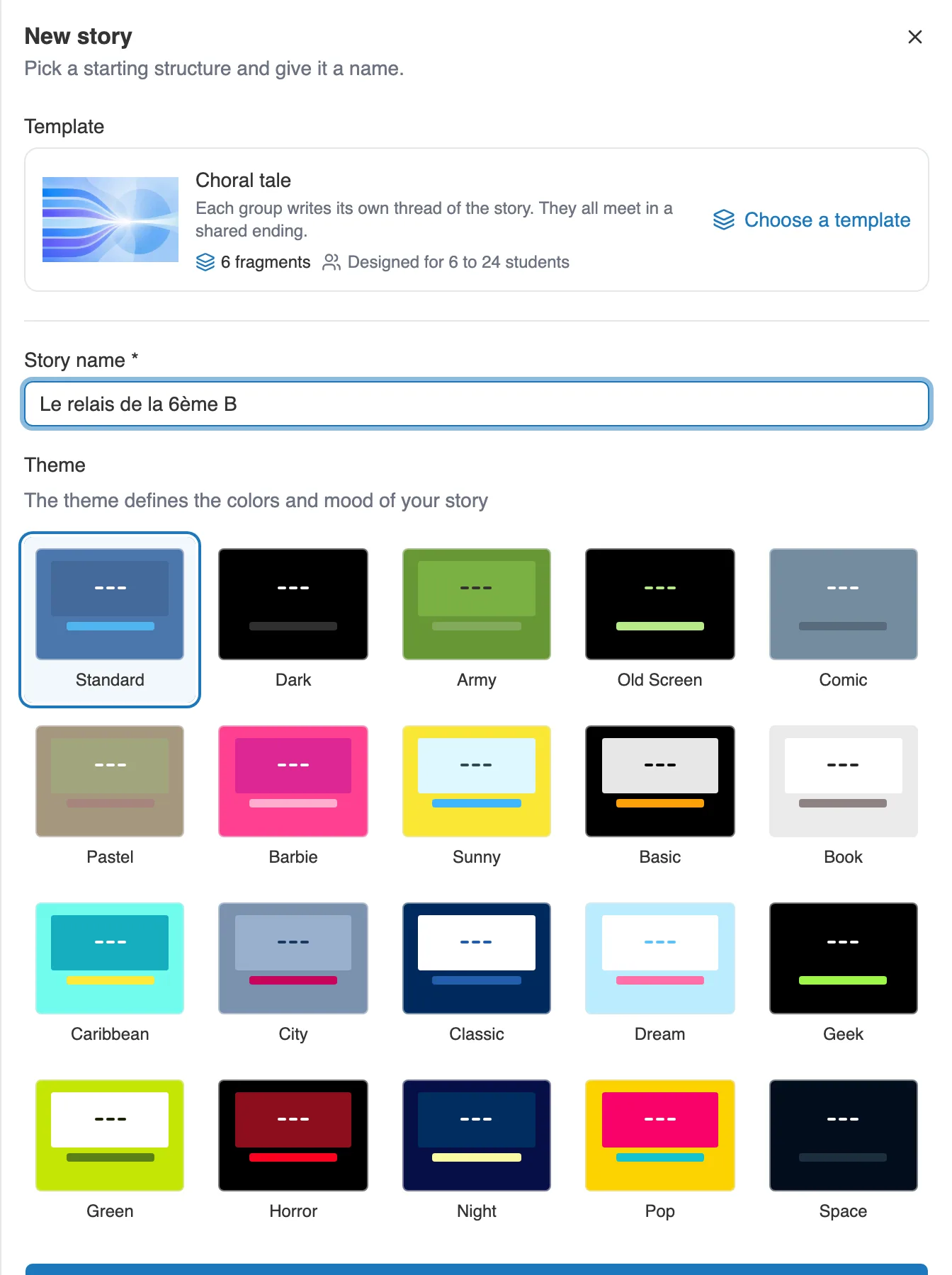
The New story panel: a template, a name, a theme.
Choose a template opens the three structures made for writing together:
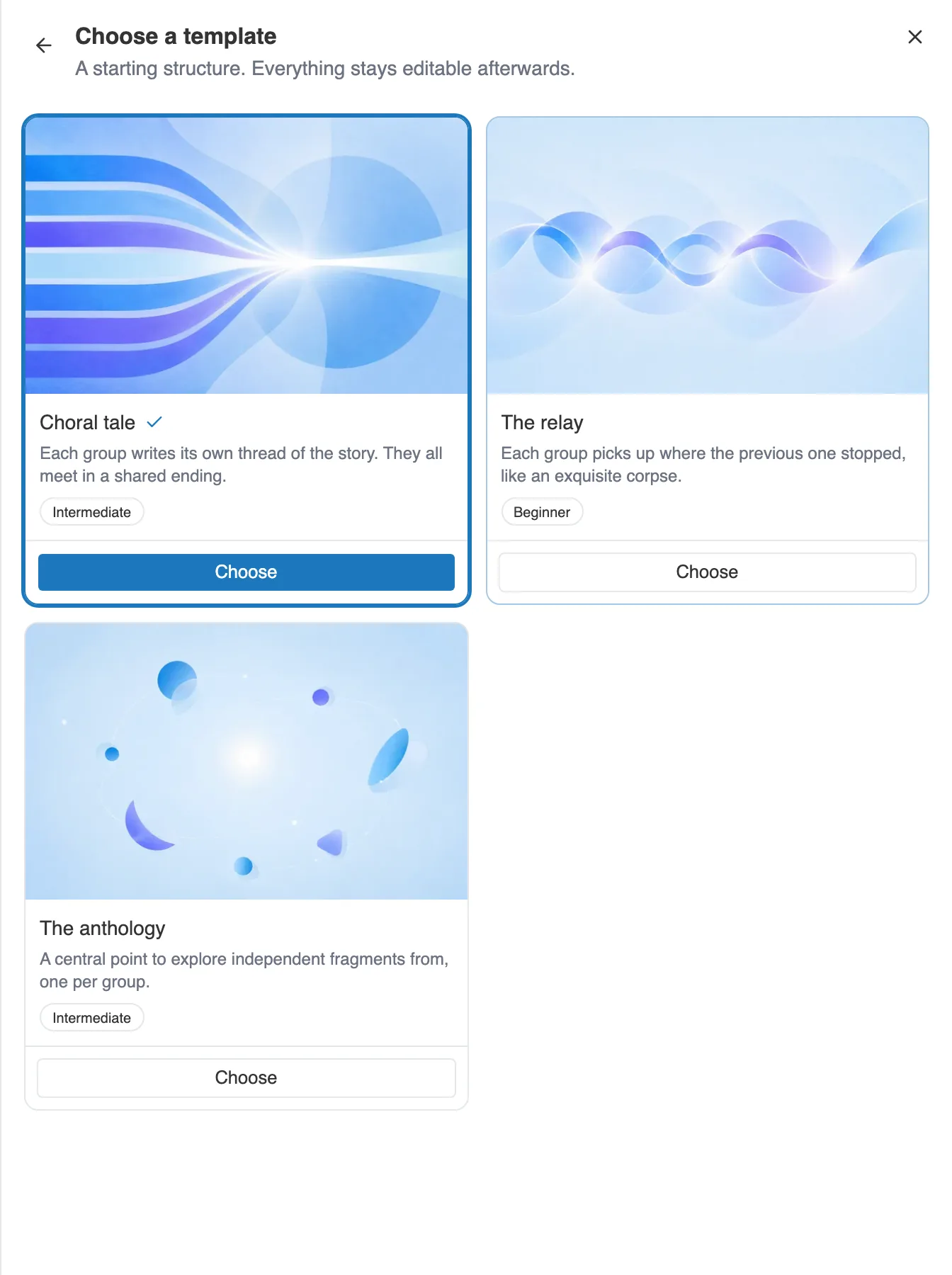
The three collaborative templates.
| Template | Level | What it organizes |
|---|---|---|
| The relay | Beginner | Each group picks up where the previous one stopped, like an exquisite corpse. |
| Choral tale | Intermediate | Each group writes its own thread of the story. They all meet in a shared ending. |
| The anthology | Intermediate | A central point to explore independent fragments from, one per group. |
Click a template to see its detail: its structure, a preview of its graph, and an estimate of the number of lessons. The Try this story button opens it in a new tab, to go through it as a reader.
Set the number of fragments
Section titled “Set the number of fragments”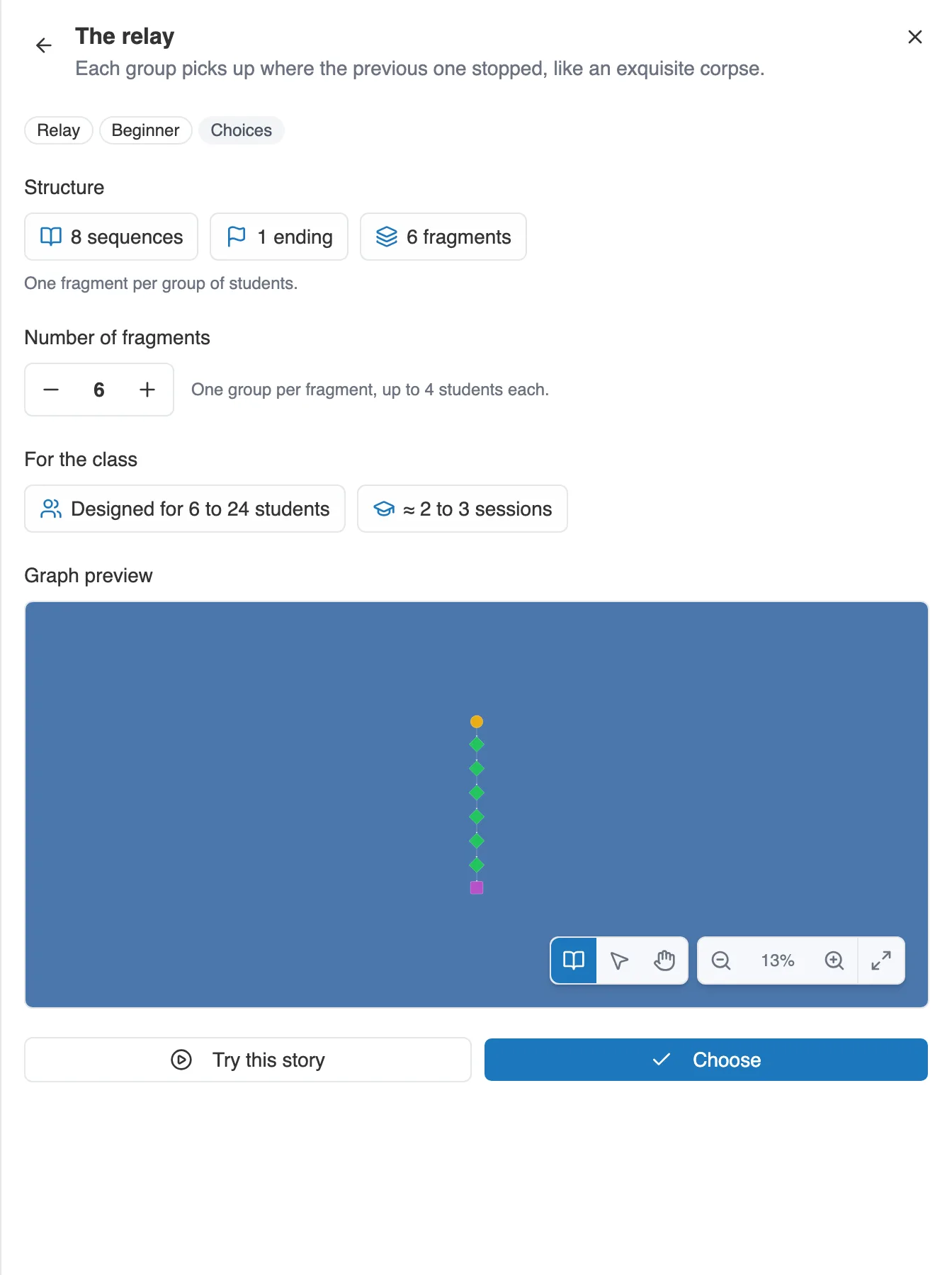
The detail of a template. The Number of fragments setting is in the middle.
The template detail carries a Number of fragments setting, from 2 to 8, six by default. Count one fragment per group: each fragment takes up to four students. The Designed for line updates as you adjust, from two to eight students for two fragments, from eight to thirty-two for eight.
Confirm with Choose, give the story a name, then Create the story. It opens in the editor, already linked to your workshop.
Write the outline
Section titled “Write the outline”The master story is a story like any other. Everything you know how to do in the editor applies to it: sequences, choices, media, theme. See Introduction to the editor.
What you write yourself is what holds the whole together: the opening, the transitions between fragments, the ending or endings. The template already lays out the structure, you only have to put your text in it.
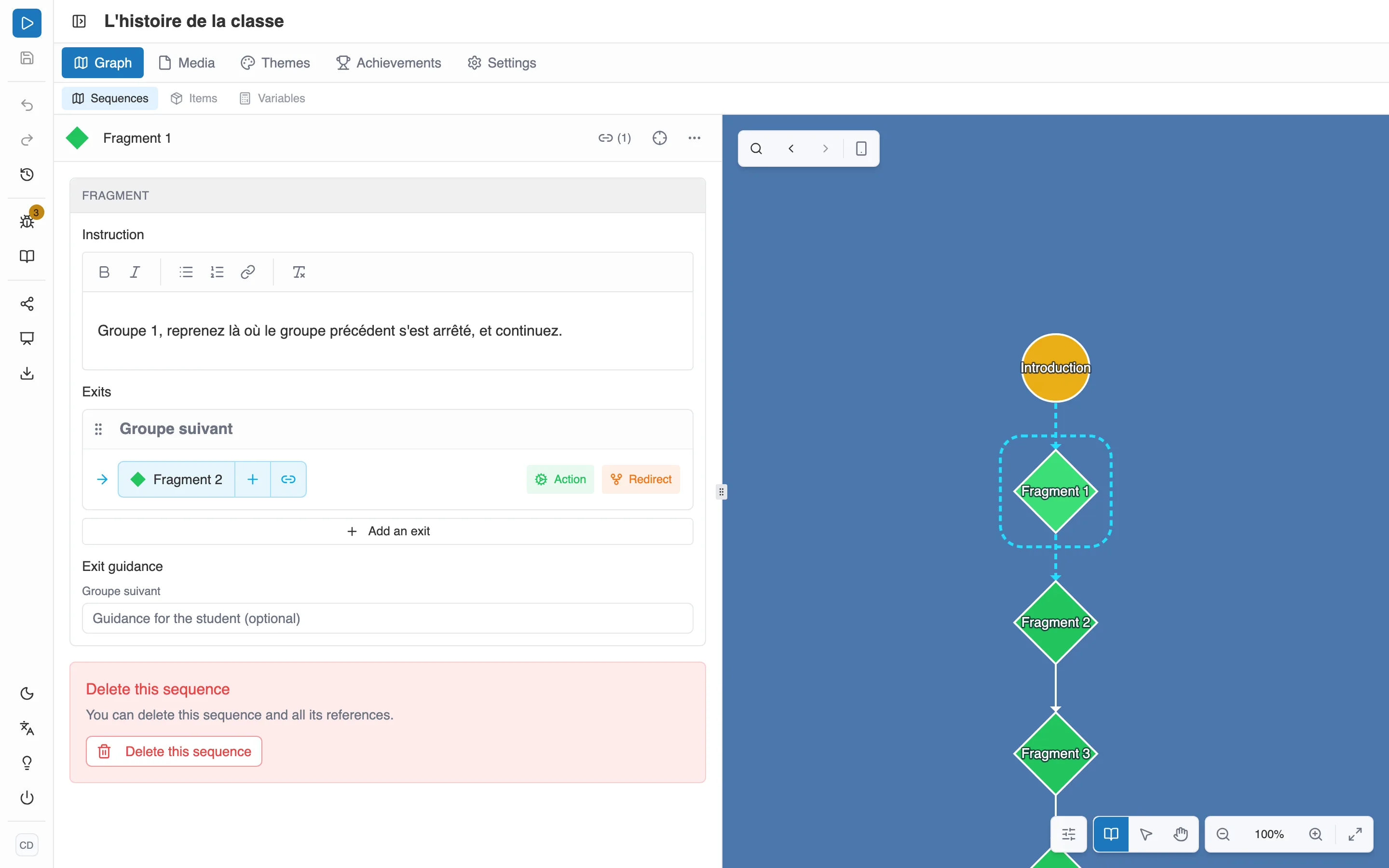
A master story built on The relay. On the left, the panel of the selected fragment. On the right, the green diamonds of the graph.
Set up a fragment
Section titled “Set up a fragment”Click a green diamond to open its panel.
The instruction
Section titled “The instruction”The Instruction field takes what the student must write at that point. They find it at any time in their Workshop panel, in a What you have to write here box. It accepts formatting, lists and links.
The fragments of a template come with a standard instruction, of the kind “Group 1, pick up where the previous group stopped, and carry on.” Rewrite it for your story.
A good instruction places the passage in the story, since the student does not read their classmates’ text. Tell them where the reader comes from, what must happen, and where they must lead the reader.
The exits
Section titled “The exits”Under Exits, each row is a door through which the reader will leave the fragment. Give it a label and connect it to the sequence that follows, exactly as you connect a choice. Add an exit creates one more.
A fragment carries at least one exit, and four at most. The student finds them in their panel, under Expected exits: their text must lead to each one.
Under Exit guidance, you can say, for each exit, which situation it matches. The student reads that note when attaching the end of their text to one of your exits.
Add or remove a fragment
Section titled “Add or remove a fragment”A fragment is created like any other sequence. In the creation window, the Fragment type sits among the others, with its green diamond. See Creating a sequence.
Two limits to know:
- The Fragment type is only offered in a collaborative story.
- A fragment sits in the main story, not inside a sub-graph.
To remove one, use Delete this sequence, at the bottom of its panel. Once the session is launched, a fragment already given to students can no longer be deleted. The master story itself can be neither deleted nor removed from the workshop while a draft or in-progress session uses it.
Start from a story you already have
Section titled “Start from a story you already have”You can also turn one of your stories into a master story. Open it, then go to Settings, Options tab, and switch on Enable collaborative writing. The Fragment type then becomes available at creation.

The switch is in Settings, Options tab.
Then attach the story to your workshop, from its page, with Create the story then Pick one of my stories.
Check before launching
Section titled “Check before launching”Three checks are worth making, in this order.
The Validation panel. It flags what would block your students: a fragment with no exit, an exit connected to nothing, an exit that cannot be reached, a fragment with more than four of them. The full list is in Limits and checks.
A read from start to finish. Play your master story before anyone has written. In place of each fragment still empty, the player shows your instruction, and one button per exit. That way you go through the whole story, and you see right away if a transition is off.
The state of the workshop. On its page, the label goes from Incomplete to Ready to launch once the master story is in place. A master story with no fragment at all cannot be launched.
Your master story is ready. The rest happens with the class: A collaborative writing workshop.