

Writing my story
In a writing workshop, you put your story together in Moiki’s editor, the very one the authors use, with the tools your teacher has chosen.
The workshop page
Section titled “The workshop page”Open the workshop from My workshops. Its page tells you what you need to do, shows where your story stands, then recalls the objectives and the instructions. The button reads Start writing the first time, then Continue writing.
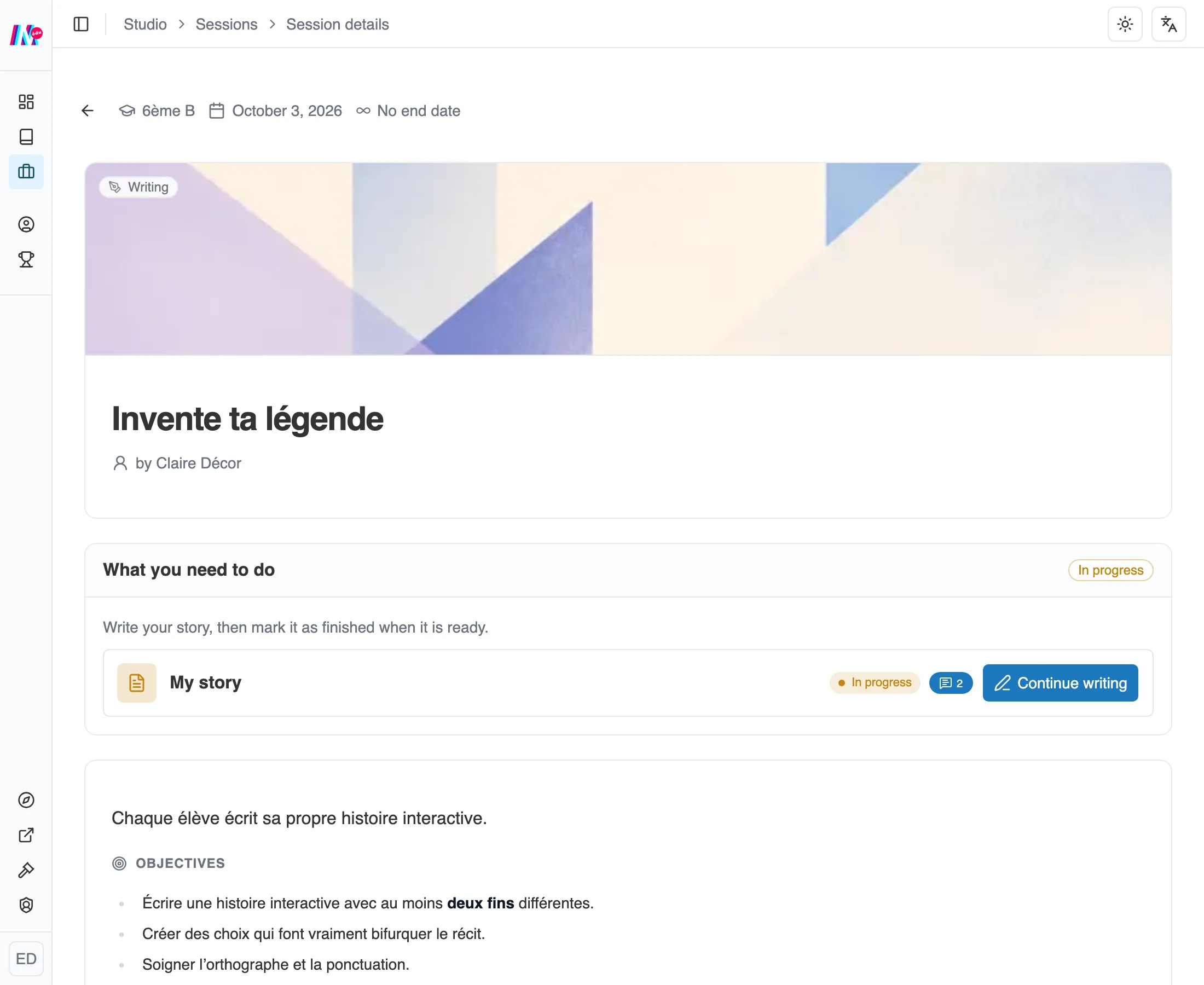
The workshop page: your story, and the button to go back to it.
The frame of the workshop
Section titled “The frame of the workshop”A Workshop panel holds the Instructions and the Objectives your teacher set. You write inside that frame, and some advanced tools may be deliberately set aside so you can stay on what matters.
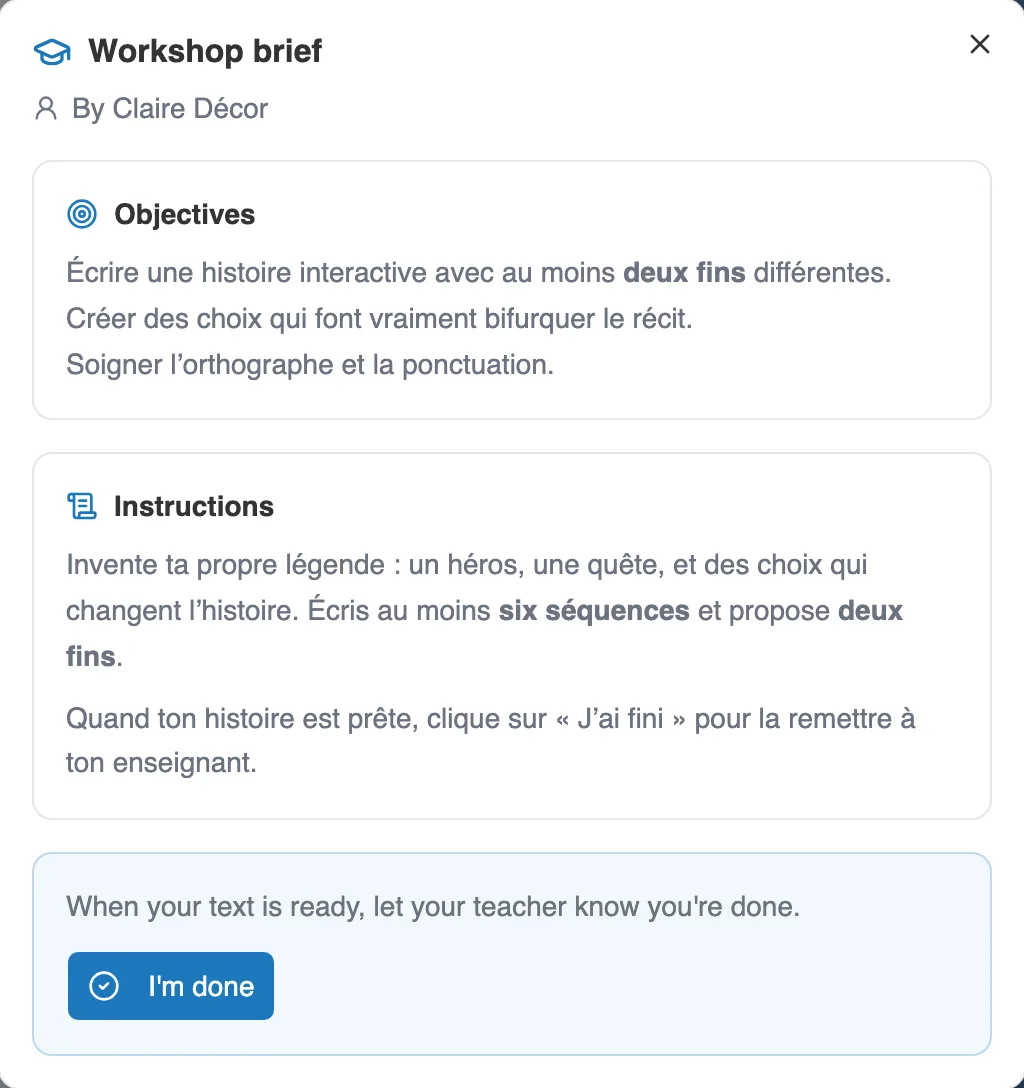
The Workshop panel: the instructions, the objectives, and the “I’m done” button.
To get to know the editor itself (sequences, choices, media), see the Create a story section.
When you are finished
Section titled “When you are finished”The “I’m done” button tells your teacher that your work is ready to be read. Moiki first asks you to confirm.
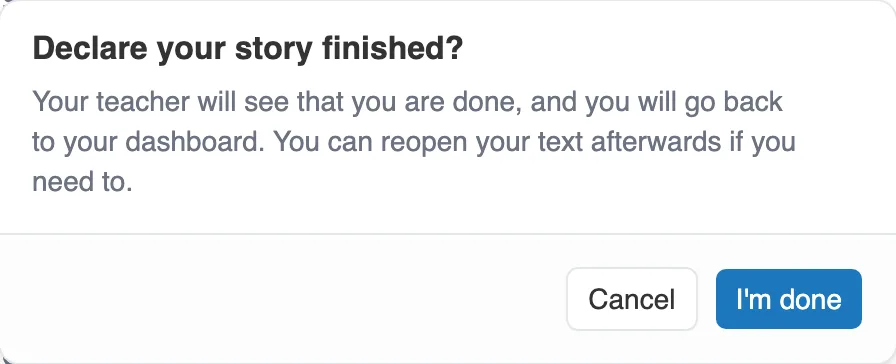
The confirmation, before handing in.
You then go back to your dashboard. Your text is handed in, there is nothing left to do on it, and you find your other workshops again.
Nothing is locked for all that. Reopen your work and the button reads Resume writing. You can still change your text as long as the session is open, and this time you stay in the editor.
In a collaborative workshop, described further down, a fragment your teacher has already put into the class story carries the state Added. It then opens in Read-only, with an Edit button right beside it. The lock is there so a stray keystroke does not pull your piece back out of the assembled story, not to shut the door on you. You lift it whenever you decide to pick the work up again.
What does not reopen is a workshop your teacher has closed.
Your teacher’s comments
Section titled “Your teacher’s comments”Your teacher can read your story and leave comments on it: a word of encouragement, or a suggestion about one particular scene.
They appear in a Comments panel, which opens from the button of the same name, to the right of the tab bar. A badge on it counts the ones you have not read yet. Comments are grouped by what they are about (the whole story, a sequence, a character), the panel opens by itself when some are still waiting, and one click takes you to the spot concerned.
Writing together
Section titled “Writing together”A collaborative workshop works another way. The class writes a single story, cut into fragments. Your teacher hands you one or more fragments to write, on your own or in a group. So you are not all working on the same area, and each group takes care of the fragments that fall to it.
Your part does not show up right away? The workshop then tells you that your teacher has not shared out the pieces yet. Come back a little later: it will appear in the same place.
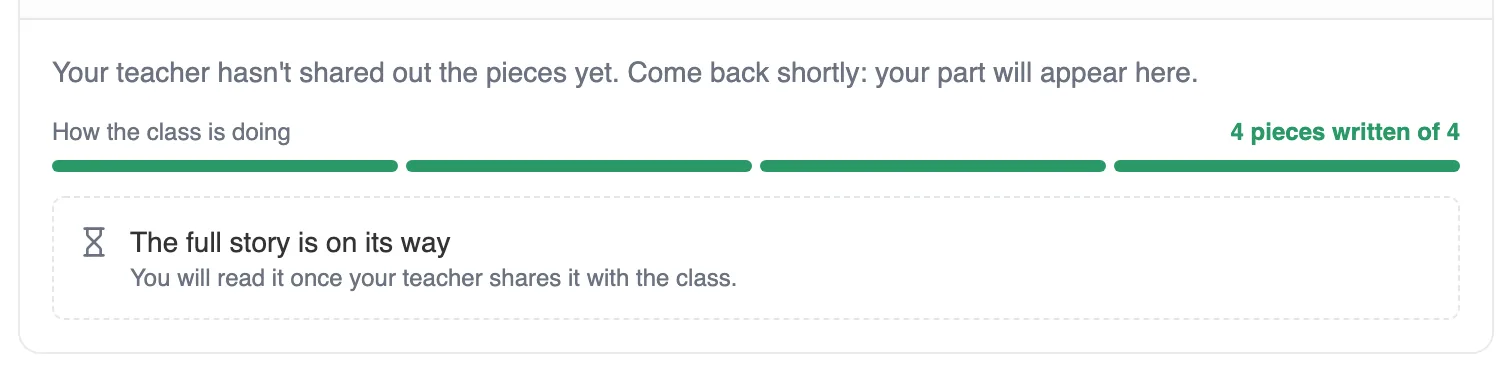
While you wait for your piece.
If there are several of you on one fragment, only one holds the pen at a time. You pass it around in turn, and your teacher can take it to give you a hand, then hand it back. When your fragment is ready, “I’m done” tells your teacher. From the teacher’s side, everything is described in A collaborative writing workshop.
A single button gets the pen back, and it follows the situation. If your classmate is writing, it offers to Ask for the pen, and they decide. If they have left their work aside, it offers to Take over straight away. A request left unanswered for a minute lets you take over anyway, so nobody stays stuck because someone stepped away.
A tour to start with
Section titled “A tour to start with”The first time you open a fragment, a short tour greets you and shows you the essentials in five steps: where to find your instructions, how to see the original story, and what your exits are. It only runs once, and the Replay the tour button plays it again whenever you like, from the Workshop panel.
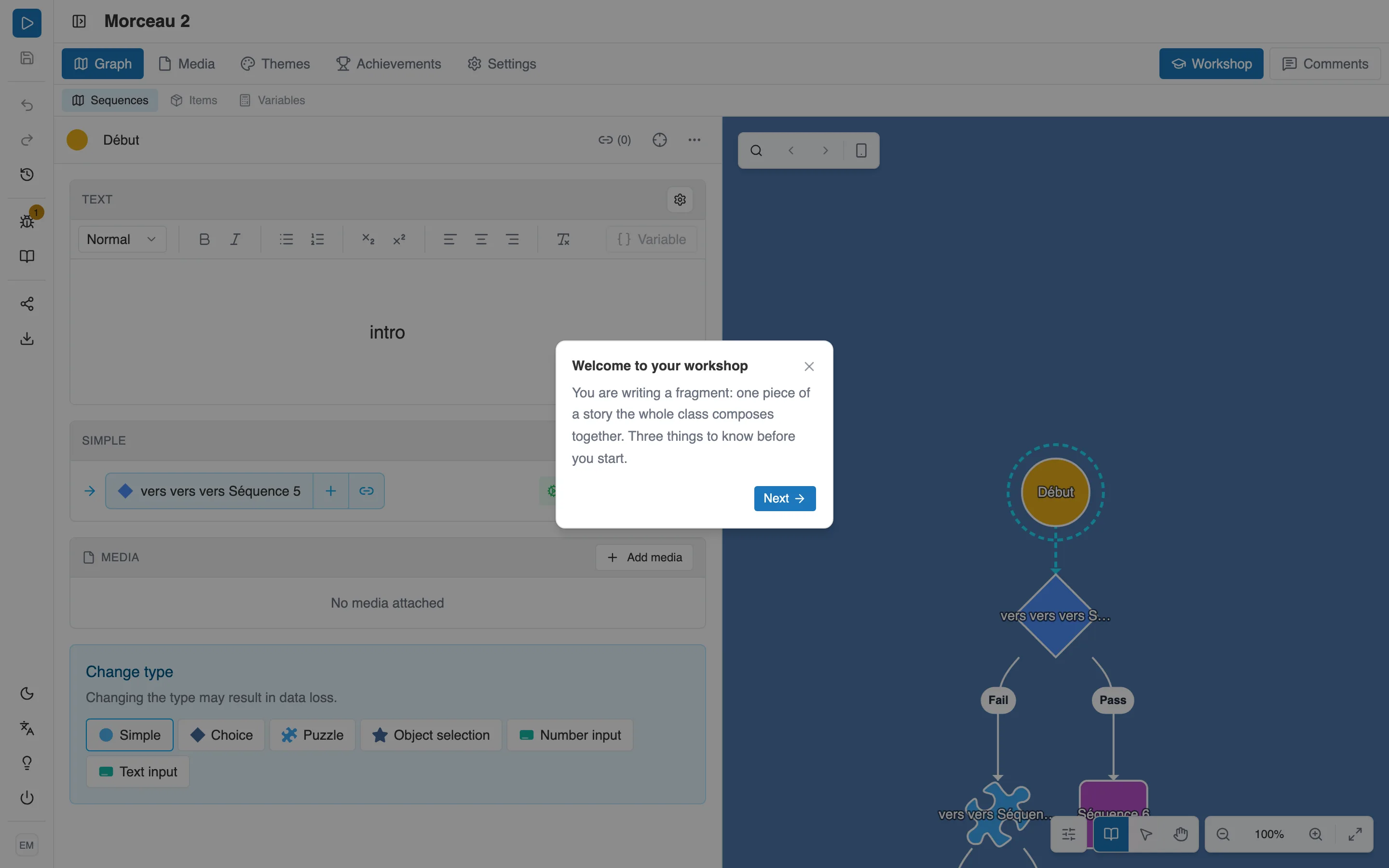
The welcome tour, the first time you open your piece.
Your instructions, and your exits
Section titled “Your instructions, and your exits”The Workshop button, at the top right of the tab bar, reopens at any moment what your teacher expects of you.
You find the workshop’s objectives and instructions there, then two things that belong to your piece alone: a What you have to write here box, and the list of Expected exits. Those exits are your contract. They are the places where your fragment joins the rest of the story, and your writing has to lead to every one of them.
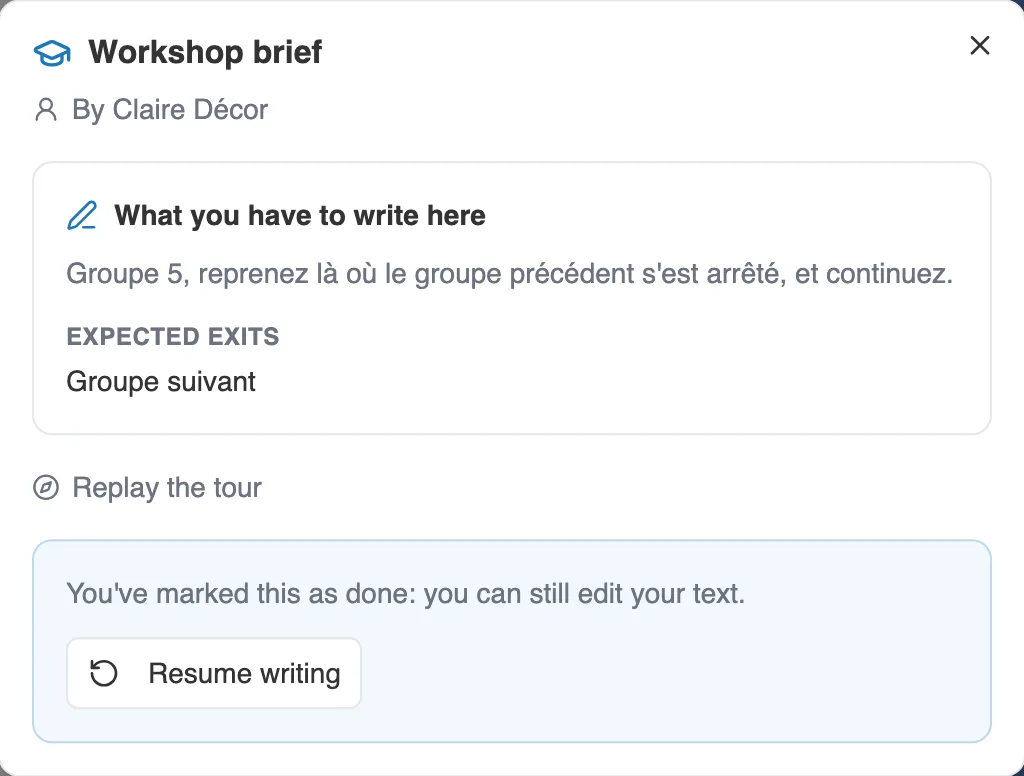
The Workshop panel of a piece already handed in: the instruction, the expected exit, and what you need to resume writing.
Where your piece attaches
Section titled “Where your piece attaches”On your work card, two lines place you inside the class story:
- After: the piece or pieces the reader arrives from.
- Must lead to: where your text has to lead.
A piece that opens the story has no “After” line. These pointers come from your teacher’s plan, never from your classmates’ text, so you know where you stand without reading their work.
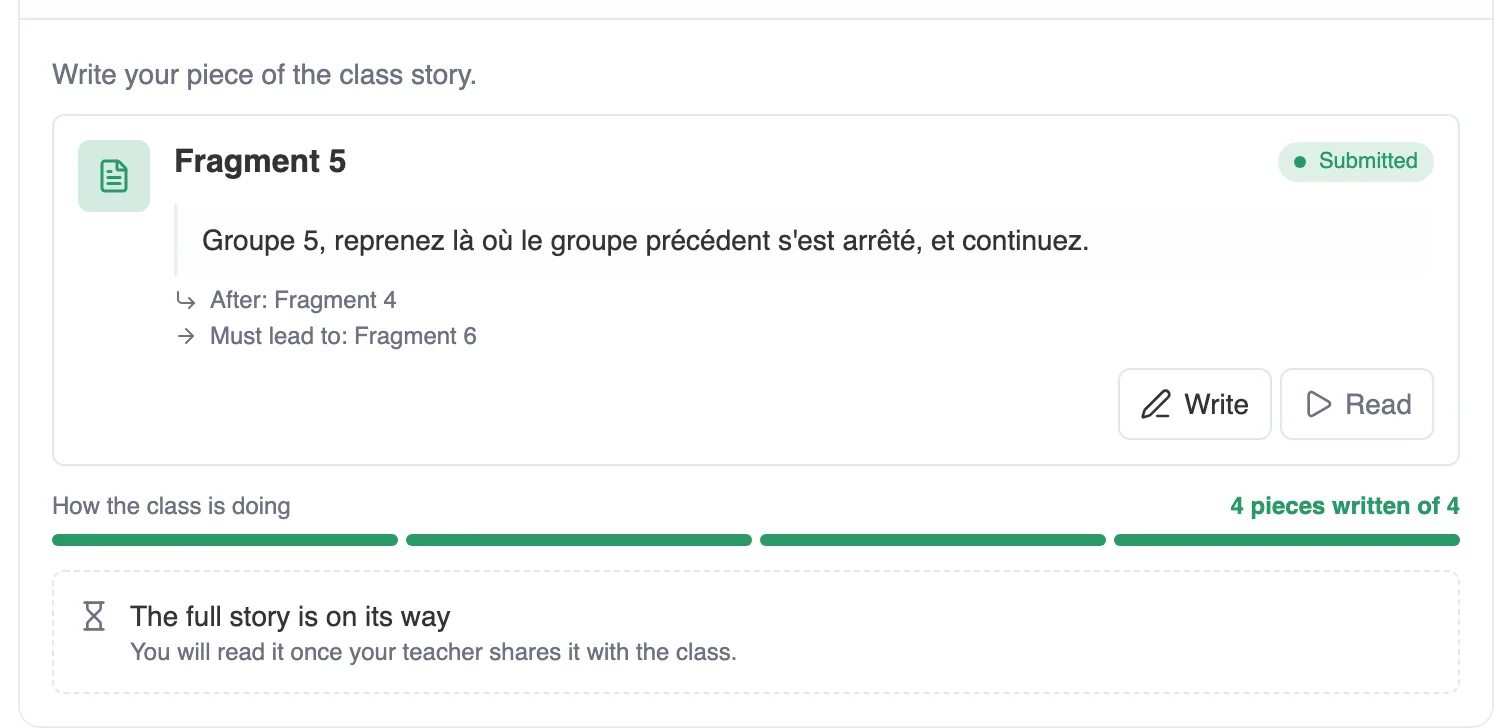
Your card brings it all together: the brief, where your piece attaches, and how far the class has got.
Handing in, and sometimes starting again
Section titled “Handing in, and sometimes starting again”“I’m done” asks you to confirm, then takes you back to your dashboard. Your piece is handed in, and your teacher can see it.
If your piece has to lead to an exit and does not contain one yet, it is not handed in. Moiki tells you: “Your piece doesn’t lead anywhere yet: add an exit so the story can carry on after it.”
Your card can then take two states worth knowing about:
- Added: your piece has entered the class story. You can still reopen it, and it shows in read-only with an Edit button.
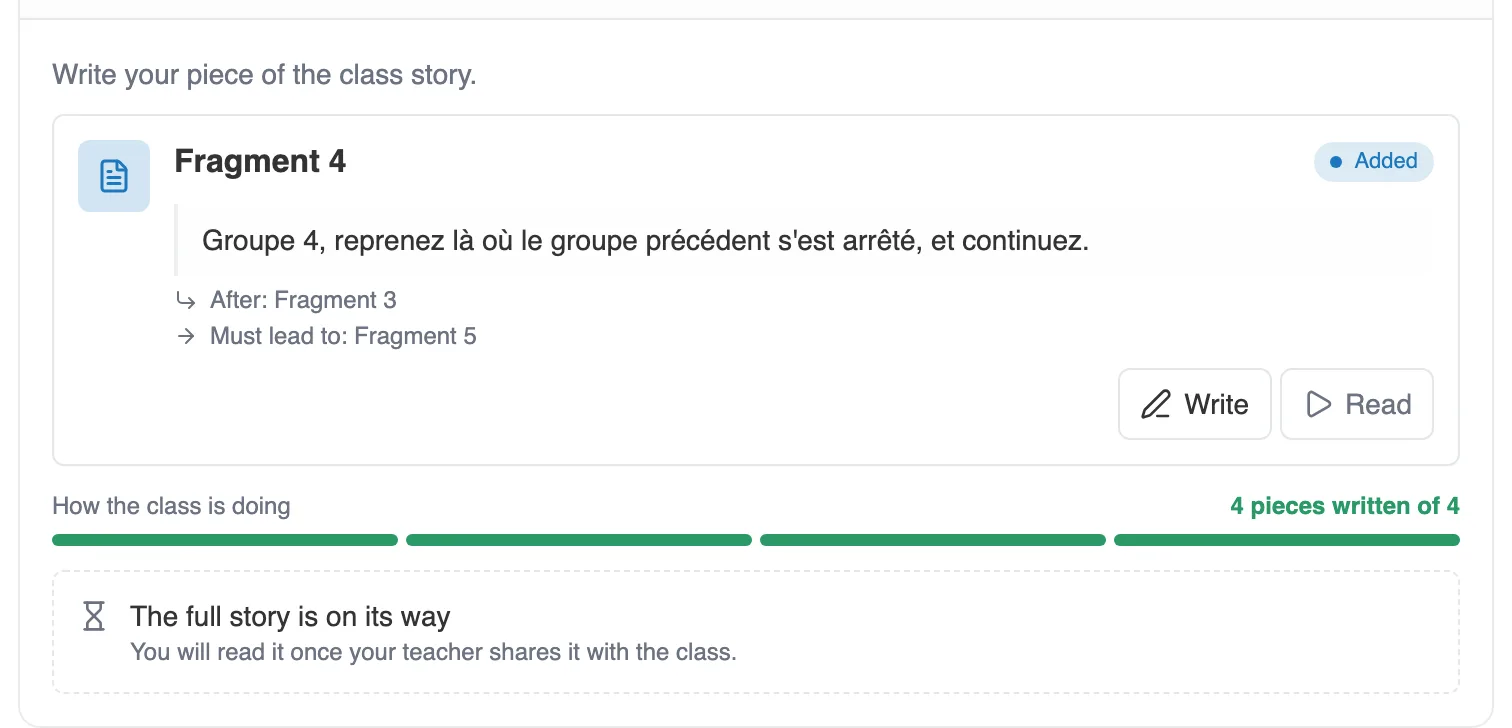
A piece that has been Added.
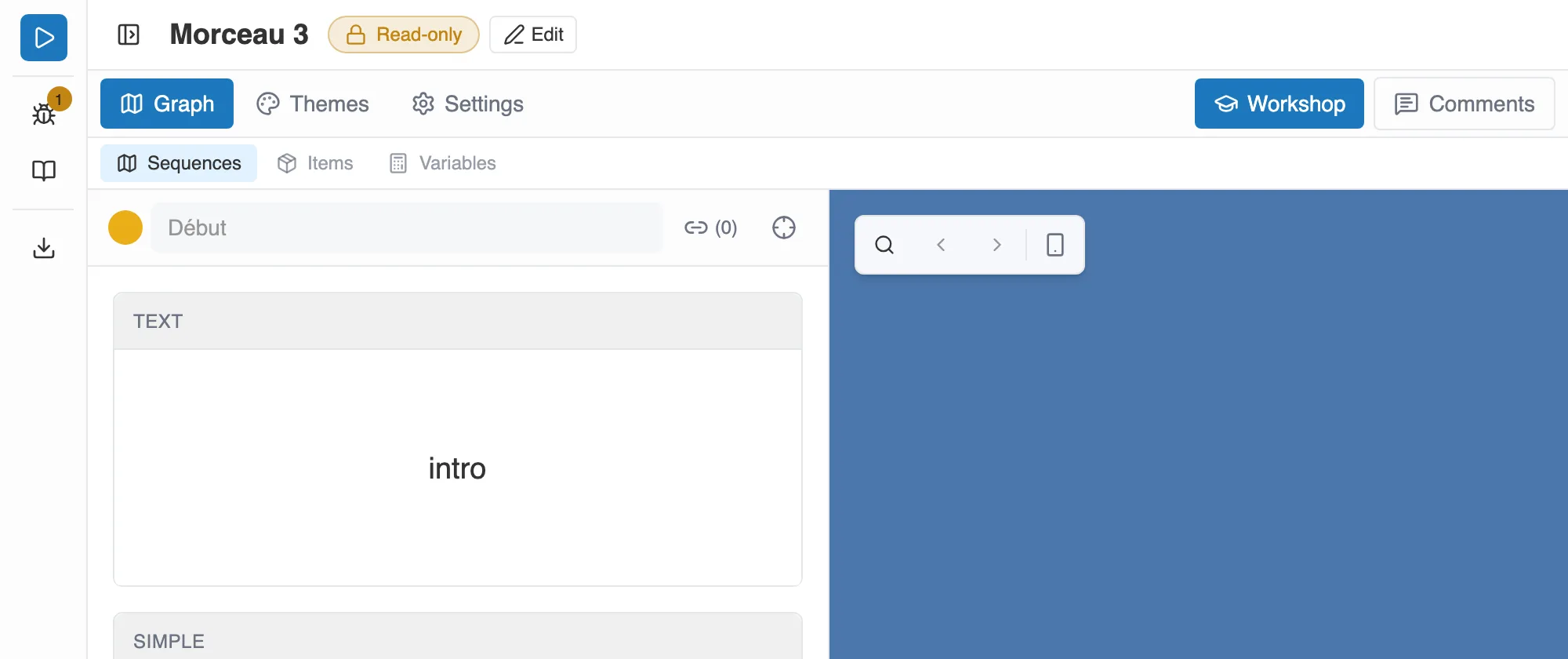
Reopened, it is Read-only. The Edit button lifts the lock.
- Needs rework: your teacher is sending it back to you. They have left a message explaining what they expect, to be read in the comments panel. Fix it, then hand it in again. As soon as your first correction is saved, the card goes back to In progress, as while you were writing. Click “I’m done” again when it is ready.
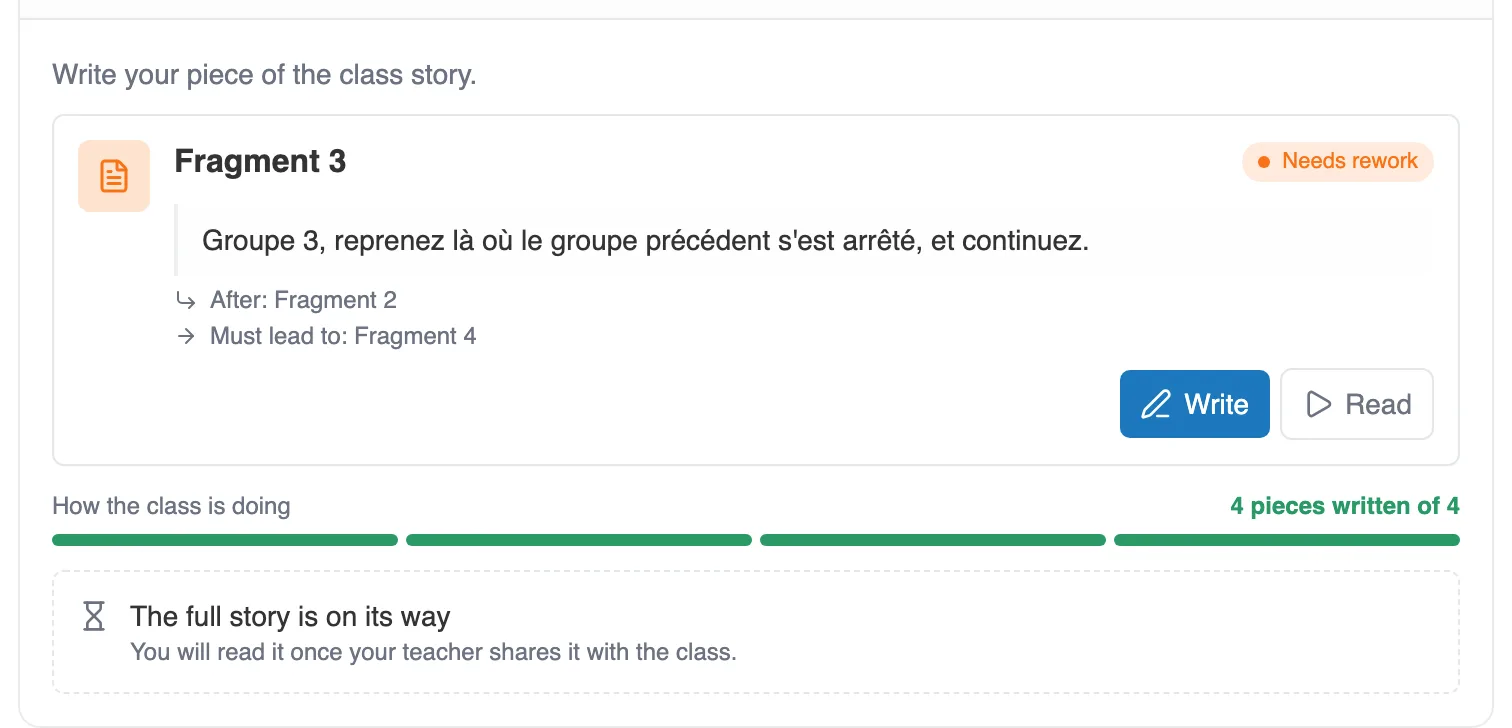
A piece that Needs rework: the Write button takes you back to it.
Following the class
Section titled “Following the class”Without giving away a word of the others’ text, a How the class is doing line tells you how many pieces are written out of the total. It is a tally, never a text.
Until your teacher shares the result, a card announces that The full story is on its way. The day they share it, you can read the whole thing.