

Versions and saving
Your work is safe. The editor saves automatically as you make changes. No button to keep an eye on, no risk of losing your text.
Saving
Section titled “Saving”Saving happens on its own a few seconds after your last action. If you prefer to save yourself, the Save button in the action bar (or the Ctrl+S shortcut, Cmd+S on a Mac) is always there. It becomes active as soon as there is something new to save.
Going back to a version
Section titled “Going back to a version”The History button in the action bar opens the Version history. It has two parts: the kept versions, which you choose to hold on to, and the automatic history, which fills itself.
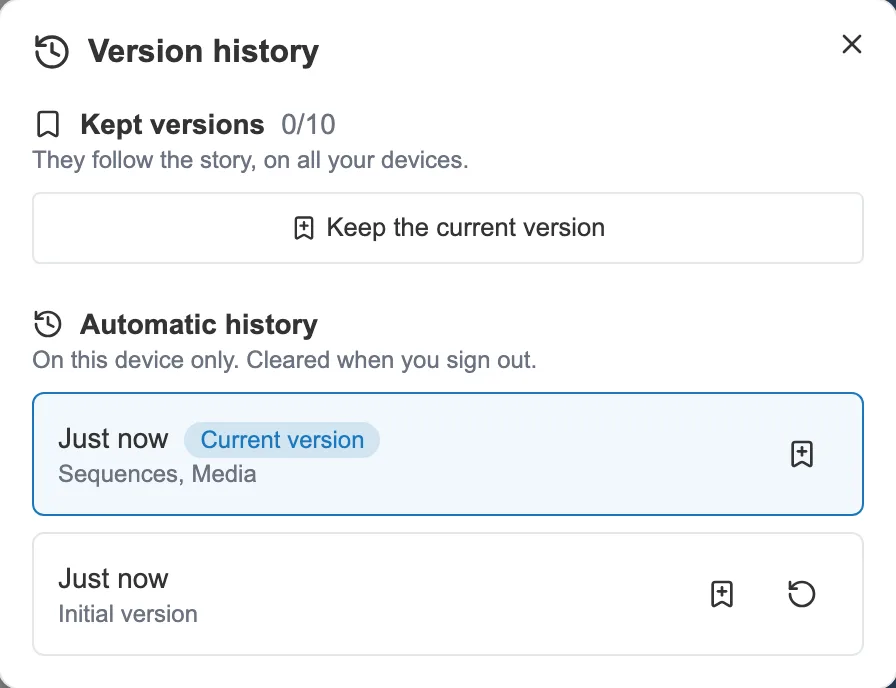
The version history: what you keep, then what the editor remembers on its own.
The automatic history
Section titled “The automatic history”Each save leaves a point in it, with when it was taken and what had changed (sequences, media, themes…). The most recent one carries the Current version tag: it is what you have in front of you.
To go back to an older point, click Restore this version. The restored version is saved right away and added at the top of the list, marked Restored version. The versions you leave stay in the history: you can undo that step back.
Kept versions
Section titled “Kept versions”For a milestone you want to find again for sure, click Keep the current version. A point of the automatic history can be kept too, with the Keep this version button on its row. You can give the version a name, which is optional.
A kept version is saved with the story: it follows the story on all your devices, and is not cleared when you sign out. Each one can be restored, renamed or removed.
A story keeps 10 versions at most. Beyond that, the editor asks you to remove one before keeping another. Kept versions go away with the story if you delete it.
For a copy of your story outside Moiki, export it. See Exports.