

Preview and testing
The Play button, at the top of the action bar, launches your story in a test window, exactly as a reader will experience it.
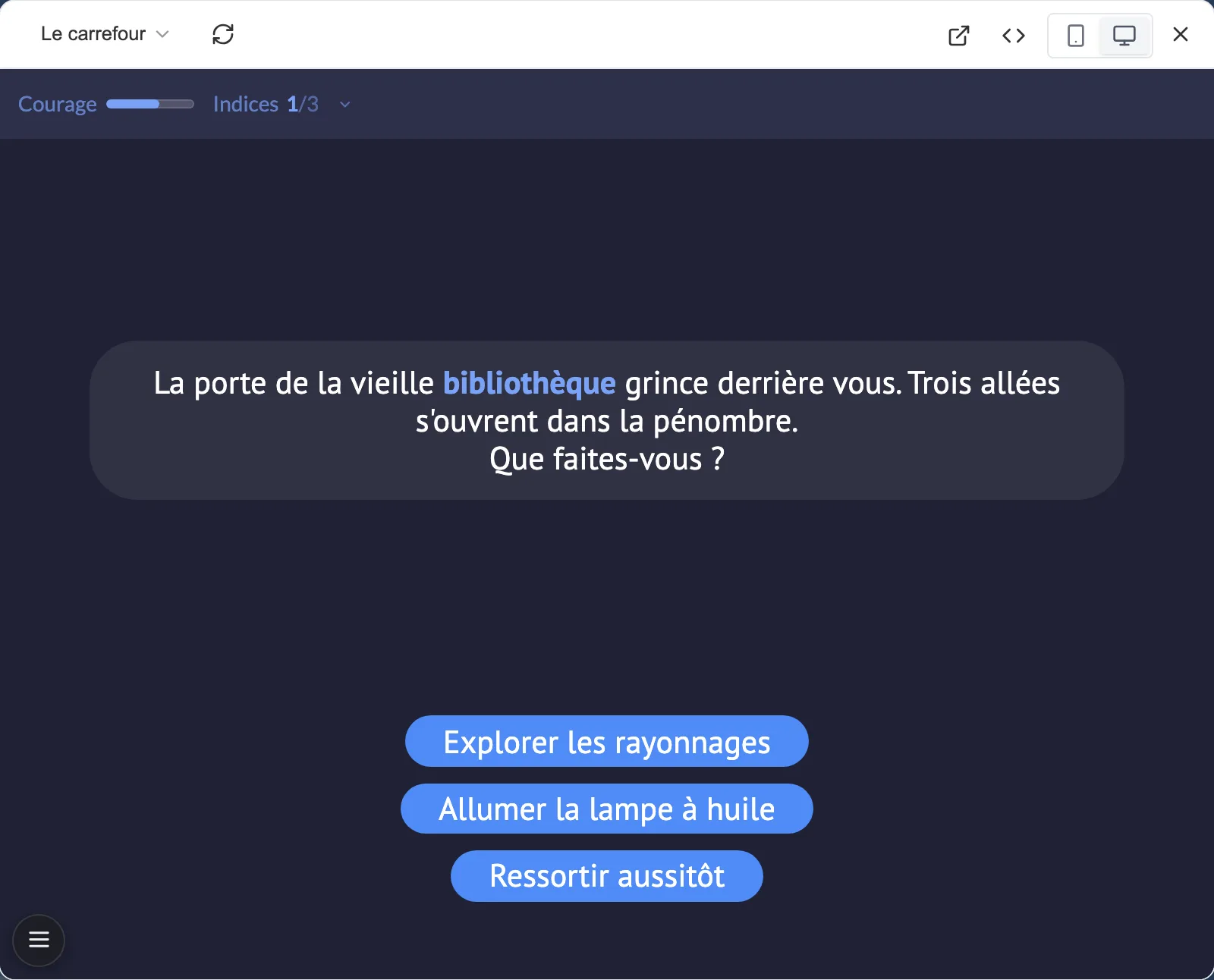
The test window: your story in real conditions.
The test controls
Section titled “The test controls”The test window offers a few controls:
- A mobile / desktop toggle, to see how it looks in both formats.
- A sequence picker, to jump straight to a given passage without replaying everything.
- A button to restart from the beginning.
The test plays the real story, with its theme and its settings. Nothing is saved, it is a sandbox.
Moving on to the real player
Section titled “Moving on to the real player”At the top right, a button shaped like an outgoing arrow opens your story in the real player, in a new tab. That is the page your readers will see, outside the editor.
The developer panel
Section titled “The developer panel”At the top right of the test window, a button (tooltip Developer panel) opens a column of tooling. It is added beside the simulated phone or screen, which keeps its size, and the window widens accordingly. Two tabs share the work.
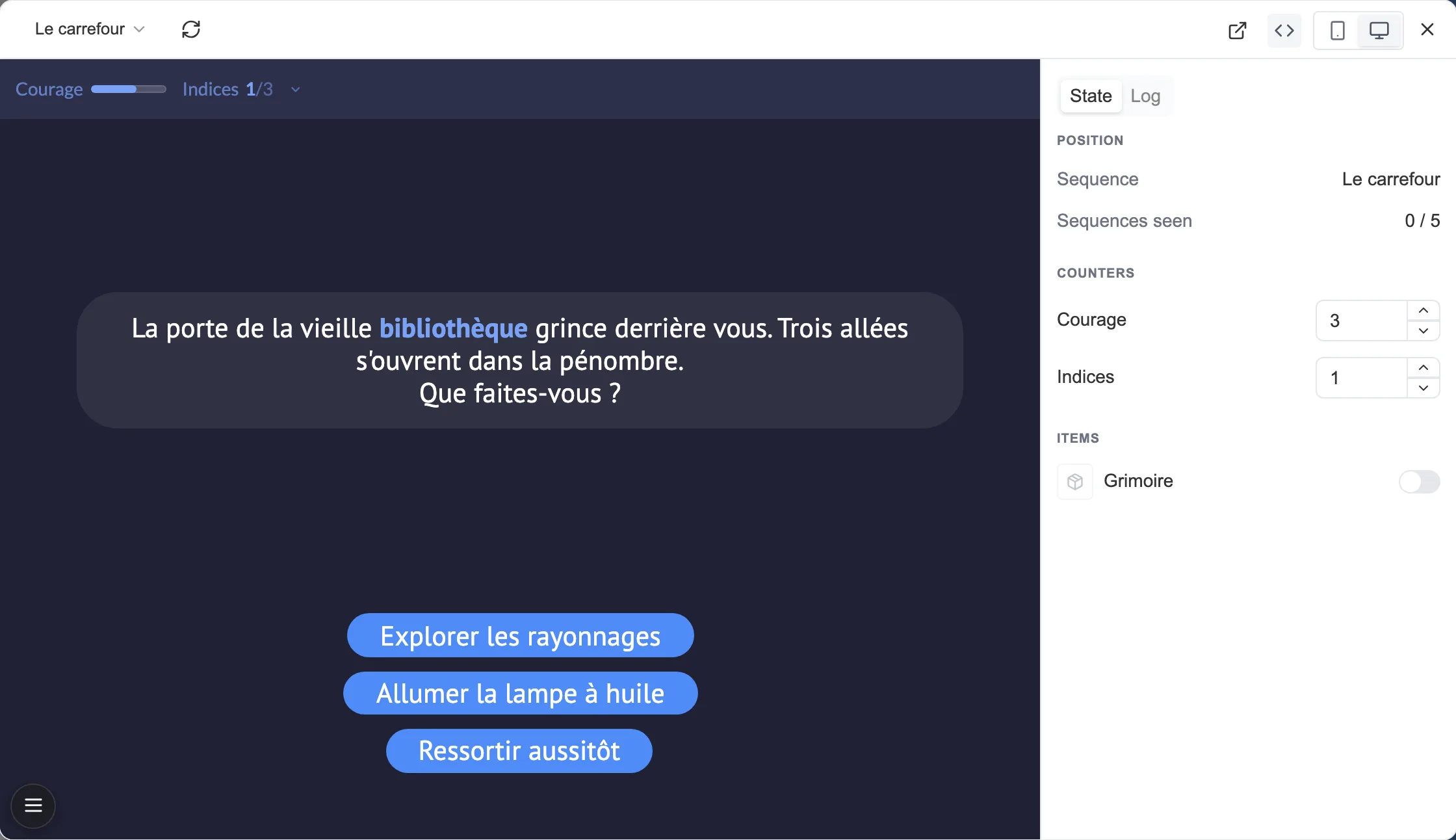
The developer panel, State tab: the position, the counters and the items, all editable live.
The State tab shows where the playthrough stands, and lets you write into it: the position in the story (the current sequence, the ones already seen, the sub-graphs in progress), the flags, the counters (within their bounds), the text variables and the items in the inventory. Everything can be changed live, without leaving the playthrough.
The Log tab tells the playthrough sequence by sequence: the choices taken, the actions played, the conditions evaluated, the events triggered. Four filters (Sequences, Actions, Conditions, Events) sort that stream, and a Clear the log button starts again from scratch. The log records even when the panel is folded away, so you lose nothing by opening it halfway through.
This is the tool for checking a conditional passage without replaying the whole story. Jump to the sequence just before, hand the reader the missing item or score from the State tab, and watch the branch open. The Log then tells you whether the condition evaluated is really the one you had in mind.