

Puzzles and inputs
A choice offers ready-made answers. Three sequence types go further and ask the reader to answer for themselves: find a code, type a word, set a number.
- Puzzle waits for a code, and steers the story according to what the reader entered.
- Text input has the reader type a word, a first name for instance, and keeps it in a variable.
- Number input has the reader set a number, and keeps it in a counter.
All three are created like any other sequence. In the creation window, Puzzle sits among the types, and Form… opens the choice between Text input and Number input. See Creating a sequence.
The puzzle: a code to find
Section titled “The puzzle: a code to find”The reader reads your text, then enters a code on a small keypad. Each code you planned leads where you want, and everything else goes to a shared exit.
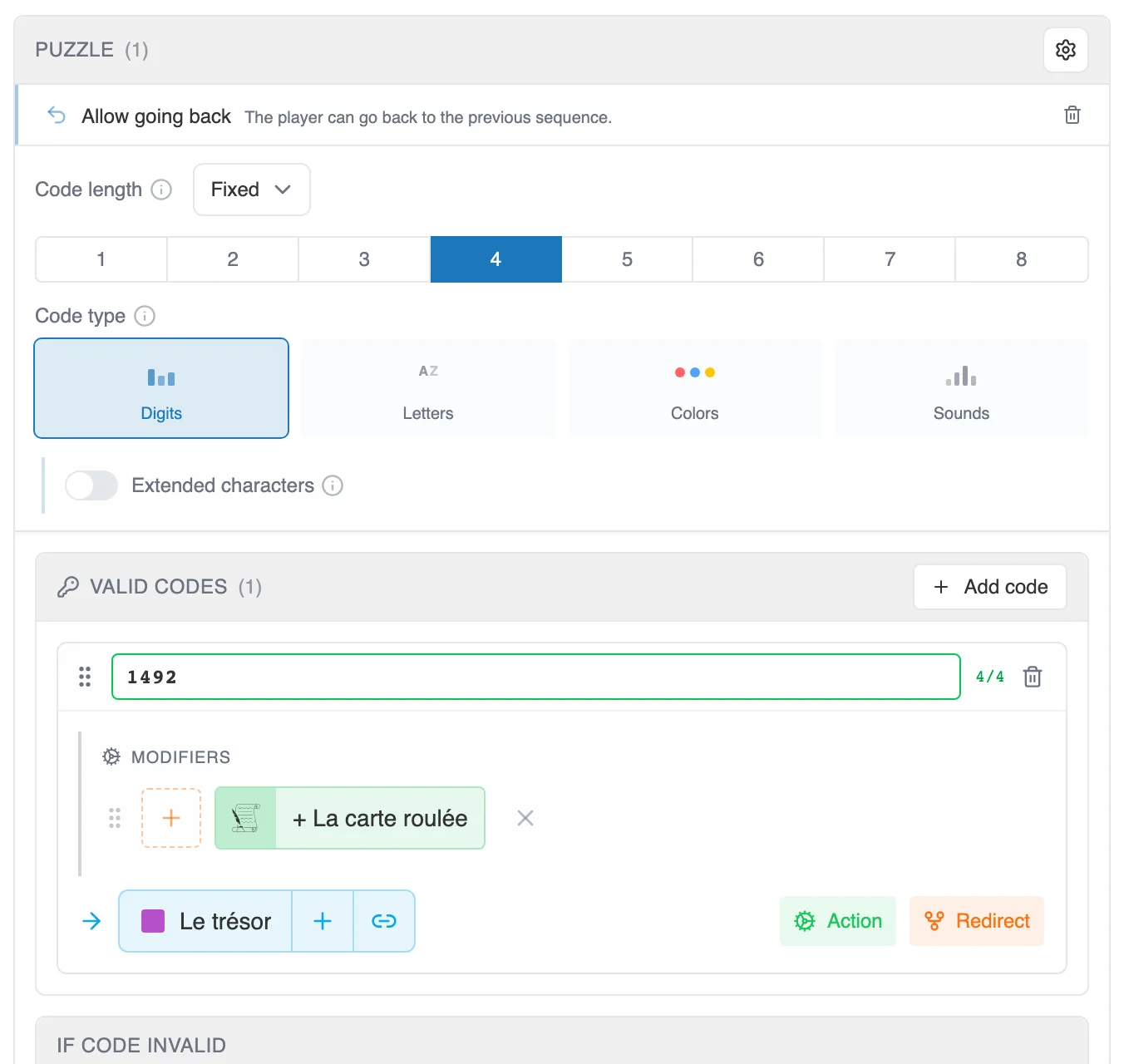
The Puzzle block: the shape of the code, the valid codes, and the exit for invalid codes.
The shape of the code
Section titled “The shape of the code”Code type picks the keys the reader will have at hand:
- Digits, from 0 to 9. The Extended characters switch adds the dot and the dash.
- Letters, from A to Z.
- Colors, a palette to choose among Rainbow, Pastel, Neon and Earth.
- Sounds, musical notes, in a Marimba, Piano, Bell or Synth style. Two options come with them: Show note labels and Enable sharps.
Code length goes from 1 to 8 characters. In Fixed mode, the reader cannot validate before entering the exact number. In Variable mode, they validate whenever they want, within the limit you set.
The valid codes
Section titled “The valid codes”The Add code button creates a row. You type the code there, then give it its destination, exactly as for a choice. A counter to the right of the field tells you whether the code has the right length.
Nothing forces you to have a single right answer. With several codes, each one opens its own follow-up: a chest hiding two treasures, a door with two combinations. A given code can only appear once.
Each code can also carry an Action or a Redirect. See Actions and redirects.
Leaving a way out
Section titled “Leaving a way out”The gear of the Puzzle block adds two options. Add timer puts the reader under pressure. Allow going back gives them a button to return to the previous sequence: they can give up on the code, and go back to look for the hint they are missing.
If the code is wrong
Section titled “If the code is wrong”The If code invalid block receives everything that matches none of your codes. Always connect it: it is what keeps the reader from being left in front of a silent padlock. It can lead to a hint, to a failure sequence, or back to the puzzle for another try.
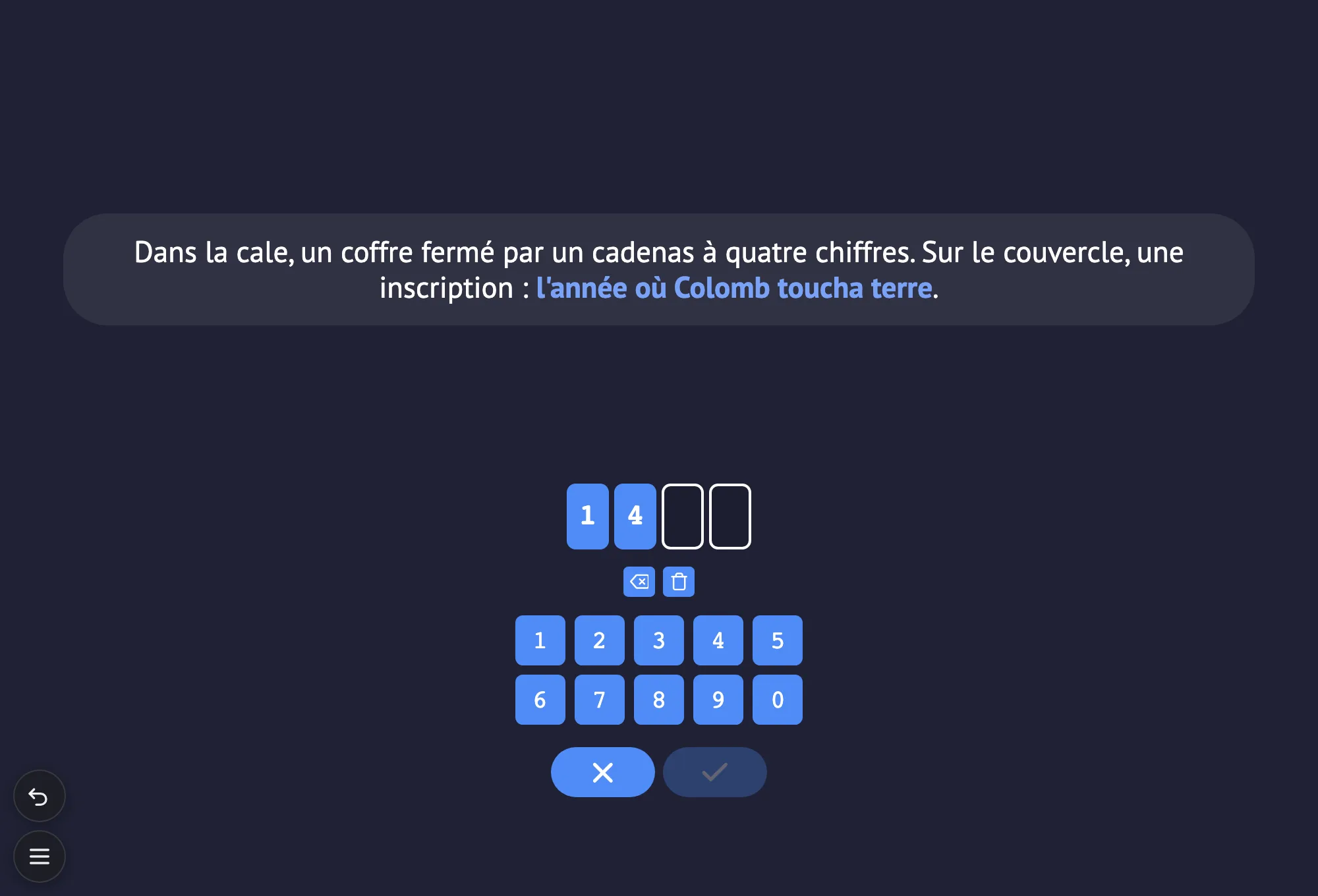
On the reader’s side: the code boxes, the keypad, and validation waiting for the fourth digit.
In the graph, each code and the Invalid code exit leave the sequence with their label. So you see at a glance what is still to be connected.
Text input
Section titled “Text input”The Text input sequence asks a question, and keeps the answer. It is what lets you call the reader by their first name throughout the story.
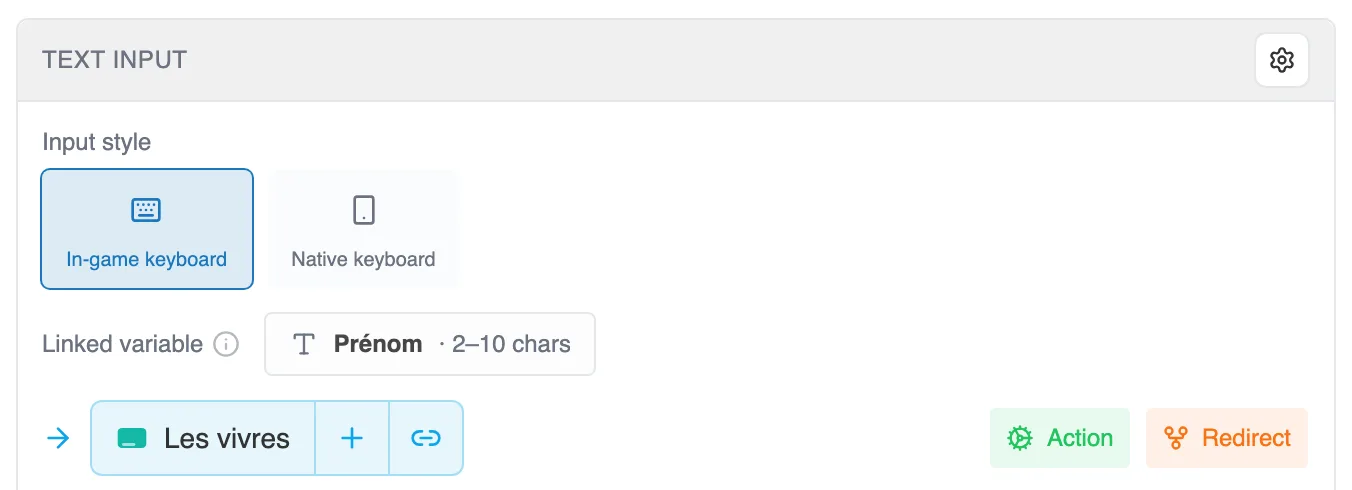
The Text input block: the keyboard, the linked variable, and what comes next.
Input style offers two keyboards:
- In-game keyboard: a keyboard drawn inside the story, without accents, for ten characters at most.
- Native keyboard: the one on the reader’s device, with accents, up to a hundred characters.
Linked variable names the text variable that will receive the answer. Moiki creates it with the sequence, and it belongs to it: only this input can change it. Click it to rename it and set the accepted Length, minimum and maximum. The reader cannot validate while their answer is too short.
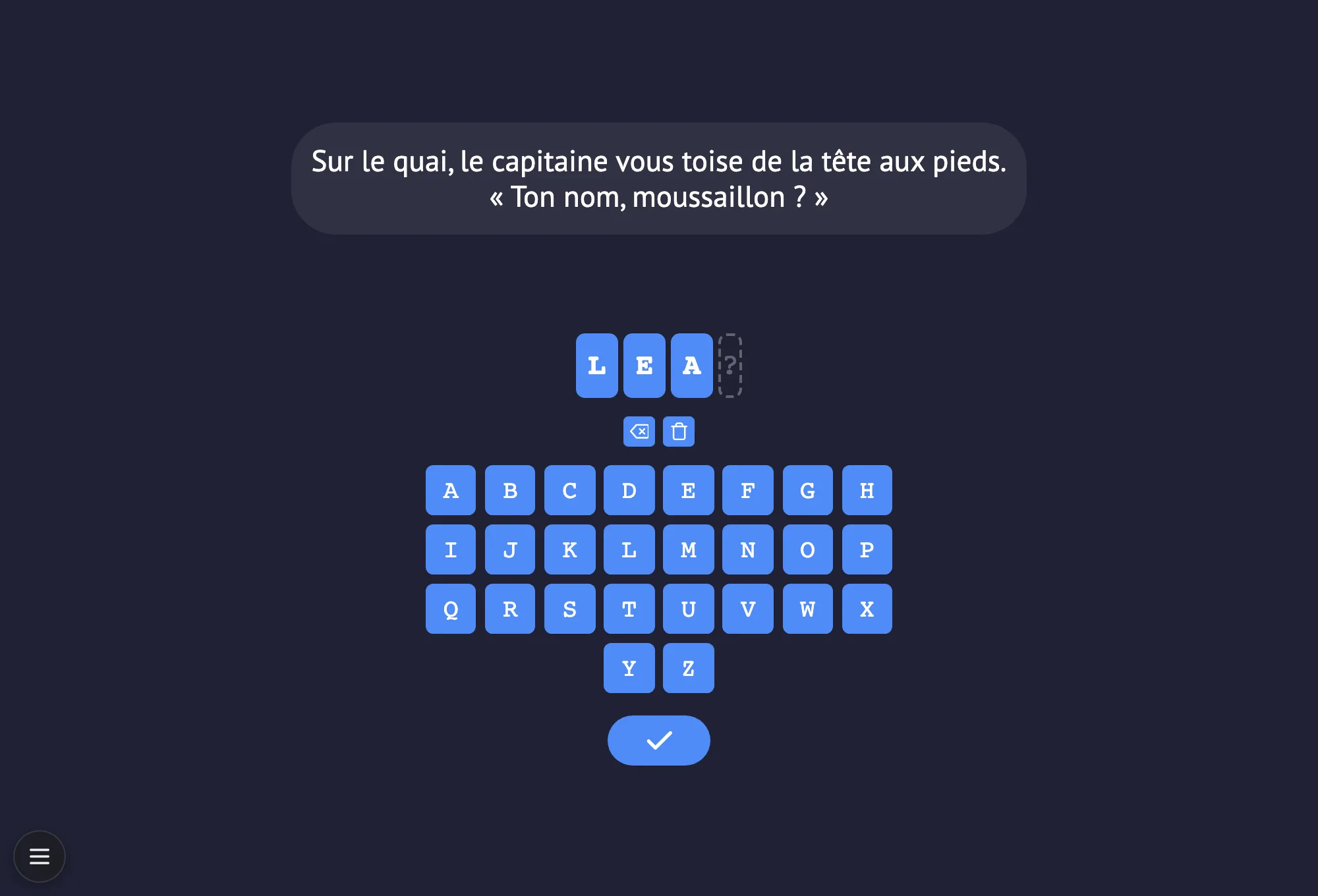
On the reader’s side, with the in-game keyboard.
The answer is then reused like any text variable: in the text of a sequence, to display it, or in a condition. See Inserting a variable into the text and Conditions.
To check an answer in a condition, the Ignore case and accents switch forgives the reader a capital letter or a missing accent: “paris” then matches “Paris”. It is on from the start.
Number input
Section titled “Number input”The Number input sequence has the reader choose a quantity: days of supplies, a difficulty level, an age.
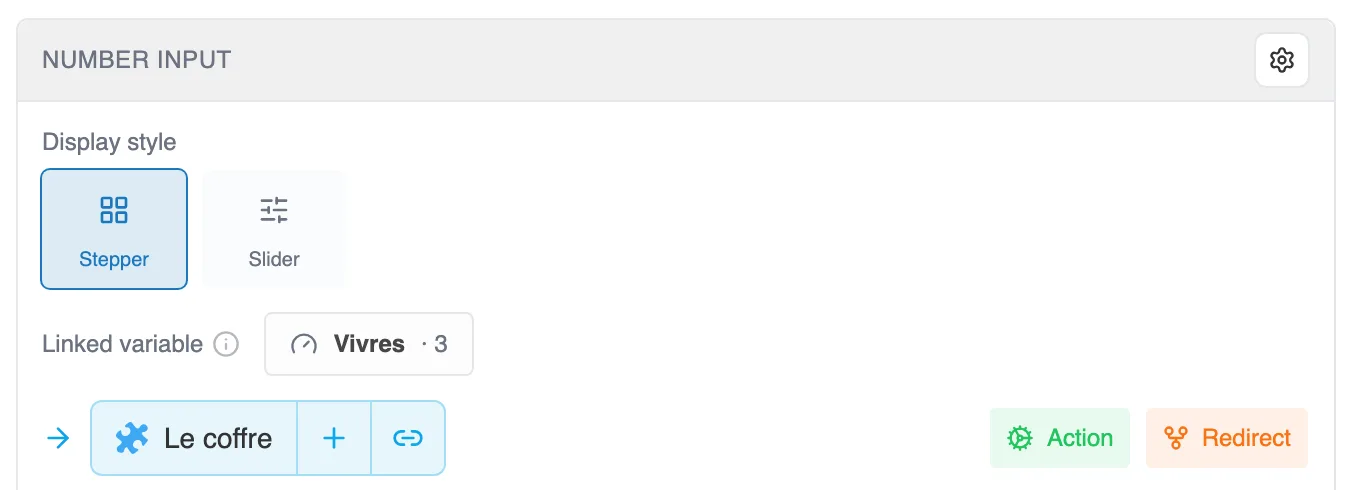
The Number input block: the display, the linked variable, and what comes next.
Display style offers two layouts:
- Stepper: two buttons, minus and plus, around a large value.
- Slider: a track to drag, comfortable on a phone.
Linked variable names the counter that will receive the number. As with text, Moiki creates it with the sequence. Click it to rename it and set its Values: the minimum, the maximum, and the value offered at the start.
The gear of the block adds two options: Customize the submit button, to replace the default label with your own, and Show bounds, which displays the minimum and the maximum under the slider.
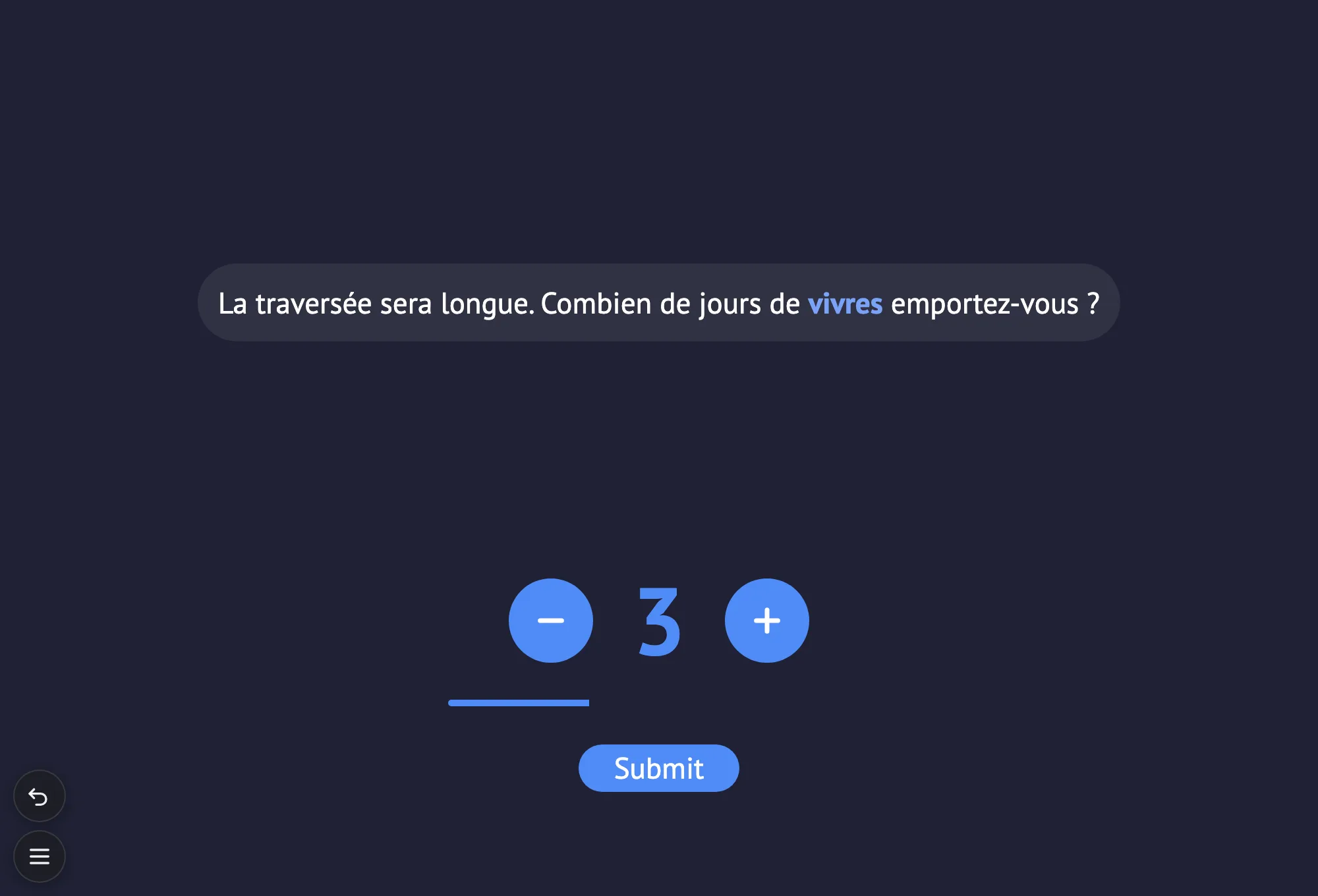
On the reader’s side, as a Stepper.
The counter then serves wherever a counter serves: a condition, an action, a gauge. See Variables.
In accessible mode
Section titled “In accessible mode”When the reader has turned on accessible mode, the drawn keyboards give way to an ordinary input field, usable with a keyboard and with a screen reader. That holds for text input, for number input, and for codes made of digits or letters. Codes made of colors and sounds, which have no text equivalent, keep their keypad.
In class
Section titled “In class”In a reading workshop, the teacher finds the codes each student entered. See A reading workshop.