

The graph
The graph is the map of your story. It takes up the right-hand side of the editor and shows, at a glance, all your sequences and the way they follow on from one another.
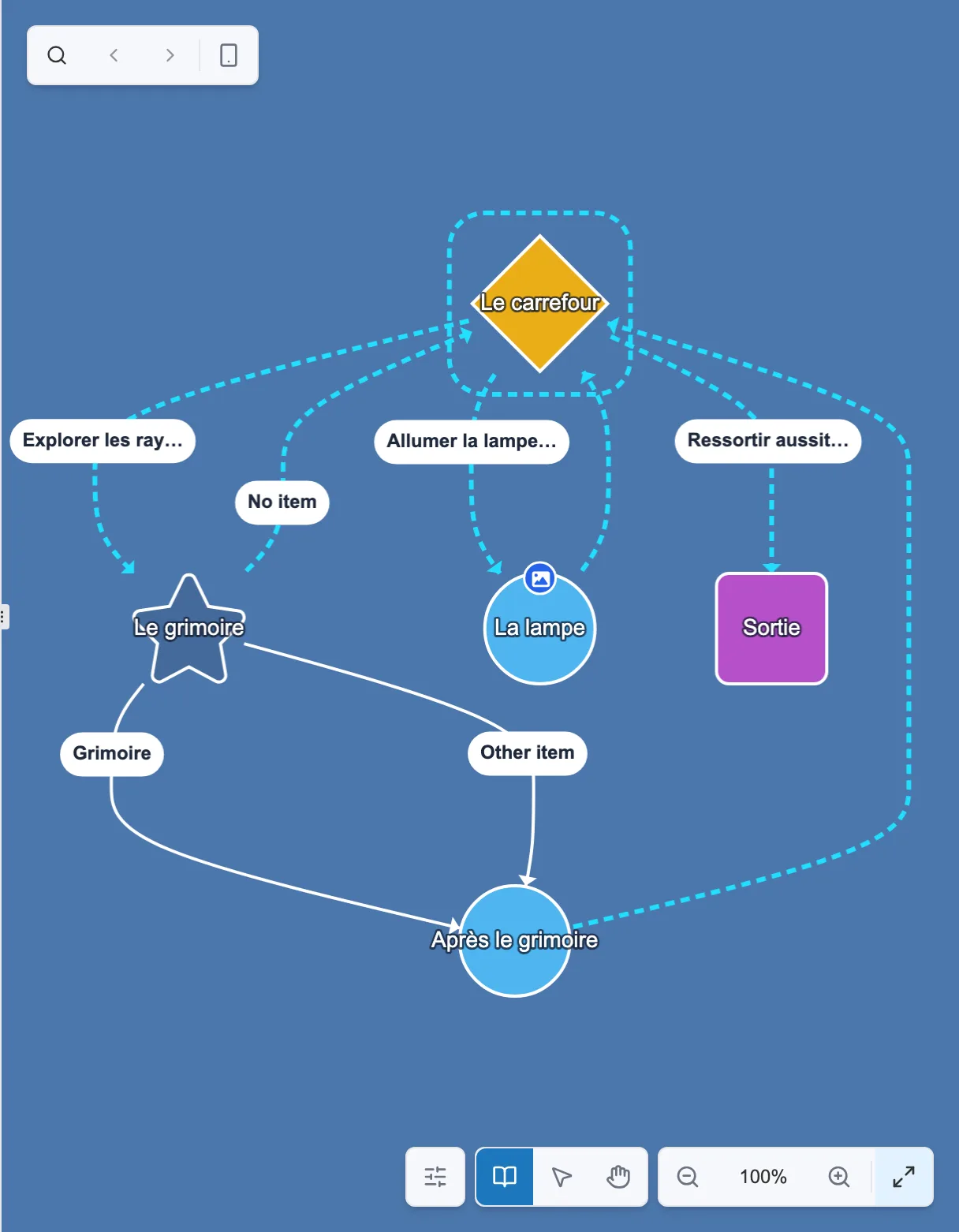
A graph: each node is a sequence, and the arrows are the links that lead from one to the next.
Sequences linked together
Section titled “Sequences linked together”Every node in the graph is a sequence, that is, one step of the story. The arrows stand for the links you draw between them: the choice that leads somewhere, or the continuation of a sequence.
The starting sequence is easy to spot, with its amber color. This is where reading begins.
Every shape has a meaning
Section titled “Every shape has a meaning”Sequences do not all look alike. The shape and the color of a node tell you its type: a circle for a simple sequence, a diamond for a branching point, a rectangle for an ending, and so on.
No need to learn them right now. The details are in Sequence types.
Select to edit
Section titled “Select to edit”Click a sequence to select it. Its editing panel opens on the left straight away, ready for its text, its choices and its media.
The graph stays your landmark: it shows the overall structure, and every click opens the details of one sequence.
Selecting several sequences
Section titled “Selecting several sequences”Hold Shift, Cmd (on a Mac) or Ctrl while you click: each click adds a sequence to the selection, or takes it out. In selection mode, the same key also adds the sequences inside the rectangle you draw, instead of replacing the current selection. See Moving around the graph.
The Multiple selection panel then replaces the editing panel. It lists the chosen sequences and offers to delete them in one go. In expert mode, it also offers to tidy them into a sub-graph. See Tidying sequences into a sub-graph.