Themes
A theme is the look of your story: its colors, its font, its effects.
The same scene, several moods
Section titled “The same scene, several moods”With identical content, each theme gives a completely different mood. Here is the same sequence running under several themes, seen on a phone. Only the look changes.
The same sequence, dressed by different themes.
The Themes tab
Section titled “The Themes tab”Your themes are managed in the Themes tab. The right-hand panel shows a live preview of the selected theme.
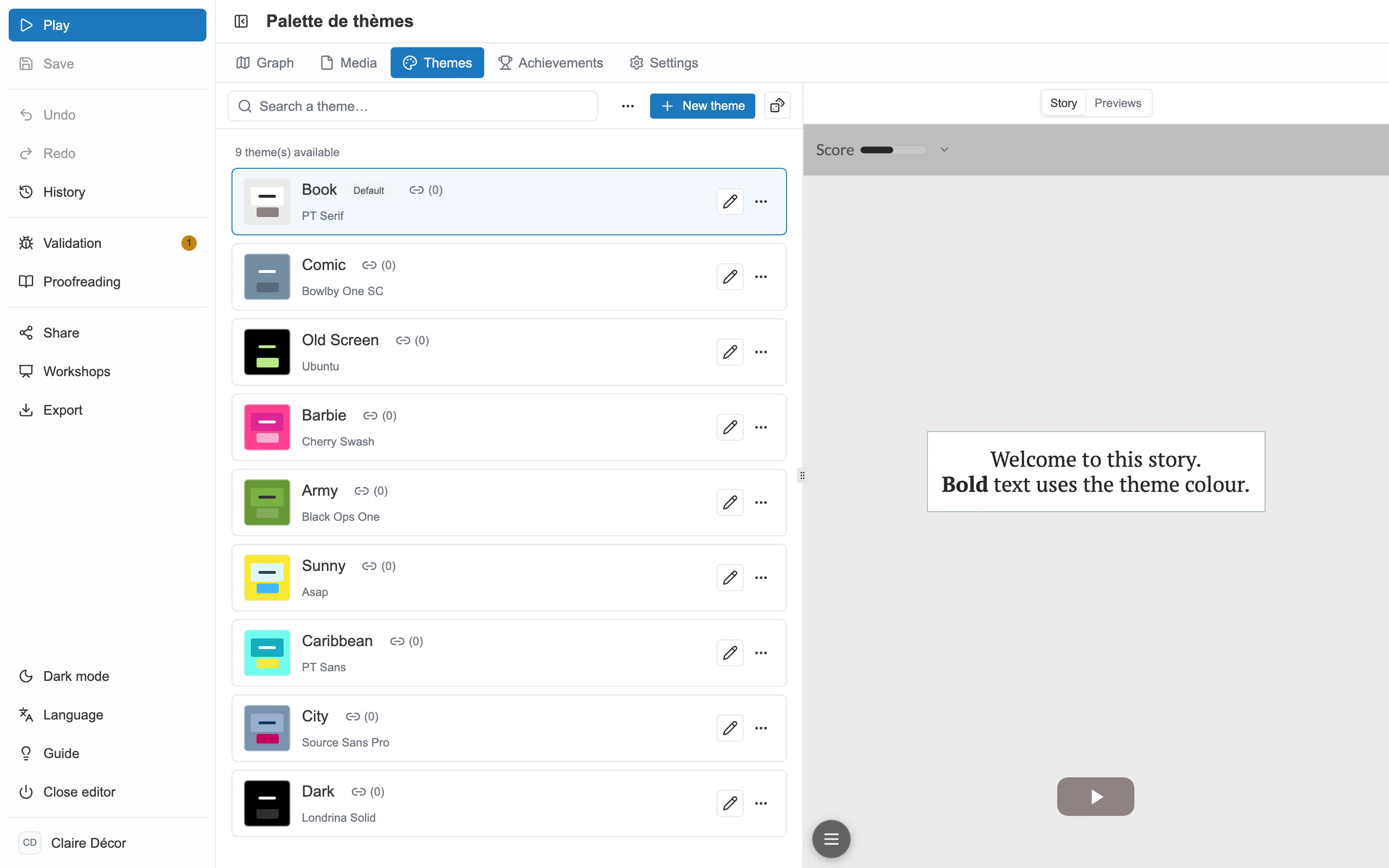
The Themes tab: the list on the left, the preview on the right.
The New theme button starts from one of the supplied presets (about twenty of them) or copies an existing theme. The pencil opens the theme editor (colors, font, borders, effects, sounds).
Having a theme suggested to you
Section titled “Having a theme suggested to you”To the right of New theme, a dice-shaped button with the tooltip Generate opens the generator. It offers you six themes at once, and the one you keep is added to your list. None of your existing themes is touched.
Three settings steer the roll.
- Style, which gives the direction. Ten named styles, each with its description: Editorial, Plain, Minimal, Fun, Colourful, Dark, Retro, Storybook, Comic and Night. The style constrains the palette, the shapes and the motion, and the roll only varies inside it. Random changes style with every proposal.
- Colour pairing: Shades for neighbouring hues, Opposites to make the buttons stand out, Trio for something lively, or Random.
- Background: Dark, Light, or Random.
To the right of the proposals, Preview is a real player running the one you picked, not a demo image. Roll again draws six new proposals.
The theme you create takes the name of its style, which you can change afterwards.
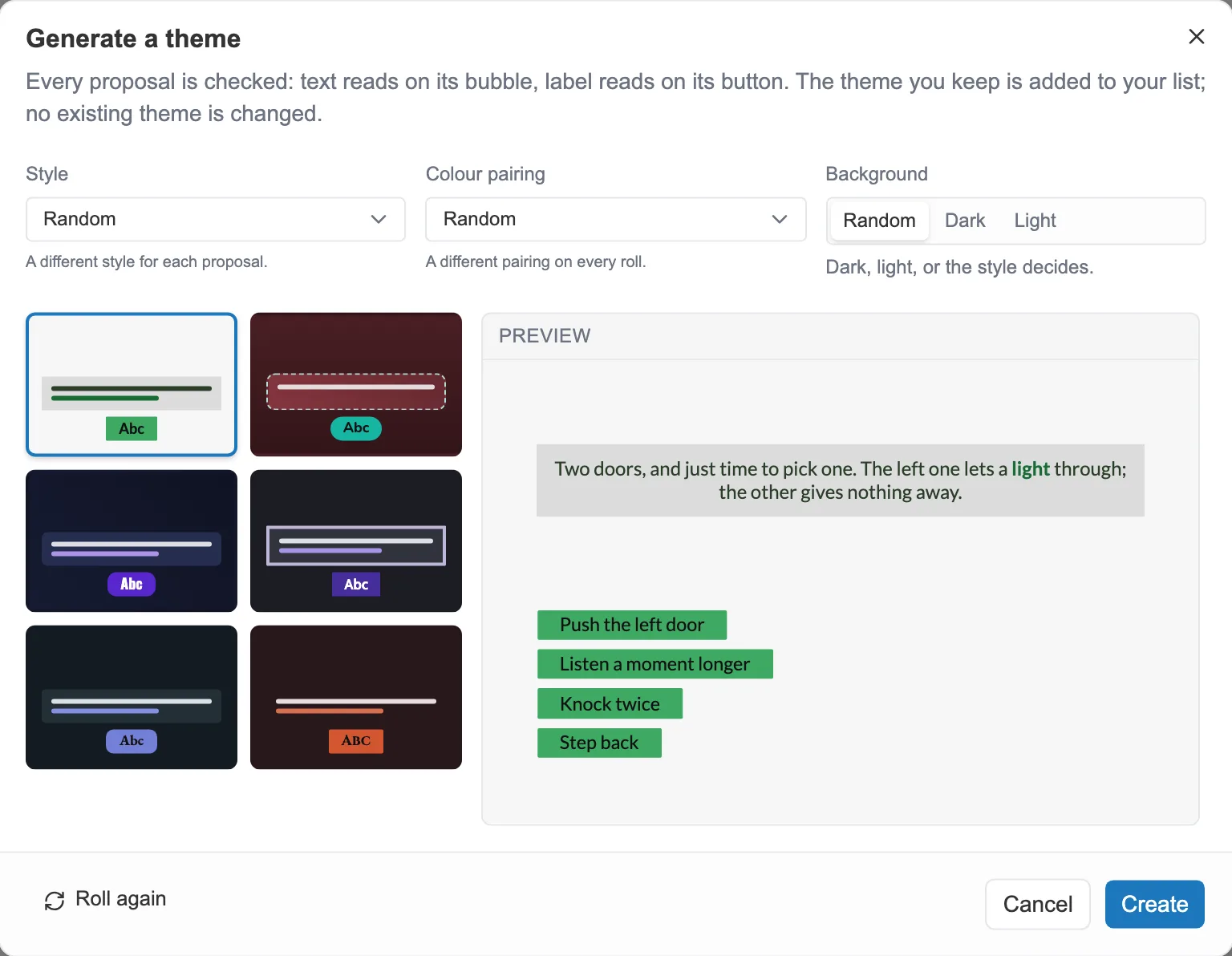
The six proposals on the left, the preview of the chosen one on the right. Roll again draws six more.
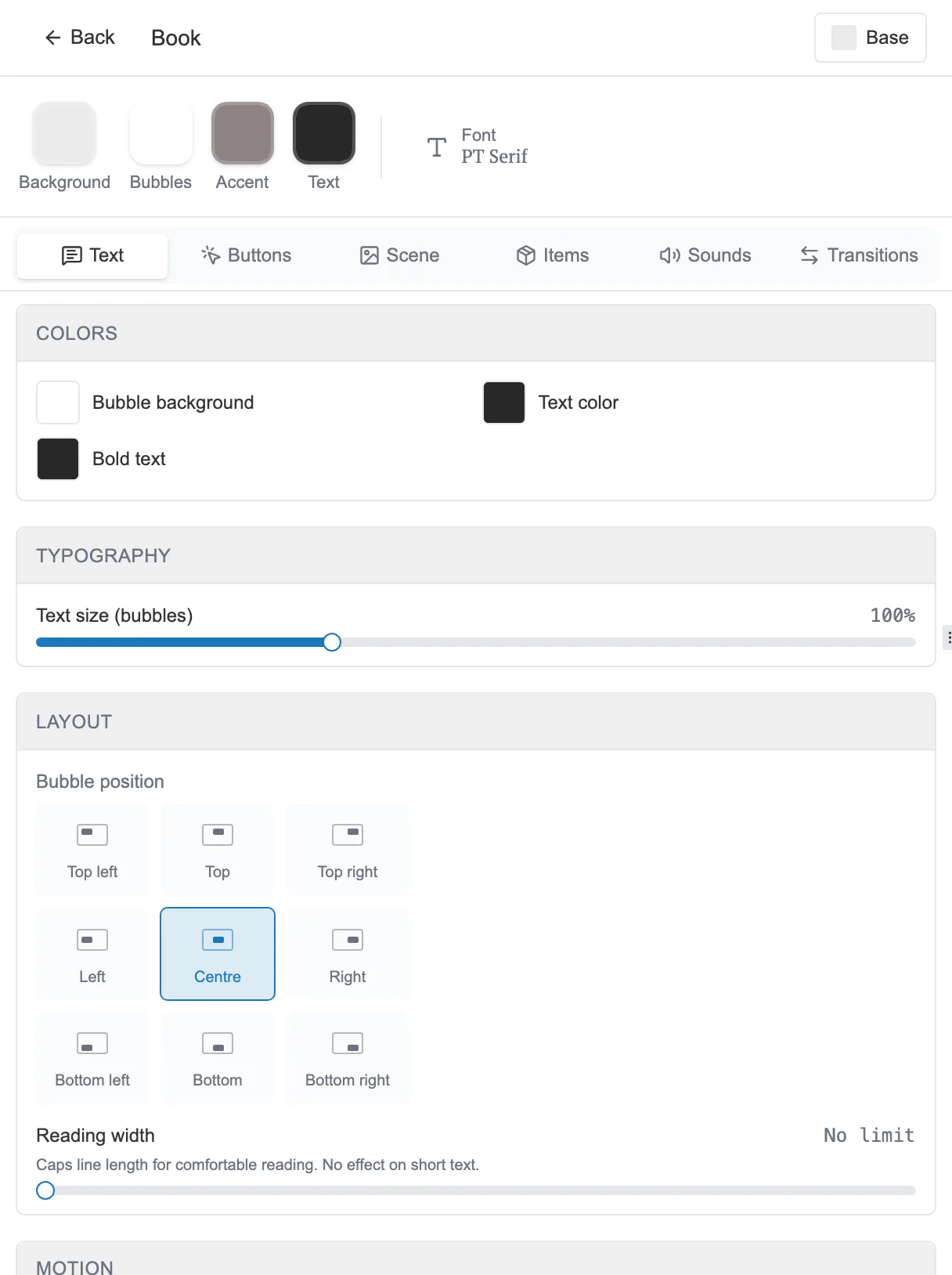
A theme editor: colors, font, and one tab per facet of the look, plus Extensions when a sequence type in your story has its own look settings.
The right-hand panel has two modes, in its header. Story shows your story dressed by the theme. Previews lines up the seven screens where the look plays out: the Text bubble, the Choice buttons, the Code keypad, the Timer, the Item gained, the Item handed over and the Game ending.
All seven stay there at all times, whichever settings tab is open. That is on purpose: a text color shows up just as much on the code keypad as on the final screen, and it is better to see it right away than to discover it while playing.
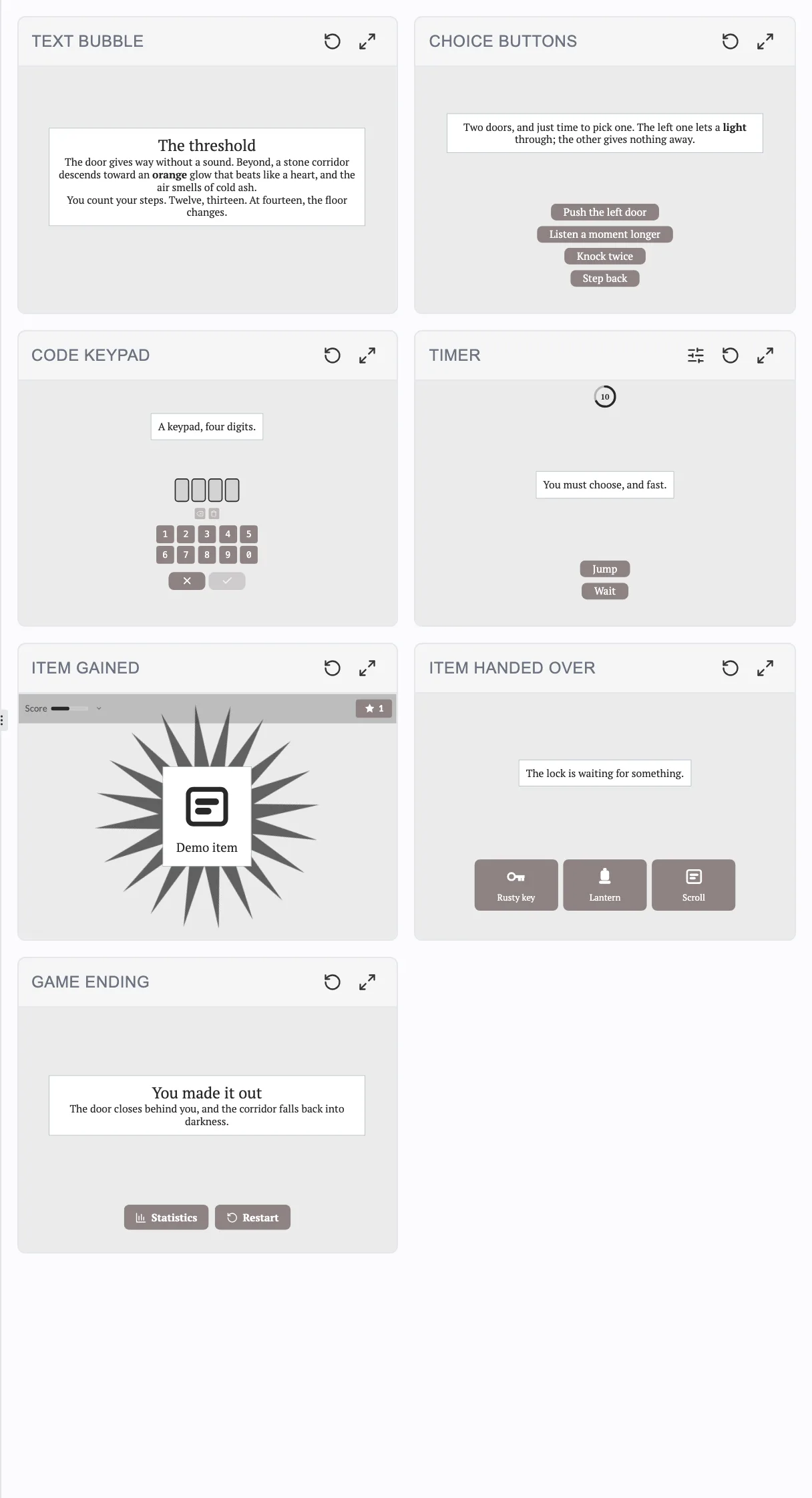
The seven screens, dressed by the selected theme. Each one replays in place.
Six tabs share out the look: Text, Buttons, Scene, Items, Sounds and Transitions.
- Scene covers the backdrop, and the Game bar at the top of the screen: its background color, the color of its icons, the inventory button icon, and whether the number of items carried is shown.
- Items sets what happens when the reader is granted an item: the Gained item reveal and the Reveal decoration.
The Scene tab also carries the Particle effect, which drops something in front of the scene: Snow, Rain, Dust or Sparkles, with their options.
Gradients, and where they apply
Section titled “Gradients, and where they apply”Four backgrounds accept a Gradient rather than a flat color. The color picker offers a dedicated tab for them:
- the scene background,
- the bubble background,
- the button background,
- the Game bar background.
The text, border and icon colors do not accept one.
How the text appears
Section titled “How the text appears”In the theme editor’s Text tab, the Text animation section sets the way text writes itself on screen. A switch turns it on, and eight presets save you from adjusting everything: Typewriter, Fade, Word by word, Airport flip, Scramble, Wave, Focus and Bounce.
A preset is only a set of values. Fine-tune opens the detail: the Granularity (per character or per word), the Speed, the effect, the start state and the cursor. Touching any one of these settings switches the preset to Custom, and picking a preset again rewrites the lot.
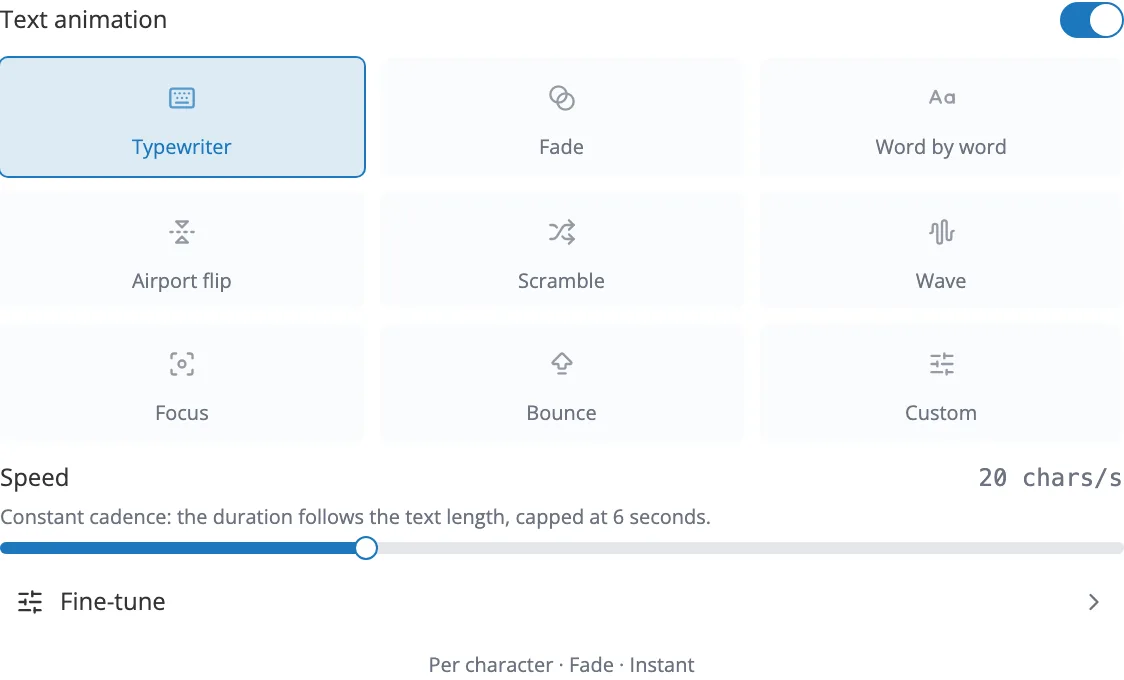
The eight presets, the speed, and Fine-tune for the detail.
Applying a theme
Section titled “Applying a theme”One theme in the list carries the Default badge: that is the one dressing the whole story. To change it, open the … menu of the theme you want and choose Set as default.