

Sub-graphs and routines
When a story grows, you need to tidy it up. A sub-graph is a small graph of its own, set aside to organize your story or to reuse the same passage in several places.
Moving from one graph to another
Section titled “Moving from one graph to another”At the top of the graph, a selector switches between the Main story and your sub-graphs. It holds the list of your sub-graphs and a shortcut to create a new one.
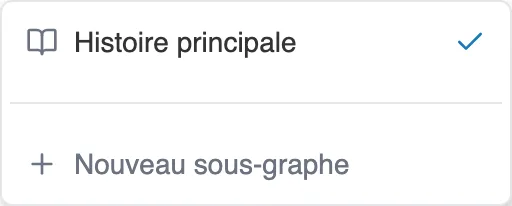
The graph selector: moving from the Main story to a sub-graph.
Once inside a sub-graph, a label at the top right of the graph reminds you where you are: the mode of the sub-graph, Chapter, Routine or Interlude, followed by its name.
Creating and calling a sub-graph
Section titled “Creating and calling a sub-graph”In the Sub-graphs tab, the Add button creates a sub-graph. You give it a name and choose its Mode. A brand new sub-graph already comes with a starting sequence and a Sub-graph exit.
To use it in the story, you place a Sub-graph sequence where you want to call it. At the exit, reading picks up its course again. Sub-graphs in Interlude mode are the exception. They are triggered another way, and are not offered when you place a Sub-graph sequence. See Interludes and chapters.
A sub-graph can have several ways out. Place as many Sub-graph exit sequences in it as there are ways to leave: each one becomes an exit of the sequence that calls it, under its own name, and you link it like a choice. An exit added later appears on every call. A deleted exit disappears from them, along with the link that led from it.
In the list, the name of a sub-graph is a button that opens it. To Rename it, go through the … menu on its row, where Duplicate and Delete also live.
Tidying sequences into a sub-graph
Section titled “Tidying sequences into a sub-graph”A passage you have already written can be tidied away without copying it. Select its sequences in the graph (see Selecting several sequences), then click Turn into a sub-graph in the Multiple selection panel. The sequences move into a new sub-graph, and a Sub-graph sequence takes their place in the graph, with the same links.
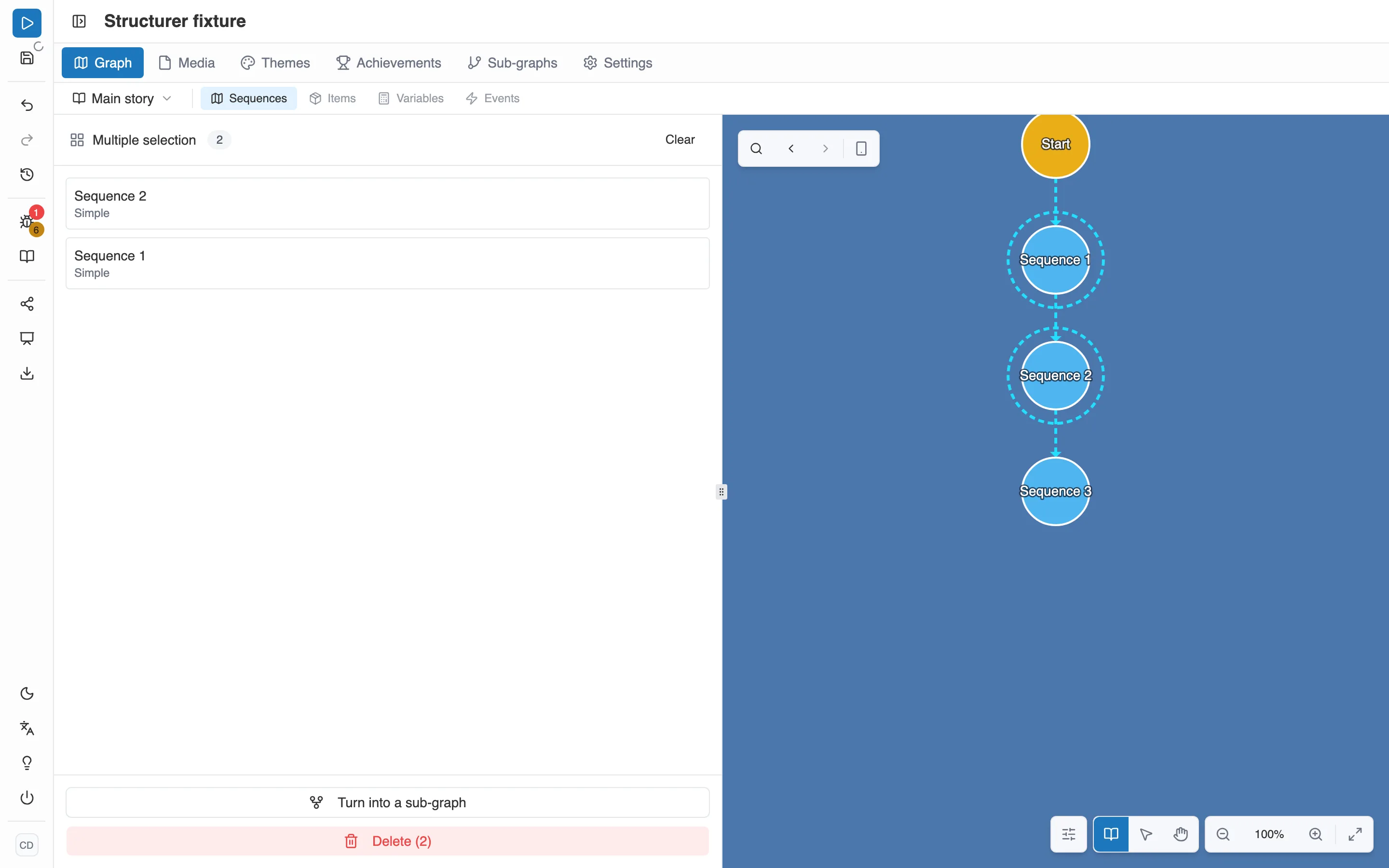
Two sequences selected: the Multiple selection panel offers to turn them into a sub-graph.
The window that opens asks for the Sub-graph name, which is required. From the main story, it also asks for the Mode: Routine, picked by default, or Chapter. From inside another sub-graph, the new one will be a routine. Finally, the window shows the Entry, the sequence through which you enter the selection, and the Exits, one for each sequence the selection leads to. Each exit becomes a Sub-graph exit, named after its destination.
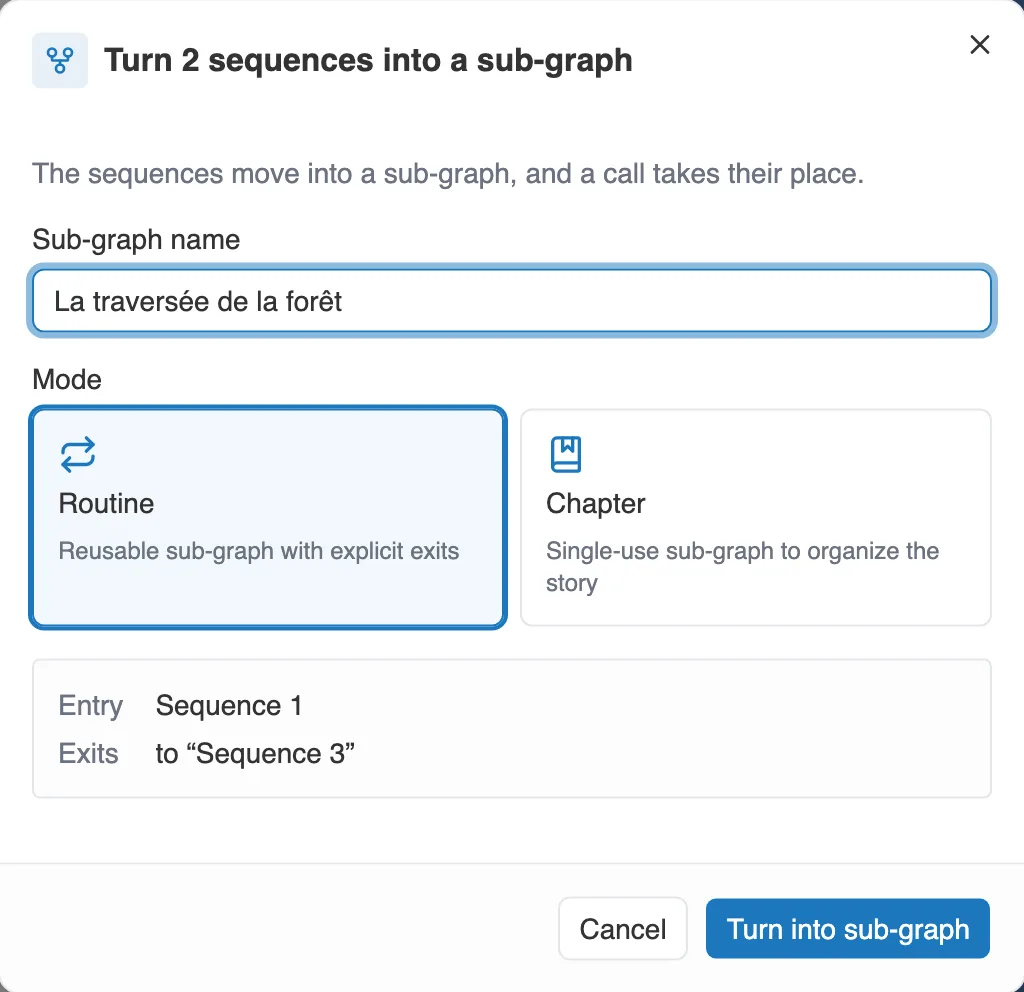
The window announces the entry and the exits of the future sub-graph.
Not every selection lends itself to this. A sub-graph has only one entry, so only one sequence of the selection may be reached from outside it. The selection cannot contain the starting sequence, a story ending, a sub-graph exit or a fragment of a collaborative workshop either. When the move is impossible, the button stays greyed out, and the reason shows just below it: you know which sequence to take out of the selection.
Putting a sub-graph back into the graph
Section titled “Putting a sub-graph back into the graph”The reverse move starts from a Sub-graph sequence. Open the … menu of its panel, then choose Put back into the graph.
- If the sub-graph is only called from this spot, its sequences come back into the graph, and the sub-graph disappears.
- If it is called from several spots, a copy of its sequences is placed here, and the sub-graph stays in place for the other calls.
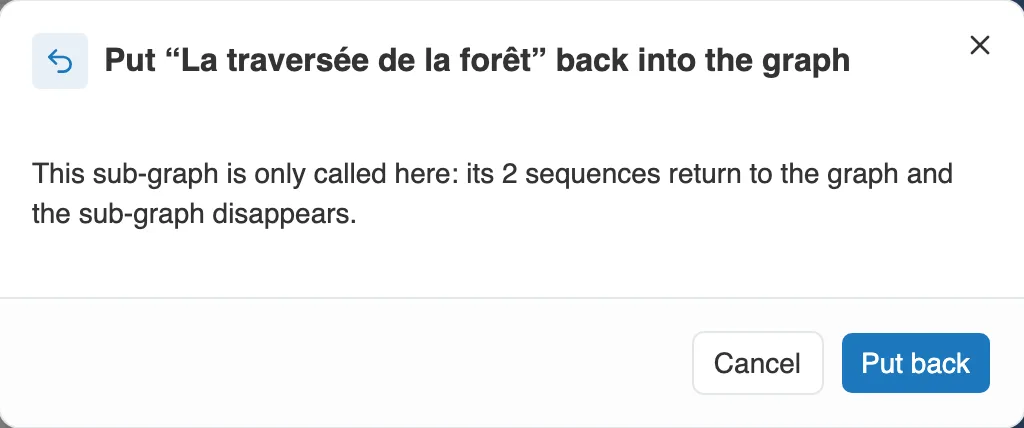
The window tells you what will happen before you confirm.
When the sub-graph has local variables, the window asks what becomes of them. Make them story variables keeps them with their name and starting value. When the call links some of them to a story variable, Replace them with the linked variable puts that variable in their place.
Local variables
Section titled “Local variables”A routine and an interlude can have their own Local variables, which only live for the time they run. You can also pass them values on the way in and get values back on the way out, like parameters.
A chapter, however, has no local variables. It is played only once, and a variable erased on the way out would be a trap: “Took the key”, set in the first chapter, would be gone in the next one. A variable you create while working inside a chapter therefore belongs to the story. An older story may still hold local variables in a chapter: the Validation flags them.
The Mode of a sub-graph changes the way it fits into the story. See Interludes and chapters.