

The media library
All the media of a story live in the same place: the Media tab. You import your files once, then place them on as many sequences as you like.
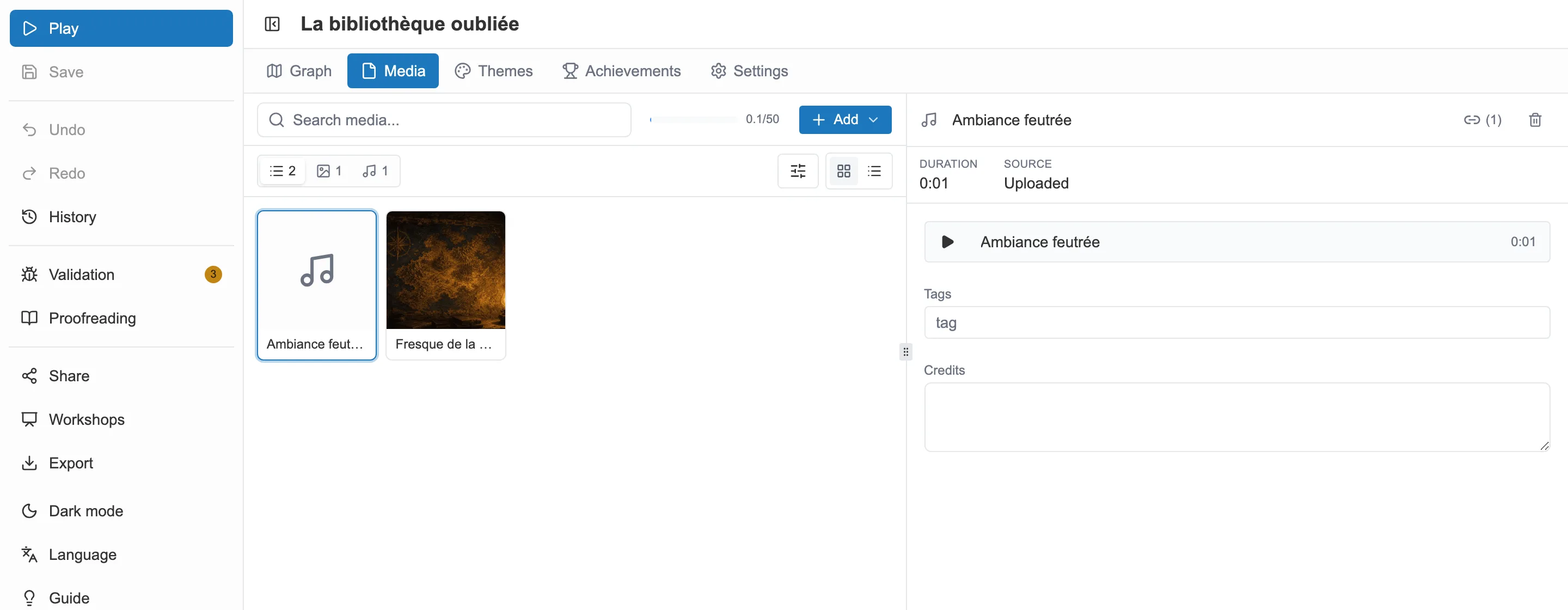
The Media tab: the gallery on the left, the details of the selected media on the right.
Four families of media
Section titled “Four families of media”Every imported file belongs to a family, deduced from its format. The family decides which formats are accepted and the maximum size:
| Family | Accepted formats | Maximum size |
|---|---|---|
| Images | JPEG, PNG, WebP | 2 MB |
| Sounds | MP3, WAV, OGG, WebM | 5 MB |
| Videos | MP4, WebM, MOV, AVI, MKV | 10 MB |
| Icons | SVG | 300 KB |
Importing
Section titled “Importing”The Add button opens the available sources.
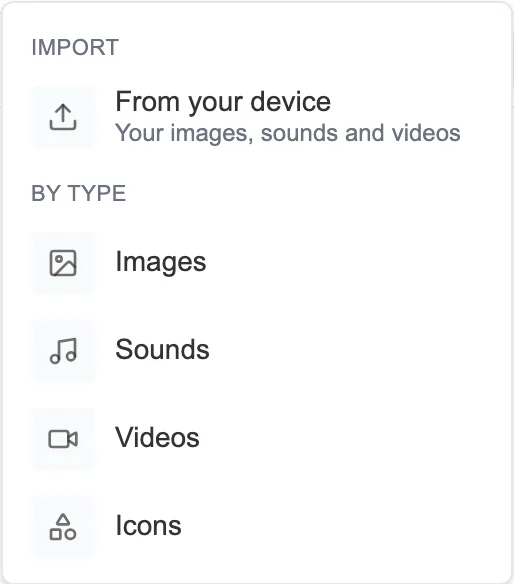
The Add menu: where your media come from.
- From your device: your own files. You can also drag them straight into the gallery.
- By type: an online search at a partner service, different for each family (Unsplash for images, FreeSound for sounds, Pexels for videos, The Noun Project for icons).
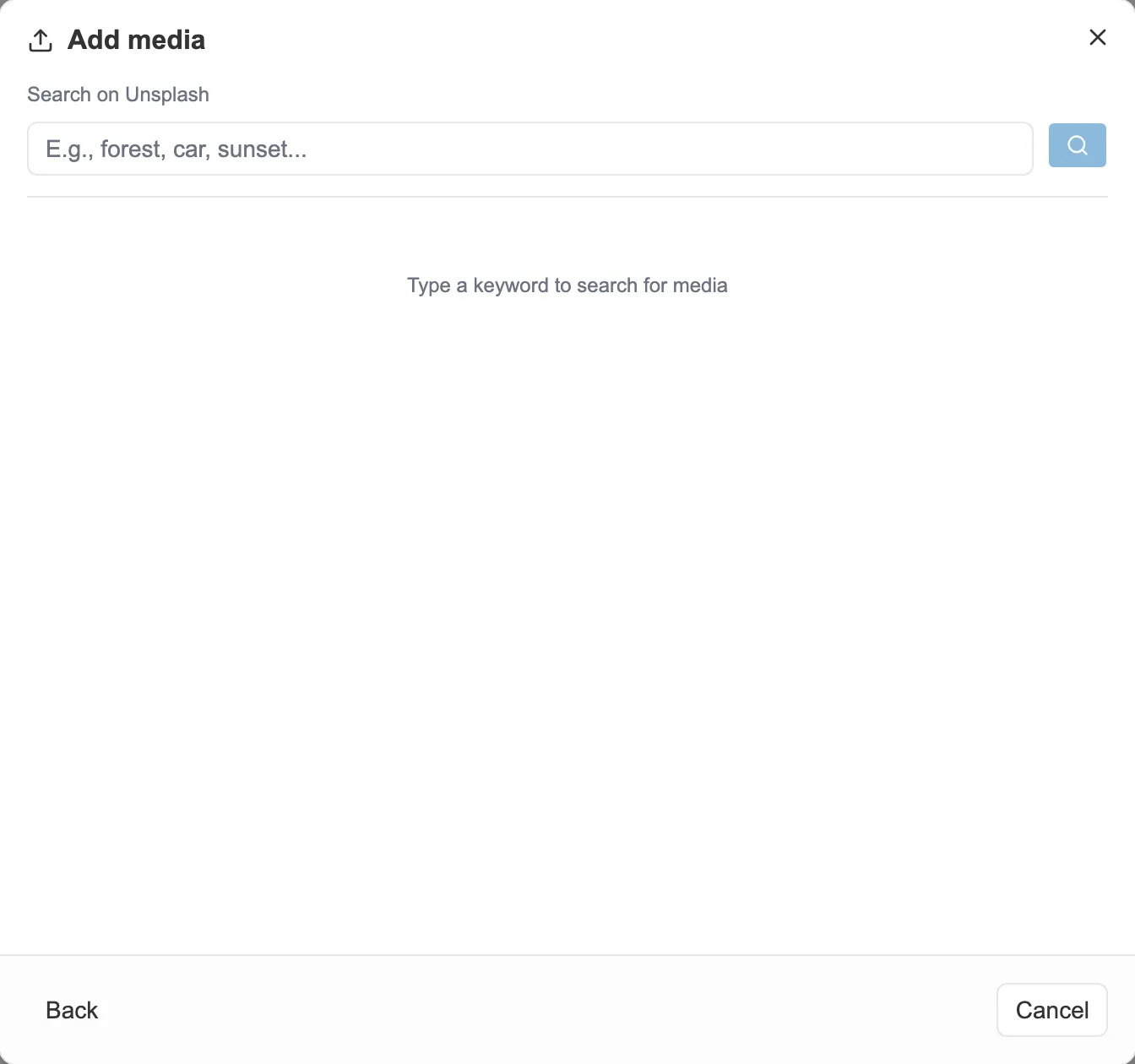
The online search, here on Unsplash.
Sounds get one more source: recording from the microphone, straight in the browser. See Sound.
A refused file is never dropped silently: the import window names it and says why, format not accepted or size over the limit.
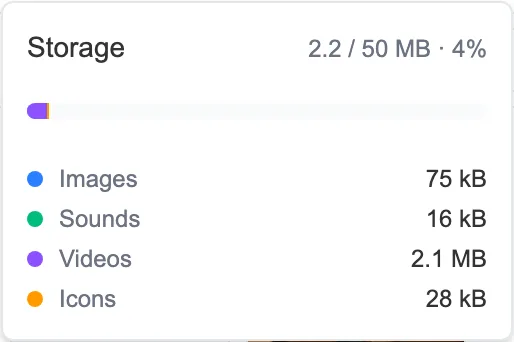
The storage meter, expanded: what each family weighs.
Reusing
Section titled “Reusing”A media is imported only once. The same sound or the same image can then serve on as many sequences as you want, without using any extra storage. The detail pane of each media shows how many places use it, and lets you jump to them. The details also give its characteristics (weight, dimensions, duration, format) and its source: Uploaded for a file that came from your device, the name of the service for a media found online.
Placing a media on a sequence
Section titled “Placing a media on a sequence”The MEDIA block, under the text of the editing panel, offers an Add media button. Its menu draws on the library. Its last entry, Create a new media, uploads a file without leaving the sequence: it joins the library and is placed on the sequence right away.
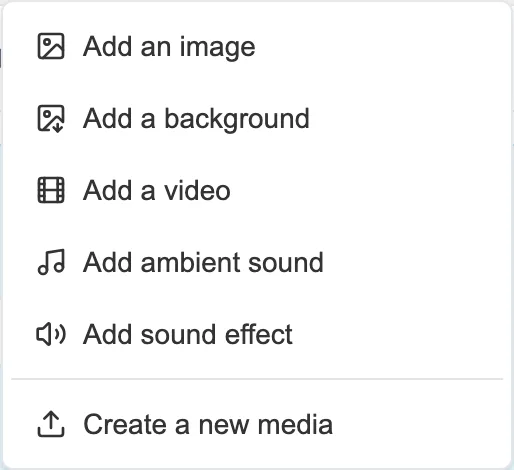
The Add media menu, in the panel of a sequence.
A sequence offers five slots, each one described on the page of its family:
- an image, shown with the text,
- a background image, behind the text,
- a background video, in place of a background image,
- an ambient sound, playing continuously,
- a sound effect, played on arrival at the sequence.
The menu only shows the slots that are actually available. A slot disappears once it is filled, and only appears if the library holds at least one media of the matching family. The ambient sound is the exception: it stays on offer even with no sound at all, so that you can cut the ambience that is playing. See Sound.