

Sharing
Is your story ready? One link is all it takes to have it read. The Share button in the action bar opens everything you need.
Who can open your story
Section titled “Who can open your story”When it is created, a story is private. The Share window then opens on a switch that is off, and the link is not offered to anyone yet.
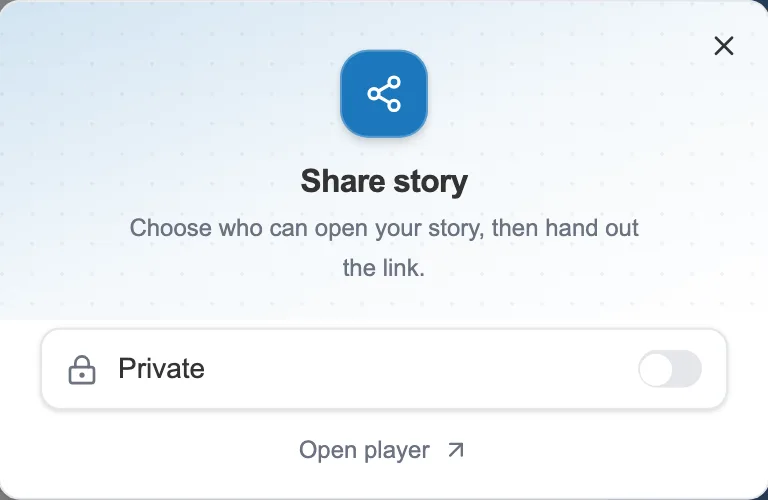
On a private story, the switch is off.
Turn it on, and the label becomes Anyone holding the link. Your story’s address works from that moment on.
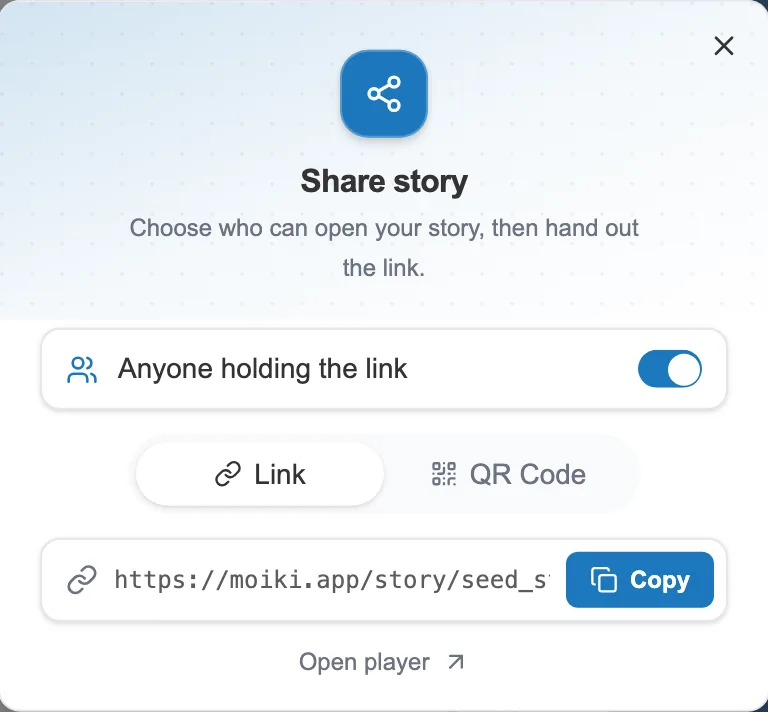
Sharing turned on: the link appears, ready to be copied.
This setting lives here, and nowhere else. So you close a story again where you opened it, by turning off the same switch.
A link, or a QR code
Section titled “A link, or a QR code”Once the switch is on, two tabs appear.
- Link shows your story’s address. The Copy button puts it on the clipboard. You then hand it to whoever you like, by message, by email, on a website.
- QR Code turns that same address into a code to scan, for a poster, a paper handout or a projection in class.
Those two only make sense once sharing is active. As long as it is not, there is nothing to hand out. The Open player link, on the other hand, stays there in both states. It opens your story in a new tab, exactly as a reader will see it.
On the reader’s side there is nothing to install. The link opens in the browser. See Playing a story.