

Variables
A variable remembers a piece of information that changes as the story is read: a number of points, a true or false state, a word picked by the reader. It is the basis of interactivity.
Variables are managed in the Variables tab. The families sit across the top of the screen, each with its count, and All brings them together. Below, your variables appear as cards or as rows, depending on the toggle to the right of the search box.
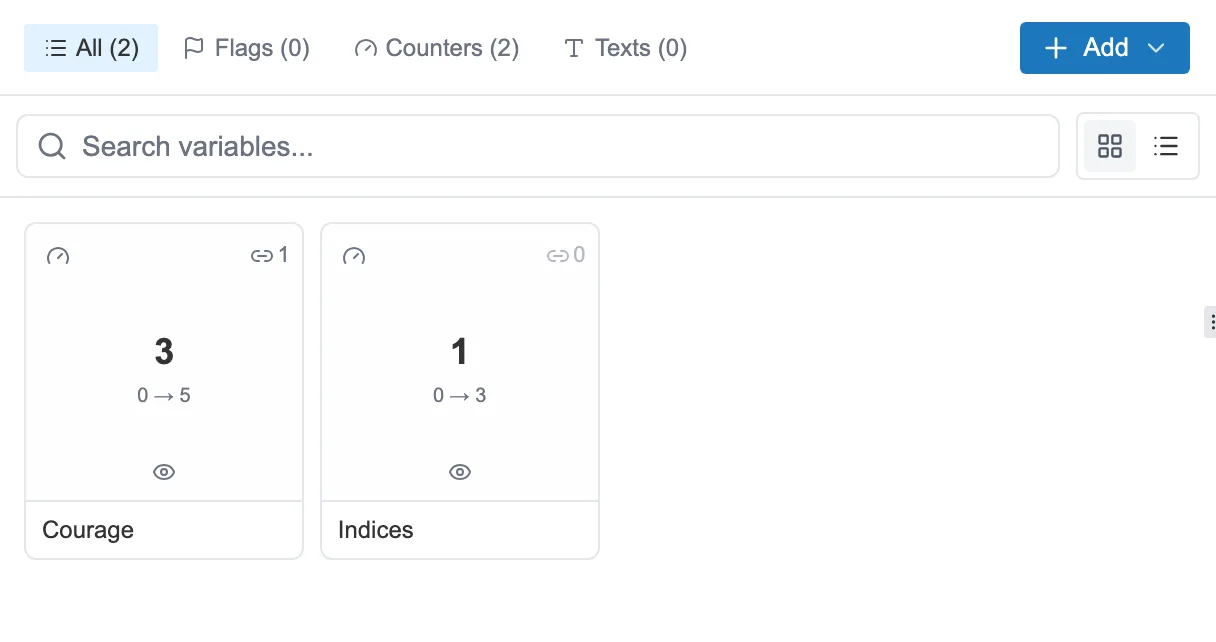
The Variables tab: the families at the top, your variables below.
A card shows the essentials without opening anything: the starting value in large type, the counter’s bounds underneath, and the number of places where the variable is used.
Three families
Section titled “Three families”- A Counter holds a number, with a starting value and, if you want, a minimum and a maximum: hit points, gold, a score.
- A Flag holds a true or false state, to remember a decision: “did they take the key?”.
- A Text holds a word or a sentence, picked from a list if you like.
Creating a variable
Section titled “Creating a variable”The Add button lets you create a flag, a counter or a text. A window opens where you name it and set its starting value.
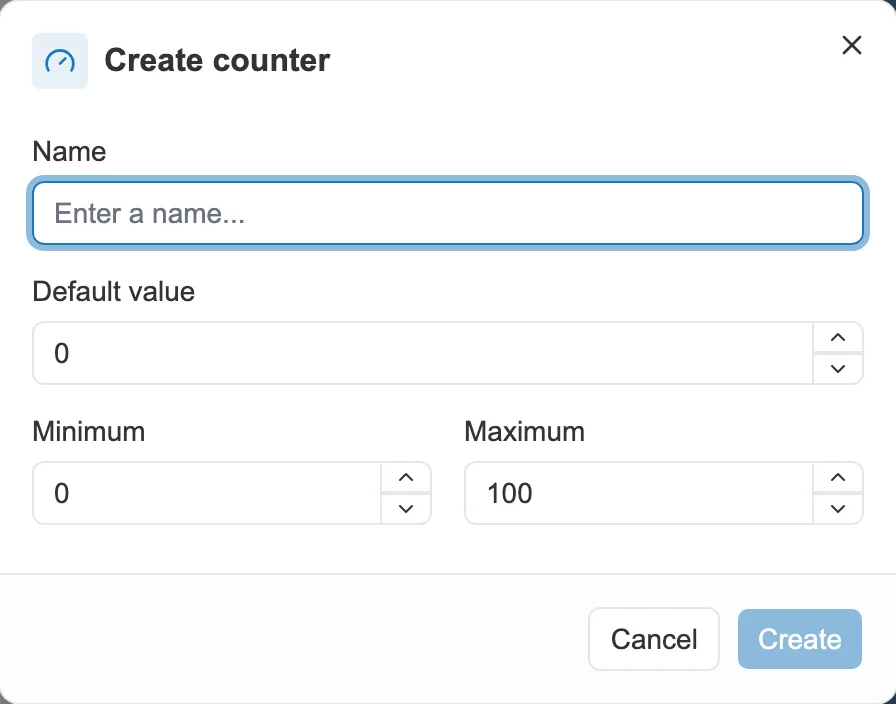
Creating a counter: its name, its starting value, its bounds.
Finer settings come afterwards, in the tab of its family, Flags, Counters or Texts, where each variable is edited in place.
Showing a counter as a gauge
Section titled “Showing a counter as a gauge”A counter can be shown to the reader as a gauge, in the game bar. The option sits on the counter itself. On the reading side, see Gauges and counters.
What they are for
Section titled “What they are for”Once created, variables slip in everywhere:
- in the text, to display their value. See Inserting a variable into the text.
- in conditions, to open a passage only in certain situations. See Conditions.
- in actions, to make them change. See Actions and redirects.