

Moving around the graph
As your story grows, the graph spreads well beyond the screen. A handful of controls are enough to move around it and keep a clear view.
Hovering over a sequence shows its preview, selecting it opens it on the left. Zoom and drag the canvas to explore, then Fit to content frames the whole graph again.
Zooming and framing
Section titled “Zooming and framing”At the bottom right of the graph, a small group of controls sets the view.

The group of controls, at the bottom right: the Display, the mouse modes, then the zoom and Fit to content.
The minus and plus buttons adjust the zoom, with the current percentage between the two. The Fit to content button frames the whole graph so that it fits in the view, which helps you get your bearings after wandering off.
Three neighboring buttons change the way the mouse acts on the graph: move around by scrolling, select, or drag the canvas. In select mode, holding the space bar while dragging also moves the canvas.
Changing the look of the graph
Section titled “Changing the look of the graph”The first button of the group opens the Display panel.
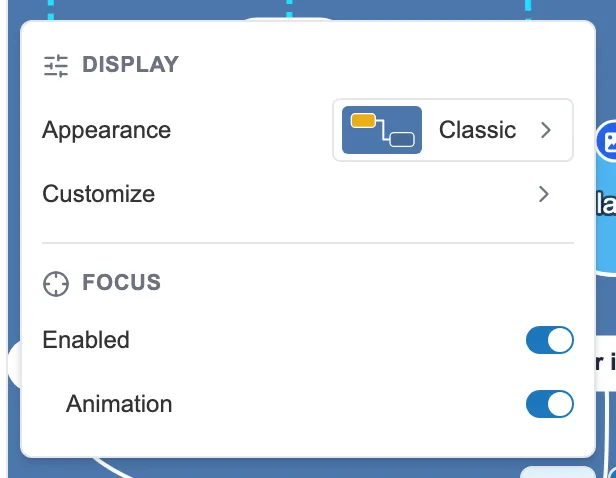
The Display panel: a ready-made appearance, or your own settings.
Appearance offers four ready-made looks, Classic, Modern, High contrast and Paper. Pick the one that rests your eyes, nothing else changes in your story.
Customize opens the details: the background color, the grid and its step, the node outline, the label shadow. As soon as you touch one of these settings, the appearance switches to Custom, so that it does not show the name of a preset that no longer describes what you see.
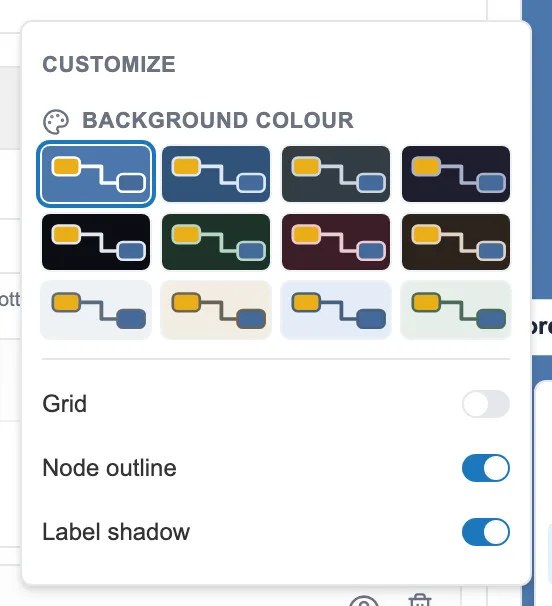
The twelve backgrounds, then the finer settings.
The backgrounds are more than plain colors. Each thumbnail is a matched set: the background, the link color, the node outline, the grid and the selection color all go together. The thumbnail even draws a background, a link and two nodes, so that you pick a look rather than a shade.
Keeping only the surroundings
Section titled “Keeping only the surroundings”The Focus section, at the bottom of the same panel, dims whatever is far from the selected sequence to keep only its surroundings. One switch turns it on, a second one animates the transition.
Finding a sequence
Section titled “Finding a sequence”At the top left, a second group helps you navigate from one sequence to another.

The magnifier to search for a sequence, the arrows to move from one to the next.
The magnifier searches for a sequence by name. The arrows move to the previous or the next sequence. The last button opens a preview of the sequence, as it will appear to the reader.